
This tutorial shows you four different ways to identify the font used on a website. One of these methods is already available on your computer, while the others involve online tools or browser extensions that you can add to your browser.
Use Browser Developer Tools to Identify a Website’s Font
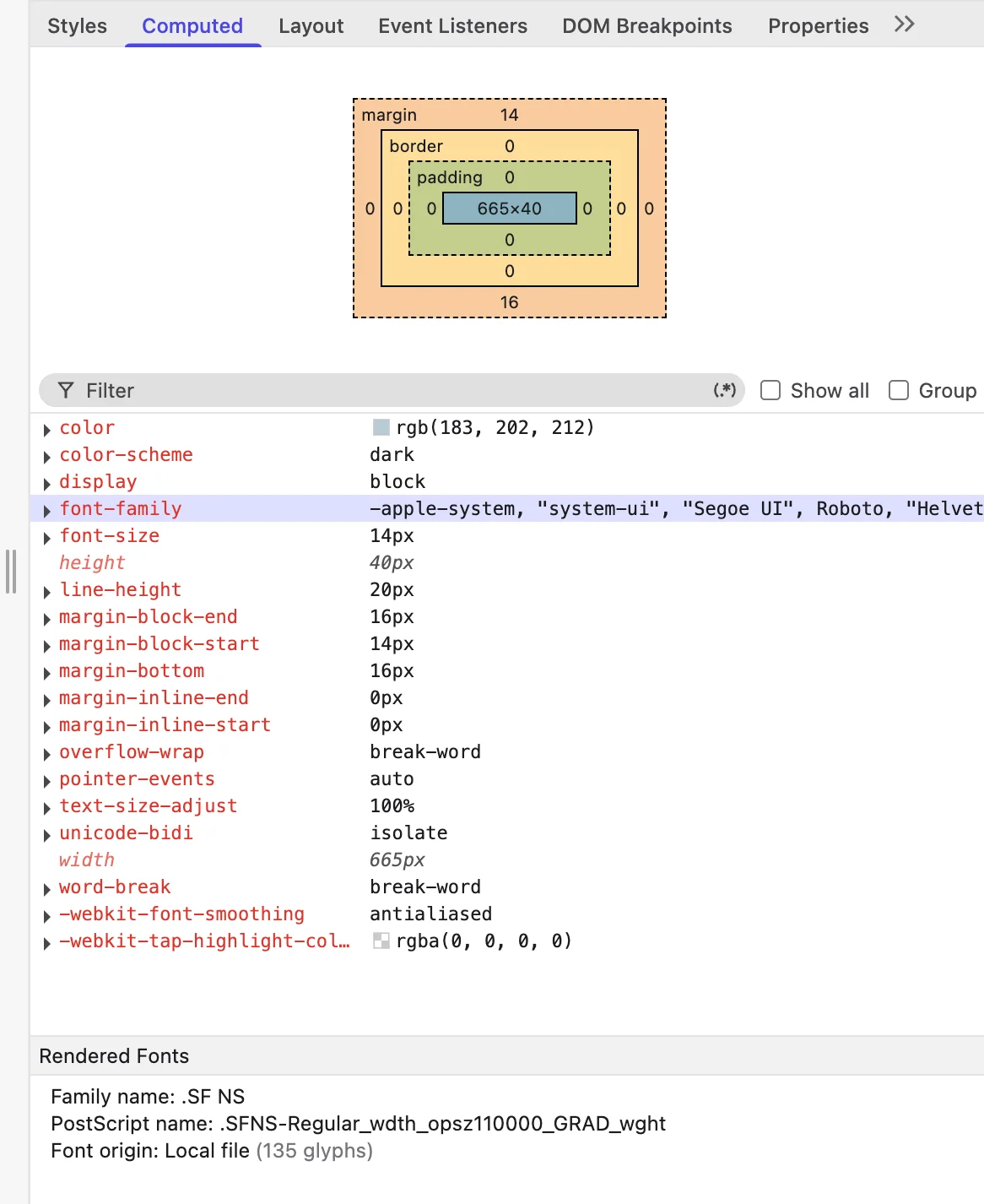
This method is very easy to follow. Just go through these steps:
- Open the website in your preferred browser.
- Right-click the text whose font you want to identify.
- Select Inspect or Inspect Element.
- Open the Computed tab in Developer Tools.
- Find the font-family property.
- Check the Rendered Fonts section in your browser to confirm which font is actually displayed.
Use a Browser Extension to Find Fonts
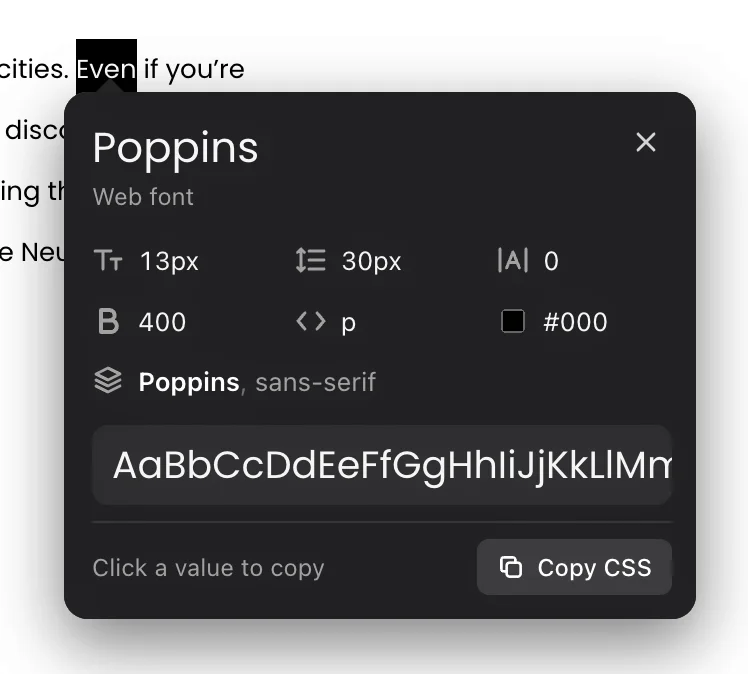
Another easy way to identify fonts on a website is to use a browser extension. These tools let you inspect text directly on a webpage without opening Developer Tools. Simply install an extension, visit the website, and click or hover over the text to see which font it uses.
There are several font identification extensions available for different browsers, including Chrome, Safari, Firefox, and Brave. Some popular options include:
- WhatFont: Identifies fonts by hovering over text on a webpage.
- Fonts Ninja: Shows font names, styles, sizes, and other typography details.
- Fontanello: A lightweight extension that displays font information when you right-click text.
Before installing one, check its browser compatibility and available features, as not every extension supports all browsers.
Use Online Website Font Finder Tools
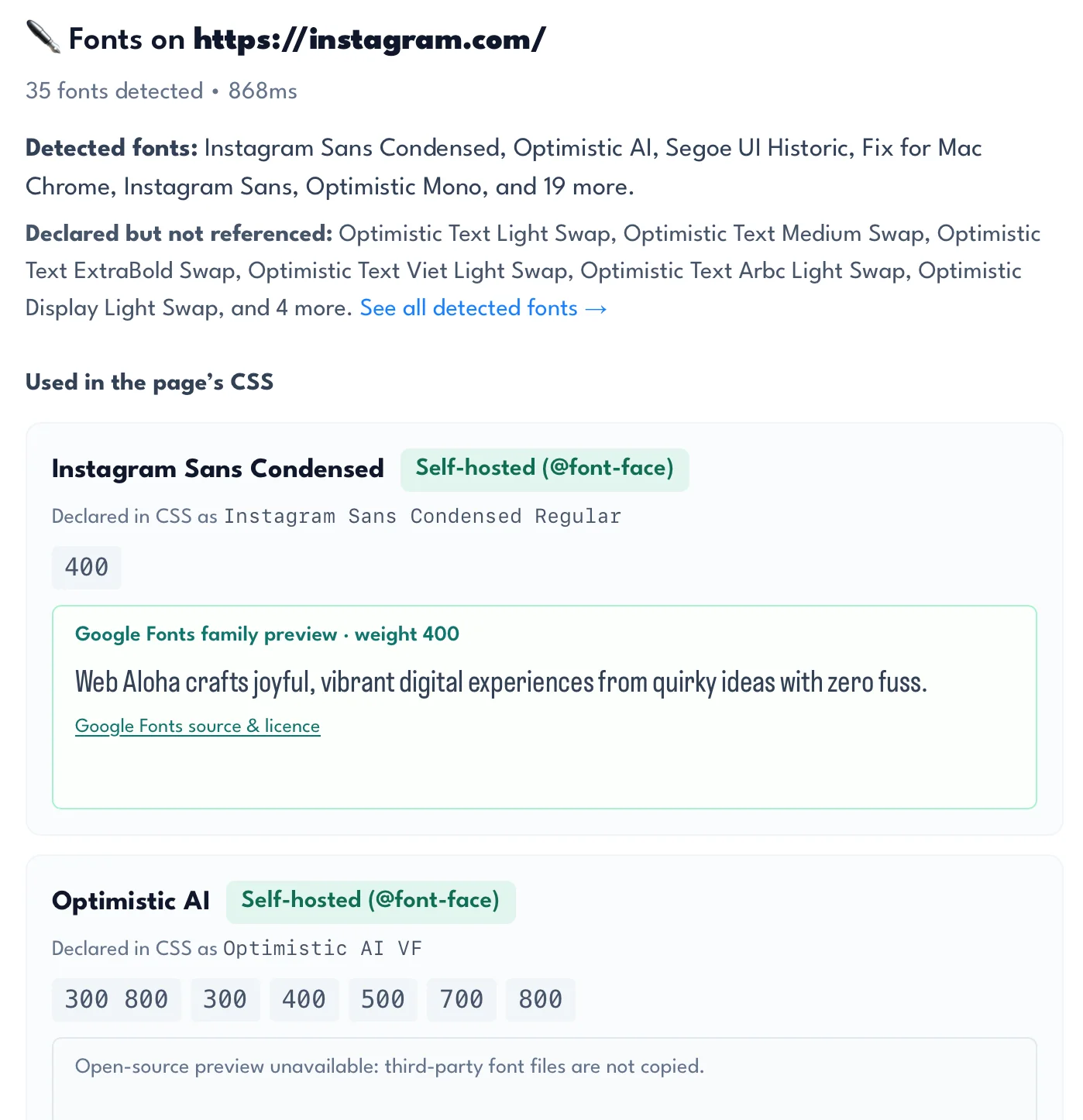
If you don’t want to inspect a website’s code manually or install a browser extension, you can also use an online website font finder. These tools allow you to enter a URL and automatically analyze the typography used on a webpage. However, they don’t all work in the same way. Some inspect the website’s HTML and CSS, while others load the page in a real browser to identify the fonts that are actually displayed.
Here are two tools worth trying:
- Enrichr: This tool opens a website in a real browser, allowing JavaScript and web fonts to finish loading before analyzing its typography. It reads the computed font-family of text elements and groups the results by font family. It also displays font weights and fallback fonts. This makes it particularly useful for websites built with frameworks such as React or Next.js, as well as pages using self-hosted fonts. However, the free version has usage limitations, and you may need a paid plan if you want to analyze additional websites.
- WebAloha Website Font Checker: This tool analyzes a webpage’s HTML and CSS to identify font declarations. It checks Google Fonts, Adobe Fonts, self-hosted fonts, and system fonts. The results include font families, available weights, sources, and CSS references. It can also generate a typography preview for elements such as headings, paragraphs, links, and buttons. Keep in mind that it identifies declared fonts rather than confirming which font the browser actually rendered.
Both tools can help you discover the typography behind a website’s design. However, if you want to confirm which font is actually displayed on a particular element, browser Developer Tools remain a useful way to verify the results.
How to Identify a Font from a Website Screenshot
If the font you want to identify is part of an image, banner, logo, or website screenshot rather than selectable text, you can use an image-based font identifier. These tools analyze the shapes of individual letters and compare them with fonts in their databases.
Here are three tools I tested:
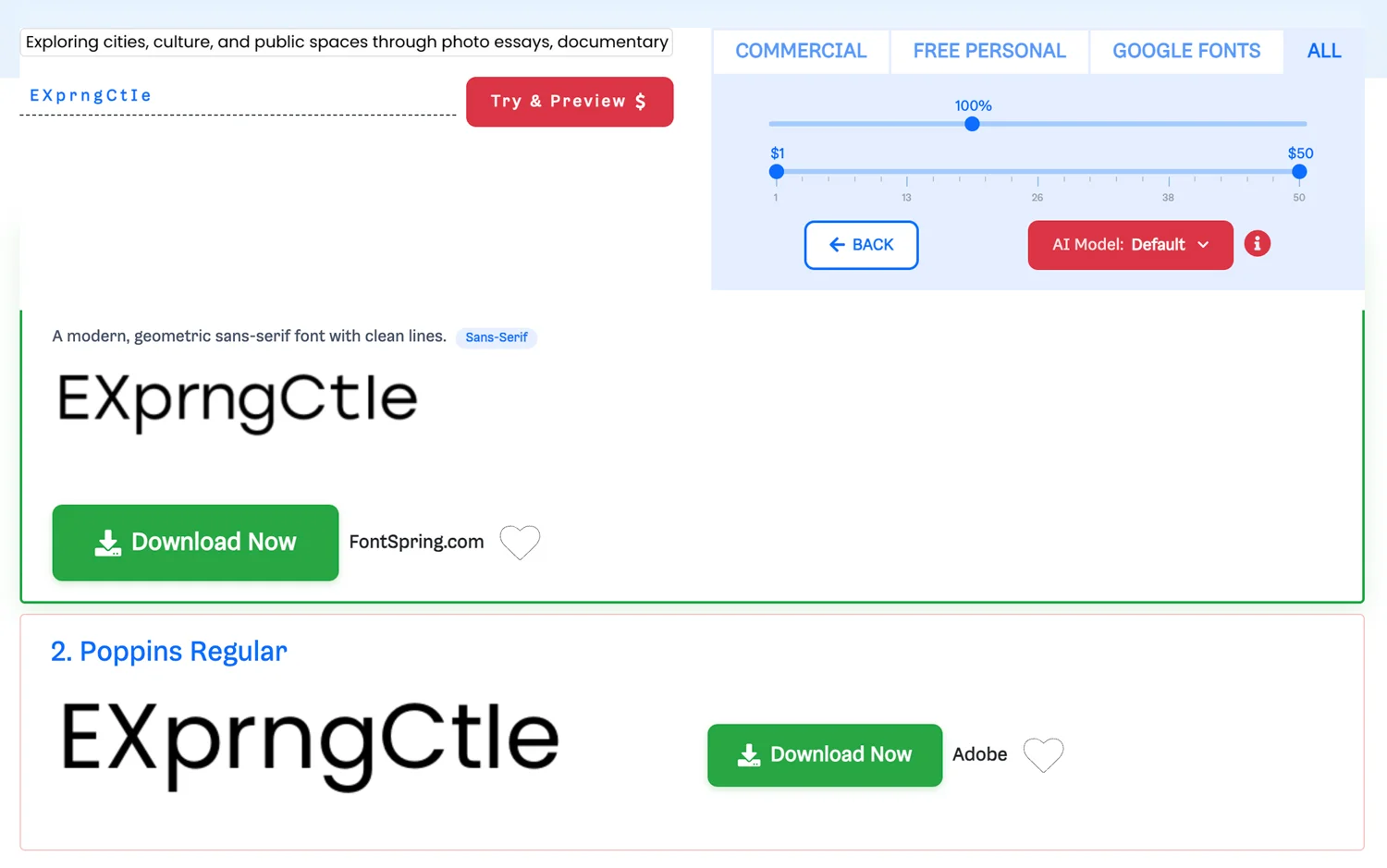
- WhatFontIs: This was my favorite among the three tools I tested. When I uploaded an image containing the Poppins font, it appeared as the second suggestion in the results. The tool also provides similar typefaces, making it useful when you want to find alternatives to a particular font.
- WhatTheFont by MyFonts: This is a well-known font identification tool, but my test results were less accurate. I uploaded the same image containing Poppins, but the font didn’t appear among the first suggestions. Most of the results I saw were also paid typefaces, so I had to look further to find a closer match.
- Font Squirrel Matcherator: This tool offers another option for identifying fonts from images. However, my experience was less positive. The analysis took a long time, and the page displayed quite a few advertisements while processing the image. I would try the other two tools first.
What to Do After Identifying a Website’s Font
Once you identify a font used on a website, you can look for its original source and check whether it is available for your own projects. Here are a few things to consider before using it:
- Find the original font source: Search for the font on Google Fonts, Fontshare, Adobe Fonts, or the original type foundry’s website. This helps you find the correct font files and avoid unofficial downloads.
- Check the font licence: Not every font is free for commercial use. Check whether its licence allows personal projects, commercial websites, client work, or other intended uses.
- Look for available font weights and styles: Check whether the typeface includes regular, medium, semibold, and bold weights, as well as italic styles. You may need several variants to recreate the original website’s typography.
- Find a similar alternative: If the original font is paid or unavailable, look for a similar free typeface. Tools such as WhatFontIs can help you discover visually comparable alternatives.
- Test the font in your own design: Before using it across an entire website, try it in headings, paragraphs, buttons, and navigation elements. Make sure it matches your brand identity and remains readable on different screen sizes.
What Is the Best Way to Identify a Website’s Font?
There are several ways to identify fonts used on websites, and the best method depends on what you are trying to find. However, my personal favorite is using the browser Inspect tool. I don’t particularly like installing additional extensions in my browser, and I find image-based font identification tools somewhat unreliable. Inspect gives me direct access to the font information without requiring any extra software. It is also a good way to check which font is actually rendered on a webpage.