

Nowadays, many websites need to consider cookie consent and privacy requirements. If you use tracking services such as Google Analytics, you may need to obtain consent before using certain cookies or similar tracking technologies, depending on your visitors and applicable privacy laws.
In this tutorial, you’ll learn how to add a cookie banner to a Carrd site and which third-party cookie consent tools you can use. Carrd does not currently offer a built-in cookie consent solution, so you’ll need to use a third-party service or add your own solution with custom code.
Do You Need a Cookie Banner on Your Carrd Site?
Not every Carrd website needs a cookie banner. If you have a simple personal, hobby, or art website and do not use analytics, advertising, tracking scripts, or other non-essential cookies, you may not need a cookie consent banner.
However, things can change when you add third-party services. Google Analytics, advertising tools, tracking pixels, embedded content, and some other external services may use cookies or similar technologies. In these cases, you should check what data the service collects and what consent requirements apply to your visitors.
Before adding a cookie banner, check what cookies and tracking technologies your Carrd site actually uses. A banner by itself does not make a website compliant with every privacy requirement.
Does Carrd Have a Built-In Cookie Banner?
As mentioned in the introduction, Carrd currently does not offer a built-in cookie consent banner. If your site needs one, you’ll have to use a third-party solution or add your own custom code.
How to Add a Cookie Banner to Carrd
If you want to add a cookie banner to your Carrd site, you’ll need to use the Embed element. The Embed element is available with Carrd Pro Standard or higher.
Log in to your Carrd account and start a new site by choosing a template. If you already have a site, go to your dashboard and select the site you want to edit.
Once you are in the Carrd editor, click the + icon in the top menu and add an Embed element.
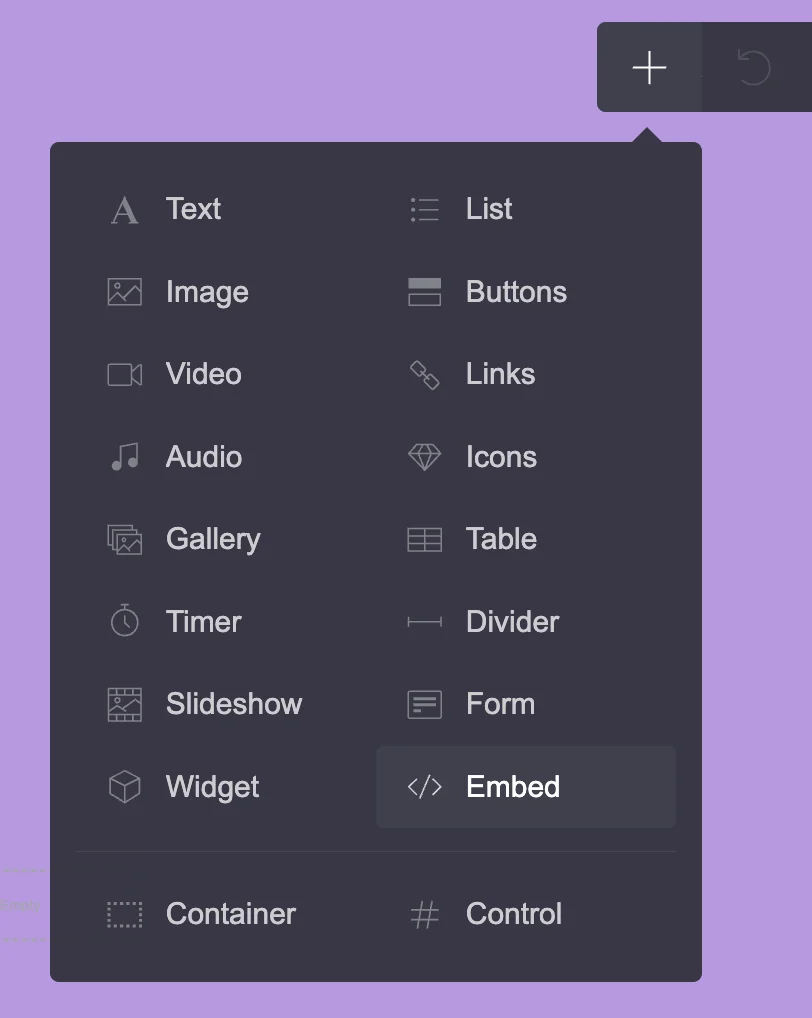
A new Embed element will appear on your site as a transparent grey square.
Click the element to open its settings in the left-hand menu. You can change the Embed type from Code to IFrame, depending on the installation method provided by your cookie consent service.
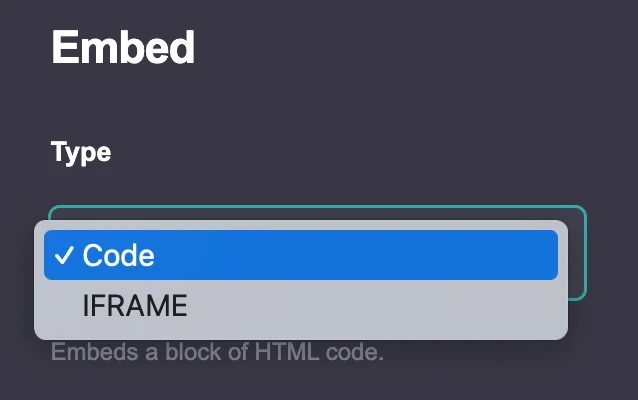
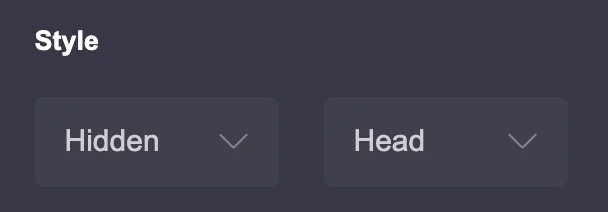
If the service gives you a JavaScript or HTML snippet, choose Code. You can then add a title if needed. Under Style, choose Hidden and Head. This places the code in your site’s <head> without displaying the Embed element on the page.
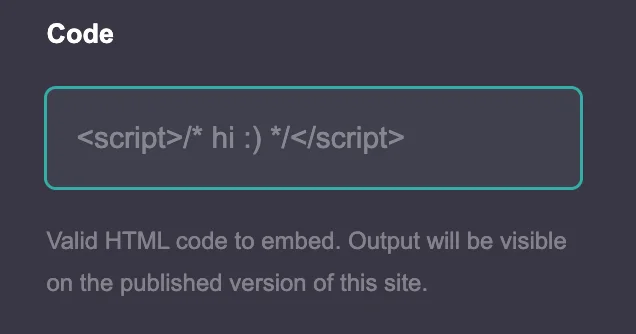
Paste the code into the Embed field, click Done, and save your site.
To check whether the cookie banner works, publish your site to your custom domain or Carrd subdomain and open it in a private or incognito window. This helps prevent an existing consent cookie from hiding the banner during testing.
If you are using a browser such as Brave, the browser may block cookie consent banners. You may need to temporarily disable its cookie notice blocking or Shields for your site while testing.
Choose a cookie consent solution
Here are most common cookie banner third party solutions with free options:
CookieYes
Free: Yes, free forever
Limit: 1 domain, 5,000 pageviews/month, 100 pages per scan
Carrd: JavaScript snippet
iubenda
Free: Yes
Limit: Up to 5,000 pageviews/month
Carrd: JavaScript snippet
Cookiebot
Free: Yes
Limit: Free plan with limited number of subpages
Carrd: JavaScript snippet
Termly
Free: Yes
Limit: Limited features
Carrd: JavaScript snippet
Osano
Free: Limited free option
Limit: More restricted features
Carrd: JavaScript snippet
For this tutorial, I’ll use Cookiebot as an example because it can be added to Carrd by copying a JavaScript snippet into an Embed element.
How to Add Cookiebot to Carrd
You will need to create a new account on the Cookiebot website. Go to their website and click the blue Start Free button at the top.
You can sign up with a Google or Microsoft account, or with another email address.
After you successfully log in, you will find a field on the left where you can add your website address. Underneath, choose your country. When you select your country, Cookiebot automatically applies the relevant legislation preset.
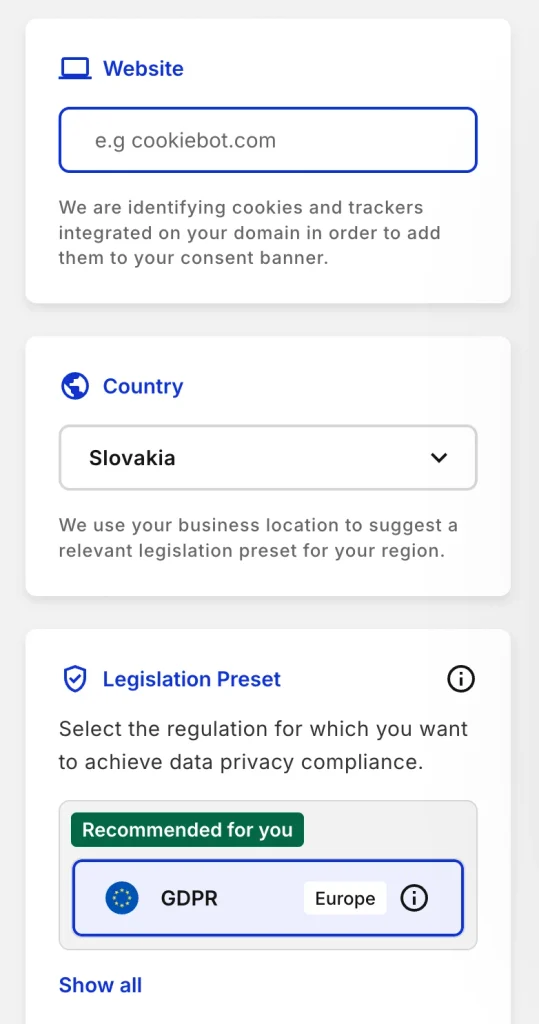
On the right, you will see a preview of your cookie banner. Click the Next button above the preview.
You can now customize its appearance, including the layout, content, language, and privacy settings.
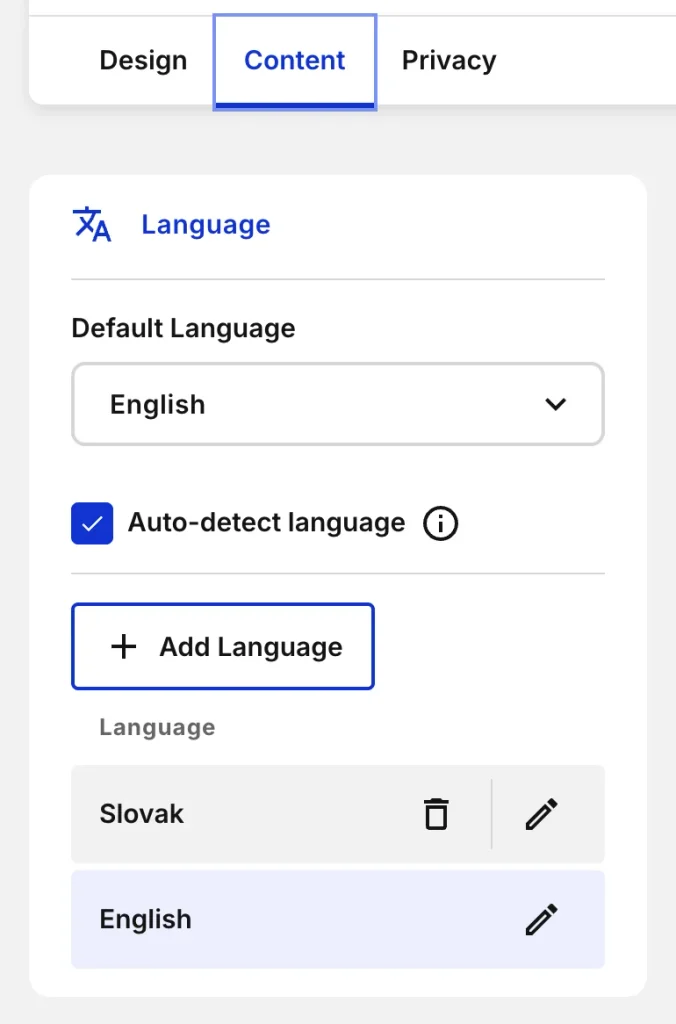
Click Next again. On the next page, Cookiebot will provide the cookie banner script. Copy this script and paste it into the Embed Code element in Carrd.
Don’t forget to save and publish your Carrd site. Then return to Cookiebot and click Verify implementation to check whether your cookie banner has been installed correctly.
If everything is working and your site has been verified, click Finish.
If you want to make additional changes later, go to your Cookiebot dashboard and select Configuration.
Cookiebot allows you to scan your domain for free on a monthly basis. Daily scans are available only on paid plans.
Carrd Cookie Banner for Google Analytics
If you use Google Analytics on your Carrd site, adding a cookie banner may not be enough. Depending on applicable privacy laws, you may need to obtain consent before loading analytics cookies or using certain tracking technologies.
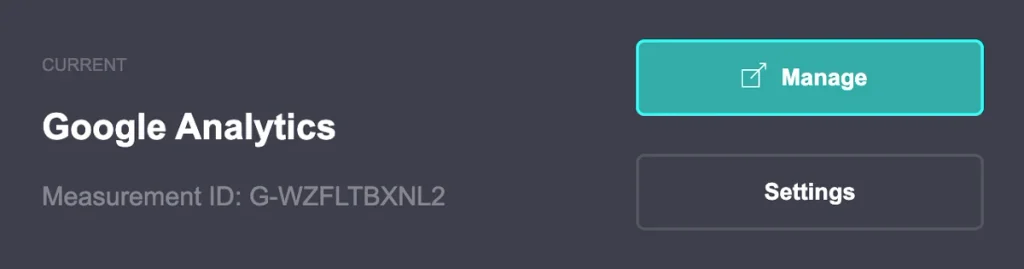
Cookiebot offers automatic cookie blocking, which can help prevent certain cookies and tracking scripts from running before visitors give their consent. However, you should check whether your analytics setup is detected and blocked correctly.
After installing Cookiebot on your Carrd site, test the setup before relying on it:
- Open your published Carrd site in a private or incognito window.
- Reject statistics cookies in the consent banner.
- Check whether Google Analytics requests are still being sent.
- Accept statistics cookies and check whether Google Analytics starts working.
- Review your Cookiebot scan results to see which cookies and tracking technologies were detected.
Keep in mind that a cookie banner alone does not guarantee compliance with privacy laws. You should also check your analytics configuration, privacy policy, and the consent requirements that apply to your visitors.
Cookie Banner vs. Privacy Policy
A cookie banner and a privacy policy serve different purposes. Adding a cookie banner does not replace a privacy policy.
Cookie Banner
A cookie banner is used to ask visitors for consent when your website uses cookies or other tracking technologies that require consent. It gives visitors a way to accept or reject certain categories of cookies.
Privacy Policy
A privacy policy explains how your website collects, uses, stores, and shares personal data. If your Carrd site collects personal information, for example through a contact form, newsletter signup, account registration, or analytics, you should provide visitors with appropriate privacy information.
What About Terms and Conditions?
Terms and Conditions are different again. They can set out the rules for using your website, purchasing products or services, or accessing other content. They are particularly relevant for websites that sell products, offer services, or have other specific terms of use. They are not the same as a cookie banner or privacy policy.
What About Affiliate Disclosure?
If you use affiliate links, you should also provide a clear affiliate disclosure where required. This is separate from both your cookie banner and privacy policy.
For example, an affiliate disclosure could be as simple as:
Disclosure: This post contains affiliate links.
A cookie banner does not replace any of these documents or disclosures. Each one serves a different purpose.
Common Carrd Cookie Banner Problems
Even if you have added your cookie banner correctly, it may not always appear as expected. Here are some common problems you may encounter.
The Cookie Banner Doesn’t Appear
First, open your published Carrd site in a private or incognito window. Your browser may already have stored a consent choice, which can prevent the banner from appearing again.
Also make sure that you have published your Carrd site after adding the cookie banner code.
The Banner Works in One Browser but Not Another
Some browsers have built-in privacy and cookie-blocking features that can hide cookie consent banners.
For example, Brave can block cookie notices through its privacy protections. If the banner does not appear in Brave, temporarily disable the relevant blocking feature or Shields for your site and test it again.
The Cookie Banner Works on the Subdomain but Not on the Custom Domain
If you initially tested your banner on a Carrd subdomain and later connected a custom domain, make sure that the domain is also added and verified in your cookie consent service.
Some services treat domains and subdomains separately, so check the configuration in your cookie consent dashboard.
The Banner Appears, but Analytics Still Loads
Displaying a cookie banner does not necessarily mean that tracking is being blocked.
If you use Google Analytics or another tracking service, check whether your cookie consent solution is actually blocking the relevant scripts before consent is given. Test both the Reject and Accept options on your published site.
The Banner Appears Too Early or in the Wrong Place
If you are using a JavaScript snippet, make sure you have added it to the Carrd Embed element with Hidden and Head selected when the provider’s instructions require it.
Do not add the same cookie banner script multiple times, as this can cause unexpected behavior.
The Banner Doesn’t Update After I Change Its Settings
If you change the banner settings in your cookie consent dashboard, publish or save the changes and then test your website again in a private window.
Your browser may still have an existing consent cookie, so simply refreshing the page may not show the updated version.
Final Words
Adding a cookie banner to Carrd is relatively simple once you choose a suitable third-party consent tool. For a basic site, you may not need a banner at all if you do not use cookies or tracking technologies that require consent. If you use services such as Google Analytics, make sure your consent solution is configured to handle them correctly. Always check the current requirements that apply to your website and visitors before relying on a cookie banner alone.