

Carrd allows you to track visitors to your site using several different analytics providers. This tutorial focuses on Google Analytics, but it also briefly covers the other analytics options available in Carrd. You’ll learn how to set up a Google Analytics account, create a property for your website, and connect it to your Carrd site.
What Analytics Does Carrd Support?
Carrd supports several analytics providers, from well-known tools like Google Analytics to lightweight, privacy-focused alternatives. Most people have heard of Google Analytics, while some may also be familiar with Cloudflare Web Analytics. Here’s a quick overview of all the analytics providers currently supported by Carrd.
| Provider | Best for |
|---|---|
| Google Analytics | Detailed traffic, acquisition, events and conversions |
| Cloudflare Web Analytics | Simple privacy-focused website analytics |
| Fathom | Privacy-focused, simple analytics |
| Matomo | Detailed analytics with more control over your data |
| Plausible | Lightweight, privacy-friendly analytics |
| PostHog | Product analytics, events and user behavior |
| Simple Analytics | Simple, privacy-focused traffic statistics |
| Umami | Lightweight, open-source analytics |
Before You Start
If you want to use Site Analytics in Carrd, you’ll need a paid Carrd Pro Standard plan or higher. The Free and Lite plans don’t support this feature.
You’ll also need to set up a free Google Analytics account. I’ll show you how to do this in the next steps.
How to Create a Google Analytics Account
Before connecting Google Analytics to your Carrd site, you need to create a Google Analytics account and set up a property for your website. The process is free and only takes a few minutes.
Follow the steps below. I’ve included screenshots from Google Analytics to show you exactly where to click and what information to enter.
How to Create a Google Analytics Account
Before connecting Google Analytics to your Carrd site, you need to create a Google Analytics account and set up a property for your website. The process is free and only takes a few minutes.
1. Open Google Analytics
Go to Google Analytics and sign in with your Google account.
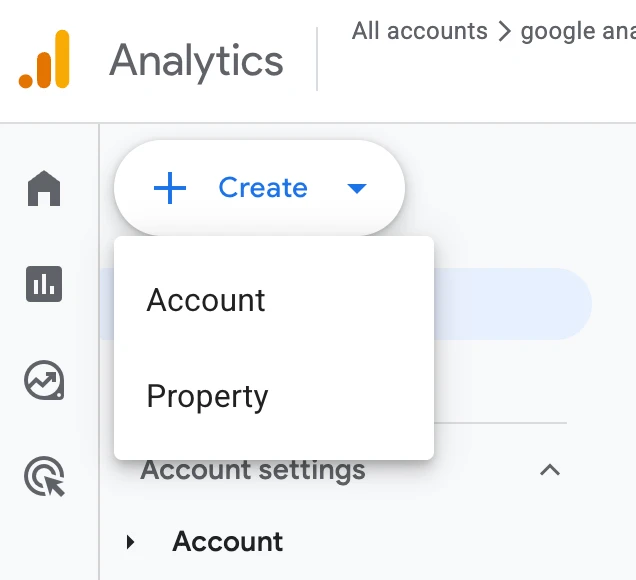
If you already use Google Analytics, you can create a new property within your existing account. If you’re completely new to Google Analytics, select Start measuring to begin the setup.
2. Create a Google Analytics account
If you don’t already have a Google Analytics account, enter an Account name.
This can be your website name, business name, or another name that helps you identify the account.
Then continue to the next step.
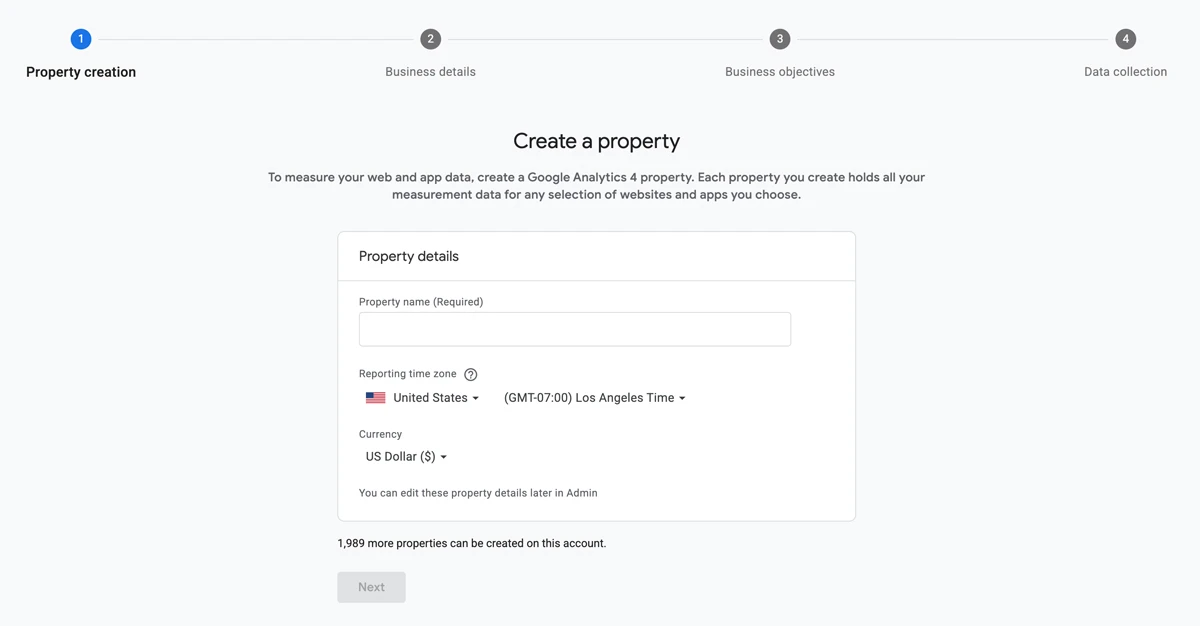
3. Create a property
Enter a Property name for your website.
For example:
Property name: ParallaxaView
You’ll also need to select your reporting time zone and currency. Choose the options that match your preferences.
Click Next when you’re done.
4. Add your business details
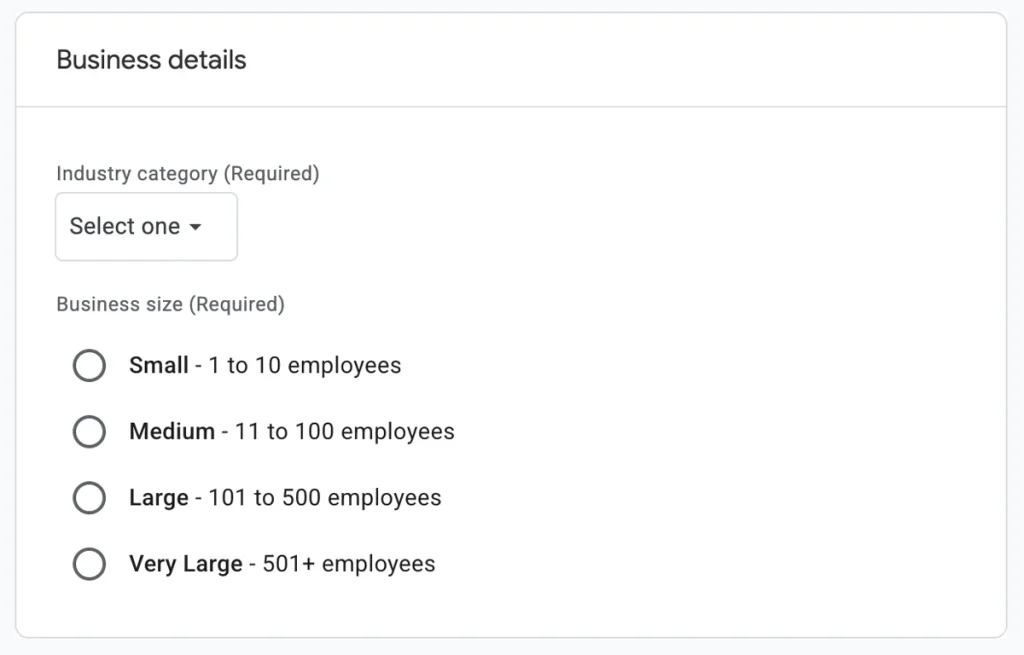
Google Analytics may ask you to provide some basic information about your business, such as your industry category and business size.
Select the options that best describe your website and continue.
5. Choose your business objectives
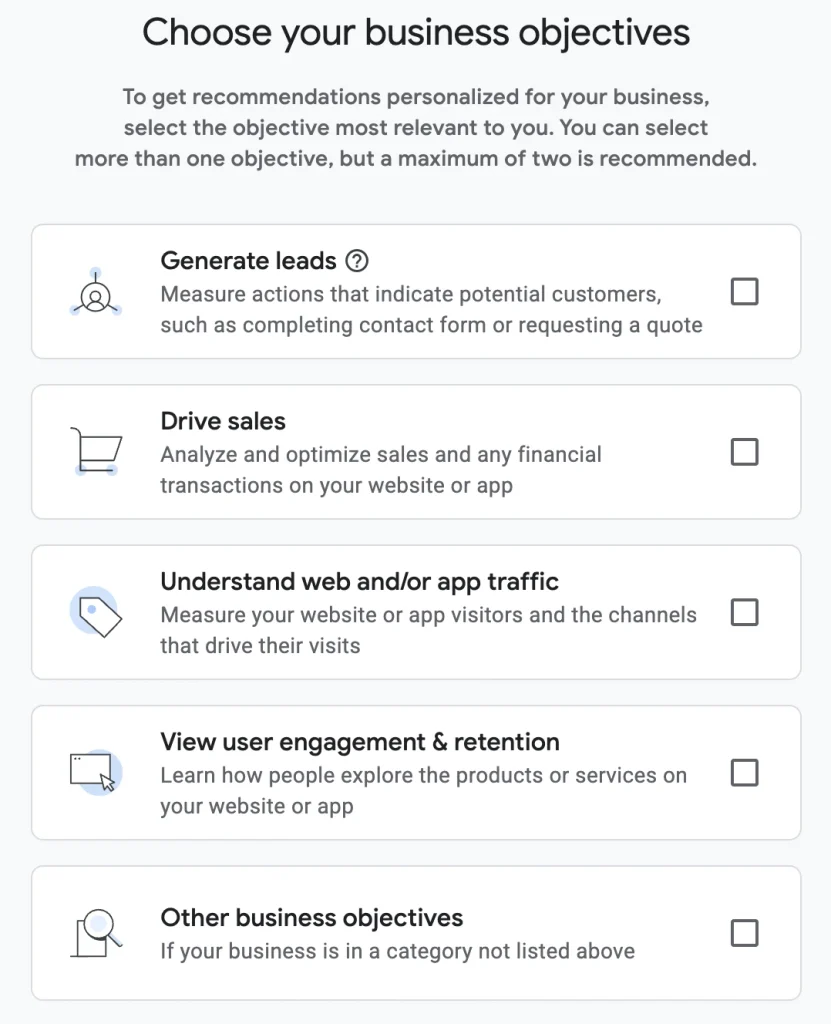
Google Analytics may also ask what you want to accomplish with your analytics.
Select the objectives that are relevant to your website. These choices can affect which reports and features are highlighted in your Analytics account.
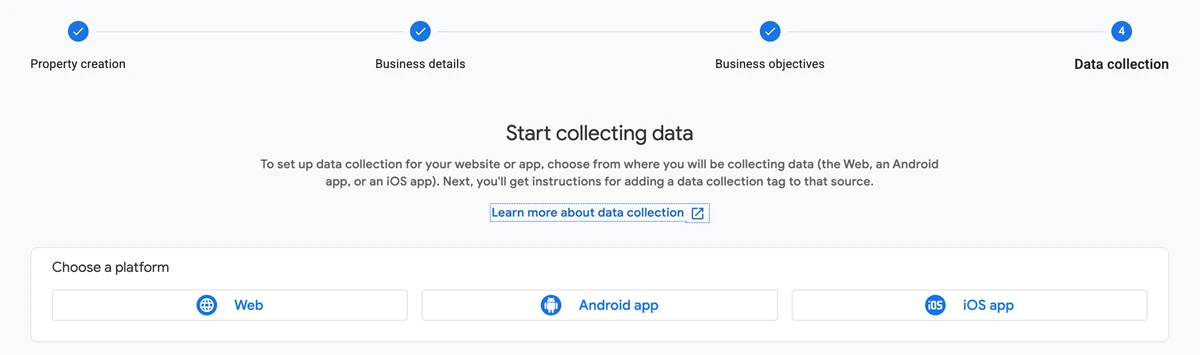
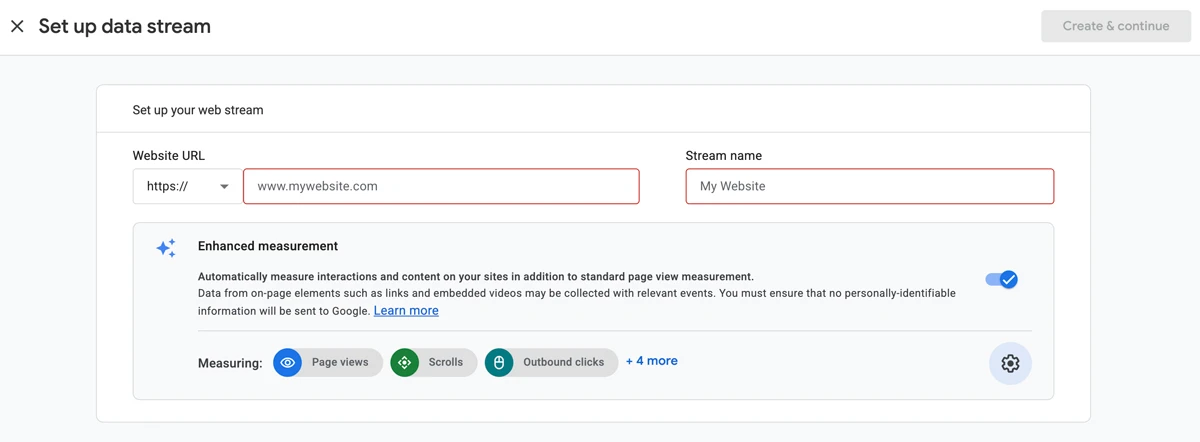
6. Choose Web as your platform
When Google Analytics asks where you want to collect data from, select Web.
Enter your Carrd website URL and give your web data stream a name.
For example:
Website URL: https://yourwebsite.com
Stream name: Your Website
Then click Create stream.
7. Find your Measurement ID
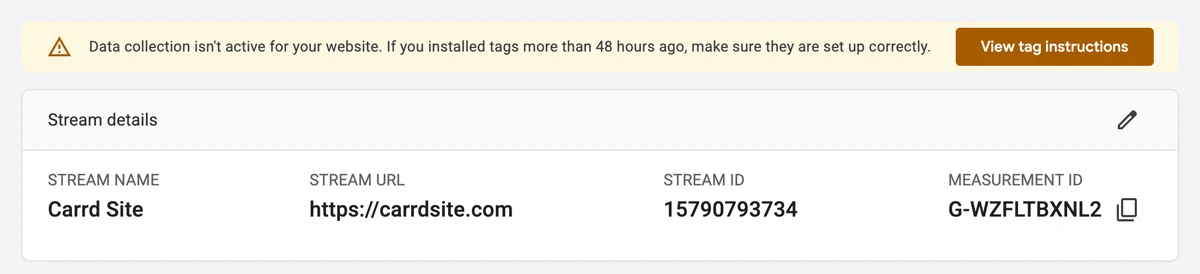
After creating your web data stream, Google Analytics will show you its details.
Look for the Measurement ID. It starts with G- and looks something like this:
G-XXXXXXXXXX
Copy this ID. You’ll need it in the next section to connect Google Analytics to your Carrd site.

How to Add Google Analytics to Carrd
The process is simple. You need to log in to your Carrd account and have at least the Pro Standard plan active. Then follow these steps:
1. Open your Carrd site settings
Once you’re in your Carrd dashboard, find the site where you want to add Site Analytics. Each site has a set of icons. Hover over the icons to find Manage and click it.

2. Open Analytics
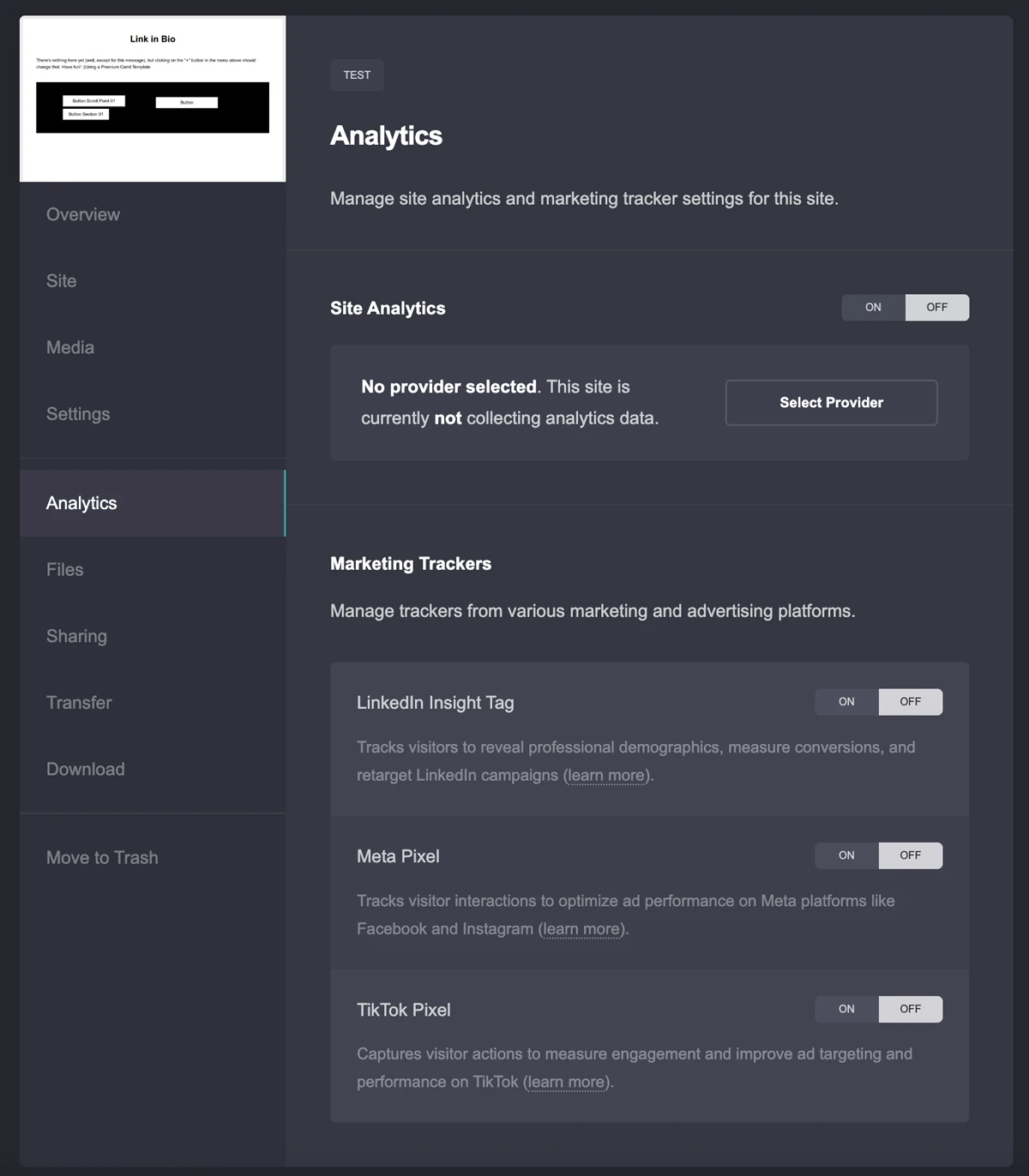
You should now be in your site’s settings overview. On the left, you’ll see a menu with several options, including Analytics.
Click Analytics to open the analytics settings.
3. Turn on Site Analytics
On the right, you’ll see options for Site Analytics as well as other marketing trackers, such as the LinkedIn Insight Tag, Meta Pixel, and TikTok Pixel.
Turn Site Analytics on or click Select Provider to choose an analytics provider.
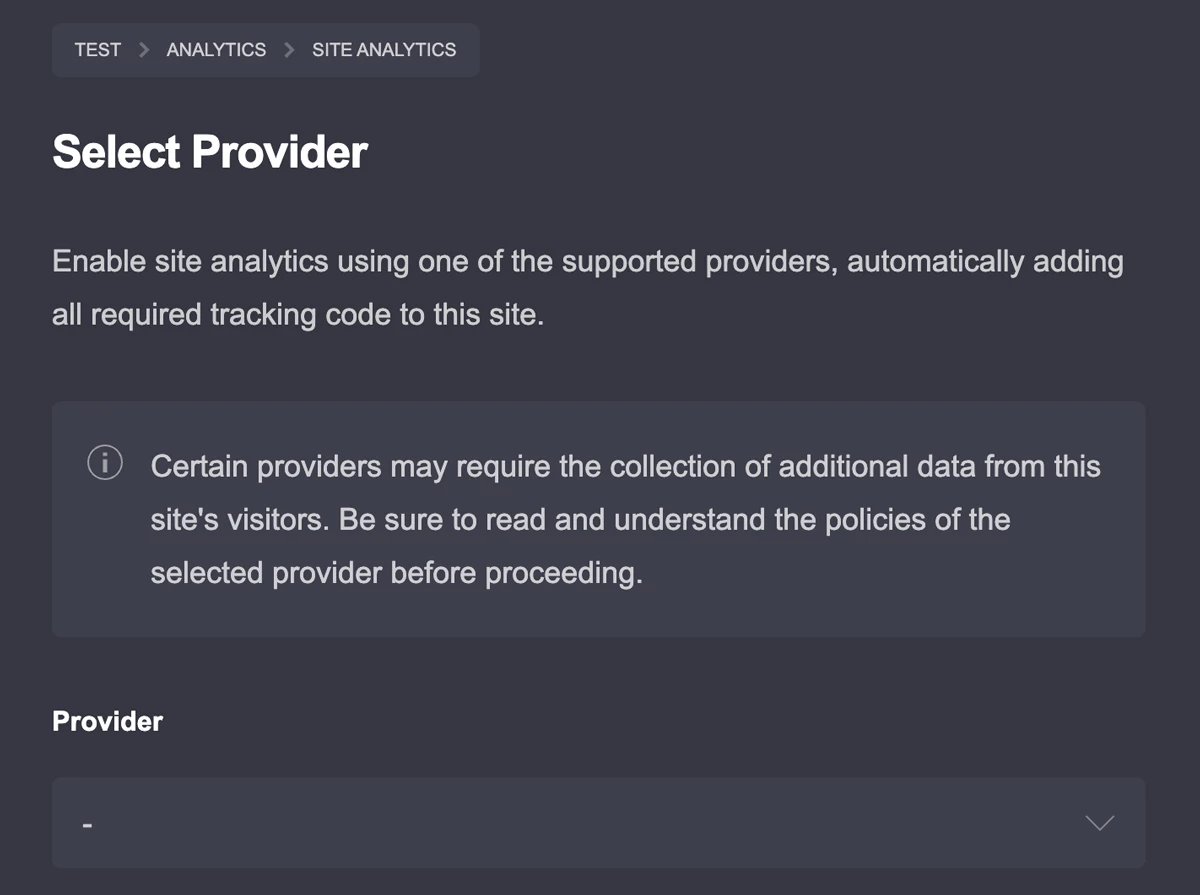
4. Select Google Analytics
From the list of available providers, select Google Analytics.
A Measurement ID field will appear below it. Enter the Measurement ID you copied from Google Analytics. It starts with G-.
Make sure that Google Analytics is selected as your provider and that Site Analytics is enabled.
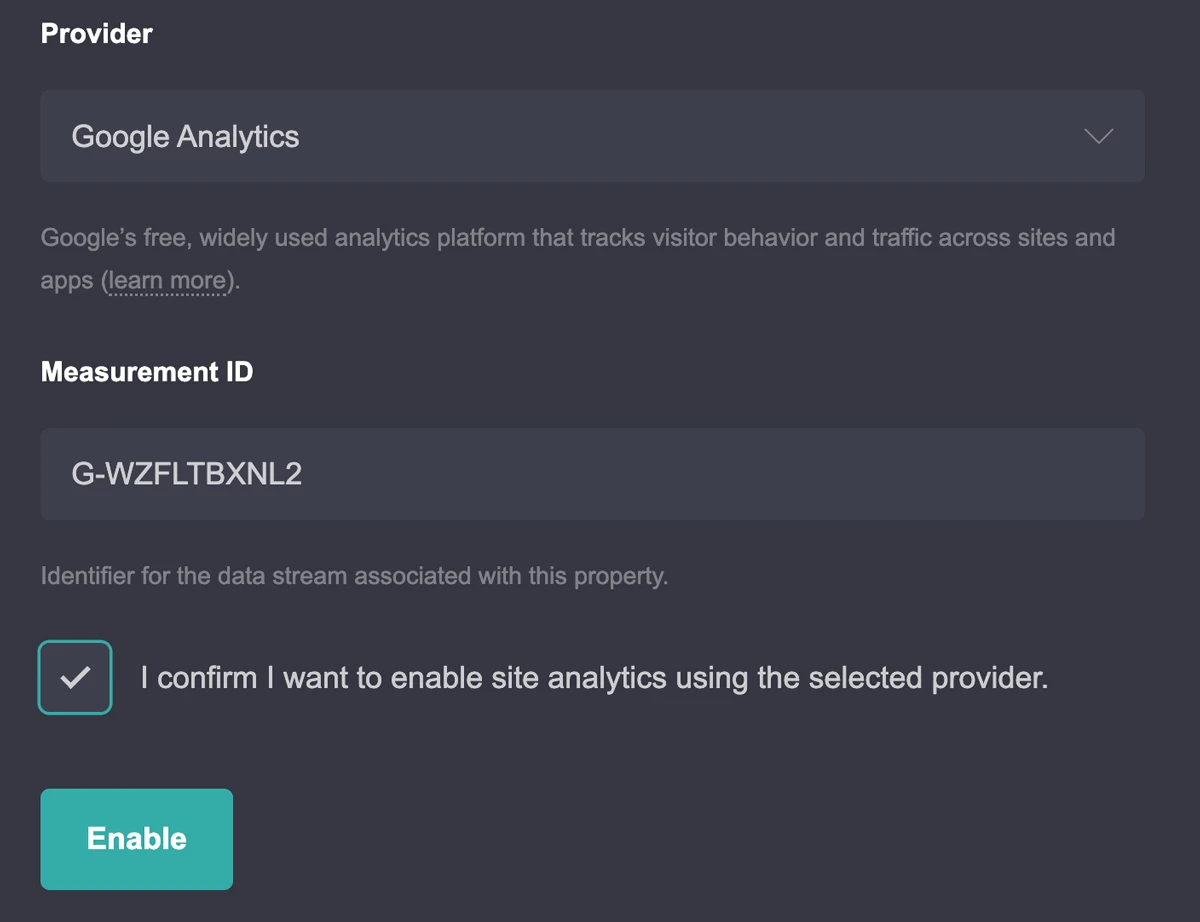
5. Enable Google Analytics
Click Enable to save your settings.
If everything is set up correctly, Carrd will show a confirmation message that Site Analytics has been successfully enabled.
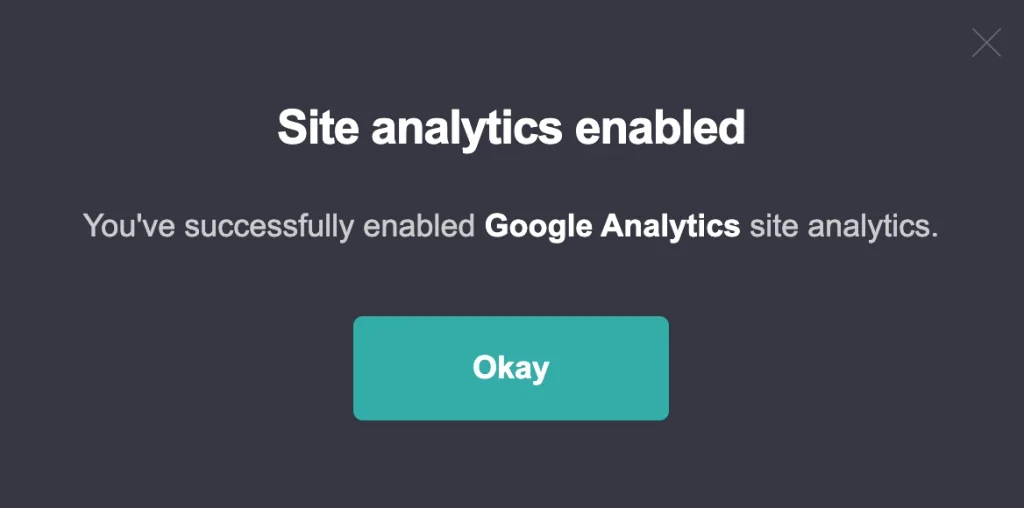
6. Manage your analytics settings
You can return to this section whenever you need to make changes to your analytics setup.
Click Settings to update your Google Analytics configuration. You can also click Manage to open your Google Analytics account directly.
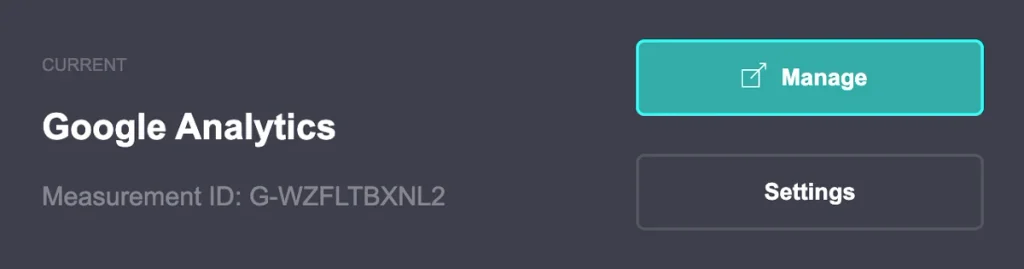
How to Check if Google Analytics Is Working
After connecting Google Analytics to your Carrd site, you can check whether it is collecting data correctly.
1. Open Google Analytics
Log in to your Google Analytics account and open the property connected to your Carrd site.
2. Open the Realtime report
In the left-hand menu, go to Reports → Realtime.
This report shows activity from visitors who are currently on your website.
3. Visit your Carrd site
Open your published Carrd site in a new browser tab or on another device. Browse a few pages (sections) or interact with the site.
After a short delay, your visit should appear in the Realtime report.
If you don’t see any activity immediately, give Google Analytics a little time and make sure that the Measurement ID in Carrd matches the one in your Google Analytics web data stream. Ad blockers, privacy settings, or consent settings can also prevent analytics data from being collected.
What Can You Track with Google Analytics?
Google Analytics can give you a better overview of who visits your Carrd site, how they find it, and how they interact with your content.
- Users and sessions – See how many people visit your site and how often.
- Traffic sources – Find out where your visitors come from, such as search engines, social media, or referral links.
- Top pages – See which pages on your site receive the most visits.
- Engagement – See how visitors interact with your website and how long they stay.
- Events – Track specific interactions, such as clicks, page views, or other actions.
- Conversions – Measure important actions you define as conversions, such as form submissions or purchases.
- Geographic data – See general information about where your visitors are located.
- Devices and technology – See which devices, browsers, and operating systems visitors use.
Carrd Marketing Trackers vs. Site Analytics
Carrd separates general website analytics from marketing trackers. They serve different purposes, so you don’t necessarily need to enable both.
- Site Analytics – Tracks website traffic and visitor activity. This includes providers such as Google Analytics, Cloudflare Web Analytics, Fathom, Matomo, Plausible, PostHog, Simple Analytics, and Umami.
- Marketing Trackers – Connects your Carrd site to advertising and marketing platforms. Carrd currently supports trackers such as LinkedIn Insight Tag, Meta Pixel, and TikTok Pixel.
For example, you might use Google Analytics to understand your website traffic, while Meta Pixel can be used to measure interactions related to Meta advertising campaigns.
Do You Need Google Analytics for a Carrd Site?
Whether you need Google Analytics depends on what you use your Carrd site for.
If your site is a personal or hobby project, you may not need detailed analytics at all. If you use Carrd as a portfolio, promote your services, or use your website to attract potential clients, analytics can be much more useful.
Google Analytics can help you see where your visitors come from, which pages they visit, and whether people are interacting with your website. This can help you understand which parts of your site are getting attention and where your visitors may be coming from.
Google Analytics and Privacy
Before adding Google Analytics to your Carrd site, keep privacy requirements in mind. Google Analytics collects and processes information about website visitors, so your responsibilities can depend on where your visitors are located and how you use the data.
For visitors in the European Economic Area (EEA), GDPR and related consent requirements can apply. Google provides Consent Mode to communicate visitors’ consent choices to its tags and adjust how Analytics and other Google services collect and use data.
Privacy requirements also exist in the United States. Rather than having one single nationwide law equivalent to the GDPR, the US has a combination of federal rules and state-level privacy laws. Which requirements apply depends on factors such as your location, your visitors, and the type of data and services you use.
This tutorial focuses on connecting Google Analytics to Carrd, so it does not cover cookie banners, consent management, or GDPR compliance in detail. These topics require a separate guide and may involve additional settings beyond simply adding your Google Analytics Measurement ID.
Final Words
Setting up a Google Analytics account can feel a little confusing if you’re using it for the first time. Once your account and Measurement ID are ready, connecting Google Analytics to Carrd is much simpler. Carrd’s analytics settings are clearly organized, so you don’t need to deal with complicated settings to connect your provider. For a basic setup, the whole process only takes a few minutes.