

Carrd parallax tutorial explains what parallax is and shows you which elements in Carrd allow you to add it. Besides explaining the basics, it also covers some common problems people face and often mention in online discussions when looking for help. It will also show you some ideas for using parallax, as well as when it is better to avoid it.
What Is a Carrd Parallax Effect?
Parallax is a visual effect that creates an illusion of depth by making different layers of an image or scene move at different speeds. On a website, this usually means that a background image moves more slowly than the content in the foreground as you scroll, creating a sense of depth and movement.
The idea is much older than modern web design. Parallax effects grew out of the multiplane camera techniques used in traditional animation, where different layers of artwork could move at different speeds to create the illusion of depth. The technique became especially popular in video games in the early 1980s. The arcade game Moon Patrol, released in 1982, is often credited with popularizing full parallax scrolling through multiple background layers moving at different speeds.
Parallax later became a popular web design technique, particularly with the rise of visually rich scrolling websites in the early 2010s. One well-known example was Nike’s Better World website from 2011, which used parallax scrolling as part of its interactive storytelling experience.
In Carrd, you do not need to build a complex multi-layer animation to create a parallax effect. You can apply parallax to certain background images, allowing the image and the rest of the page to move at different rates as the visitor scrolls.
How to Add Parallax in Carrd
If you want to create a parallax effect in Carrd, you need to work with the Container element. You can set it up using the free Carrd editor, either before signing in or after logging into your account.
- After you access your Carrd dashboard, choose the site you want to edit. You can also start from scratch or use a template.
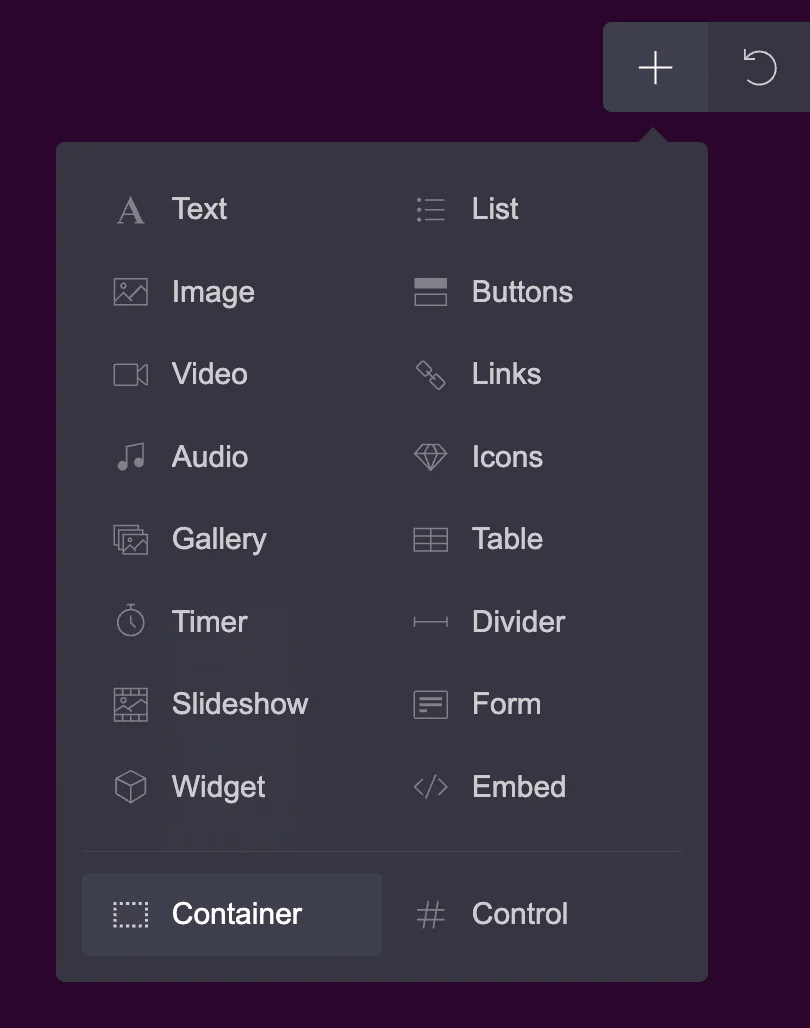
- When you are in the site editor, click the + icon in the top-right menu. Then choose the Container element. A new container should appear on your page.
- Click on the container to open its settings in the left-hand menu. You can use these settings to customize the container, but I will focus only on the parallax feature in this tutorial. If you want to learn more about containers, check out my [Carrd Containers tutorial].
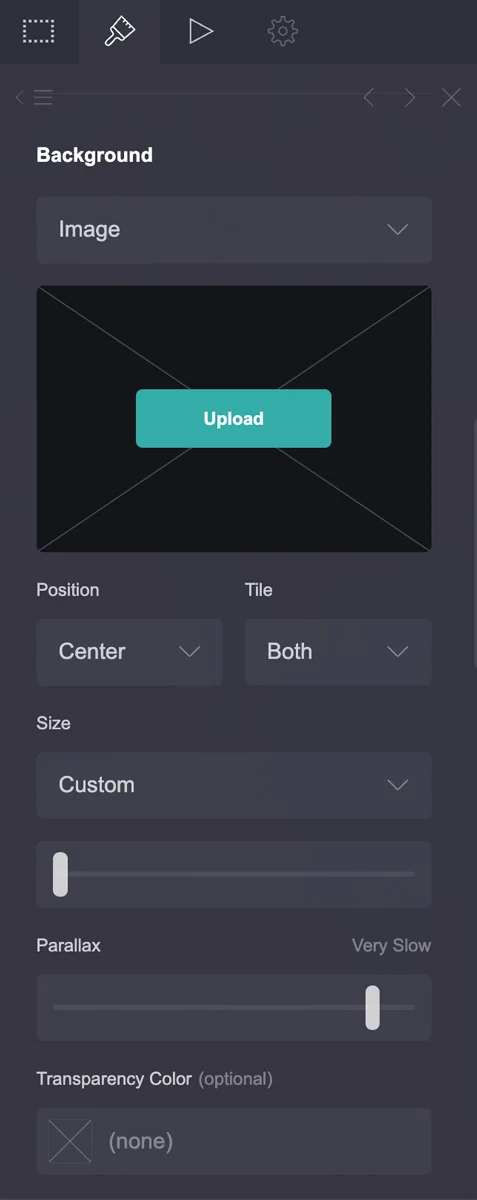
- Next, click the Brush icon in the top menu and scroll down to the Background section. Click on it and choose Image as the background for your container.
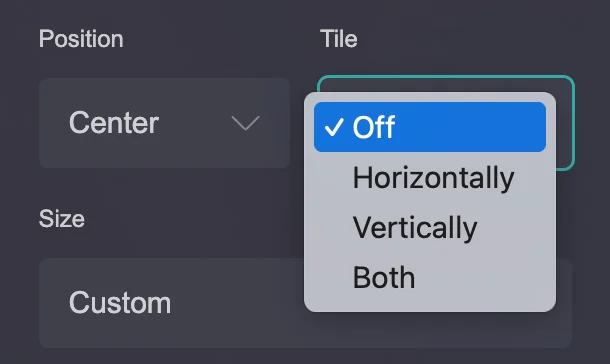
- Upload the image you want to use as your parallax background. Under the image settings, you can choose its position and decide whether you want to tile it. The available options are Off, Both, Horizontal, and Vertical.
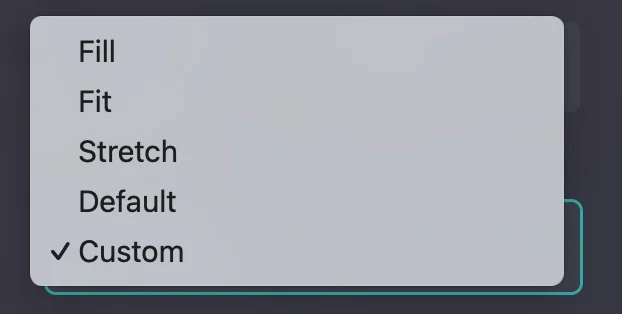
- You will also find settings for the background image size, including Fill, Fit, Stretch, Default, and Custom.
- Below these options, you will find the Parallax slider. Use it to control how quickly the background image moves as you scroll. The available settings range from Off and Fixed to Very Fast, Fast, Normal, Slow, and Very Slow.
Once you select a parallax setting, preview your site to see how the effect looks while scrolling. You can then adjust the speed until you get the result you want.
How to Customize Your Carrd Parallax Background
Once you have added your parallax background, you can adjust several settings to change how it looks and behaves on your page.
Background Size
The Size setting controls how the image fills the background area. You can choose between Fill, Fit, Stretch, Default, and Custom. Fill is useful when you want the image to cover the entire background area, while Fit displays the whole image without cropping it.
Image Position
Use the Position setting to choose which part of the image remains visible. This is especially useful when the most important part of your image is not in the center.
Tiling
If your image does not cover the entire background, you can use Tiling to repeat it. You can turn this off or repeat the image in both directions, horizontally, or vertically.
Parallax Speed
The Parallax setting controls how quickly the background moves while you scroll. You can choose from Fixed, Very Fast, Fast, Normal, Slow, and Very Slow. Try different settings to see which one works best with your image and page layout.
Transparency Color
You can add a transparency color over the background image. This can be useful if you want to make the image less prominent or improve the readability of text placed over it.
Optimize
The Optimize option can help improve the loading performance of your background image. However, it is still a good idea to resize and compress large images before uploading them to your site.
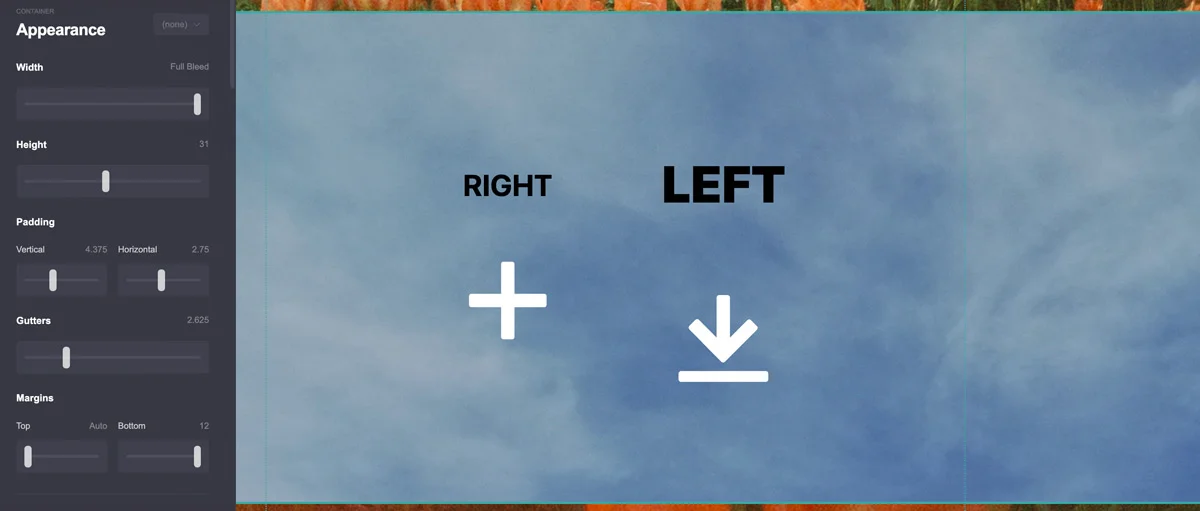
Full-Width Background
If you want the parallax background to stretch across the entire page, go back to the container’s Appearance settings. Under Width, you can choose Full Bleed. You can also adjust the container’s height to control how much space the parallax background occupies.
After making your changes, preview the page and scroll through it to see how the image moves. A setting that looks good in the editor may feel different once you see the complete page, so it is worth testing the effect before publishing.
Carrd Parallax on Mobile
The mobile settings for the Container element are available in the same Appearance tab. Simply scroll down to the mobile section to adjust how the container looks on smaller screens.
Unfortunately, the parallax effect is not supported on mobile screens. This means that the background image will not have the same scrolling effect as it does on desktop.
You can still use the same background image on mobile, but you may need to adjust its position, size, or the container’s height to make sure it looks good on a smaller screen. It is also a good idea to preview your site on an actual mobile device before publishing, especially if the background contains an important visual or text overlay.
If the parallax effect is an important part of your design, make sure the page still works visually without it. A strong background image, suitable positioning, and a readable text overlay can help maintain the overall look even without the scrolling effect.
If you have a Pro Plus plan and some coding knowledge, you can also create custom parallax effects with CSS or JavaScript. However, these solutions work differently from Carrd’s native parallax feature and may require additional testing on mobile devices.
How to Create a Full-Page Carrd Parallax Background
If you want to use parallax backgrounds across the entire width of your Carrd site, you can create a series of full-width containers and give each one a different background image.
Start by selecting your Container and opening the Appearance settings. Under Width, set it to Full Bleed. This makes the container stretch across the full width of the page.
You can then duplicate the container and change the background image for each copy. To duplicate a container, click the + icon inside the rectangle at the bottom of the left-hand menu and select Duplicate. If you want to learn more about duplicating elements in Carrd, check out my [Carrd Duplicate tutorial].
You can also add an overlay to your background image (Appearance tab). Carrd allows you to use either a solid color or a gradient as an overlay. This can make text placed over the image easier to read while still keeping the background visible.
Once you have several full-width containers, you may notice unwanted gaps between them. To remove these, go to the Page settings in the top menu and set the Spacing to zero. This allows the containers to sit directly against each other and creates a continuous full-page layout. If this will not work, check your Container and its margin settings.
This approach lets you combine different parallax images throughout the page without having to create each section from scratch. You can duplicate the same container, replace the background image, and keep the rest of the settings consistent.
Carrd Parallax Ideas
Parallax works particularly well on visual websites where images are an important part of the design. You do not need to use it on every section of your page. Sometimes one or two carefully chosen parallax backgrounds can be enough to make a layout more dynamic.
Photography Portfolio
Use a large photograph as a parallax background to create a more immersive portfolio section. This can work especially well between different project sections or as a visual introduction to your work.
Architecture or Interior Design Website
Large architectural photographs can work well with a slow parallax effect. The movement can add depth to an otherwise static layout without distracting from the subject.
Creative Portfolio
Artists, designers, and other creatives can use parallax backgrounds to create visual transitions between projects. Different images can also be used for separate full-width sections.
Travel Website
A landscape, cityscape, or architectural photograph can create a strong visual section on a travel website. A slow effect usually works better than very fast movement when the image itself is the main focus.
Editorial Website
Parallax can be used as a visual break between blocks of text, helping create a more magazine-like layout. It can work particularly well with large photographs and short text sections.
Landing Page
A parallax background can make the hero section or another important part of a landing page more visually engaging. Keep the text readable and avoid using an overly busy image behind important information.
Event or Wedding Website
A large photograph can be used as a background behind an introduction, date, or other important information. A subtle parallax effect can add movement without requiring additional animated elements.
Carrd Parallax Not Working? Try These Fixes
If your Carrd parallax effect is not working as expected, check these common issues before trying more advanced solutions.
Check the Parallax Setting
If the background does not move when you scroll, first check the Parallax setting in your Container’s background settings. Make sure it is not set to Off. Try switching between different speed settings to see whether the effect becomes visible.
Check the Background and Container
Make sure you have added the image as the Container’s background rather than as a regular Image element. Also check the container’s size and layout. A very short container may not give you enough scrolling distance to notice the effect.
Check the Mobile Version
Carrd’s native parallax effect is not supported on mobile screens, so the effect may work on desktop but not on a phone. Check your published site on both desktop and mobile and make sure the background still looks good without the parallax movement.
Conclusion
Parallax is a fairly simple way to add movement and depth to a Carrd site, but that does not necessarily mean that more movement makes a website better. The effect was particularly popular in web design in the 2010s, so heavy parallax can sometimes make a website feel dated rather than contemporary. At the same time, animation is still very common in modern website design, especially on platforms such as Framer or Webflow, where templates often use multiple animated effects and interactions.
The difference is often in how and why you use it. If your website is meant to showcase your design skills or create an experimental visual experience, more animation can be part of the concept. For most other websites, however, it is worth being more selective and using movement only when it serves a clear purpose. A subtle parallax effect can add visual interest without making the page feel overloaded, while too many animations can distract visitors from the actual content.