
Carrd containers help you organize and structure content, but some layouts you may be searching for work differently than expected. In this tutorial, I’ll show you how Carrd containers work, what you can and can’t do with them, and how to achieve similar layouts using Carrd’s available tools.
What Is a Container in Carrd?
A container in Carrd is a layout element used to group and organize content on your page. You can place website elements such as text, images, buttons, and other content inside a container and customize its spacing, alignment, background, and other settings.
Containers are useful for creating structured layouts, but they have some limitations. For example, you can’t simply place two separate containers side by side or put one container inside another. In the sections below, I’ll show you how to create similar layouts using Carrd’s available options.
How to Add and Set Up a Container in Carrd
To add a container to your page in Carrd, follow these steps:
1. Add a container.
Click the Plus (+) icon in the top-right corner. Then select the Container element at the bottom of the menu.
2. Open the container settings.
A new container will appear on your page. Click on it to open its settings in the left-hand menu.
3. Choose the container type.
On the first screen, you’ll see the Type field. Click it and change Default to Columns.
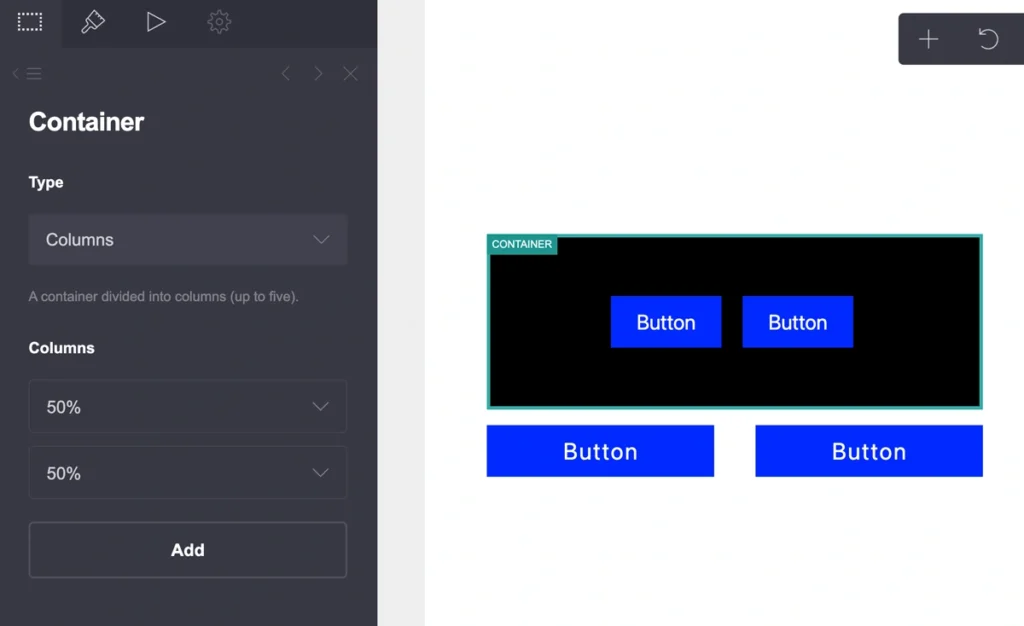
Your container will be divided into two columns, each taking up 50% of the available width. You can adjust this setting as needed. You can also add another column by clicking Add under the last column.
If you don’t plan to add content to a column, you can enable the Use as spacer option.
4. Add content to your columns.
To add content to a column, click the container and then click the Plus (+) icon in the top menu. Choose the element you want to add.
Repeat this process to add more elements. If an element isn’t positioned where you want it, simply drag and drop it into the desired location.
5. Customize the container.
To change the container’s design, click on it and then select the Brush icon at the top of the left-hand menu.
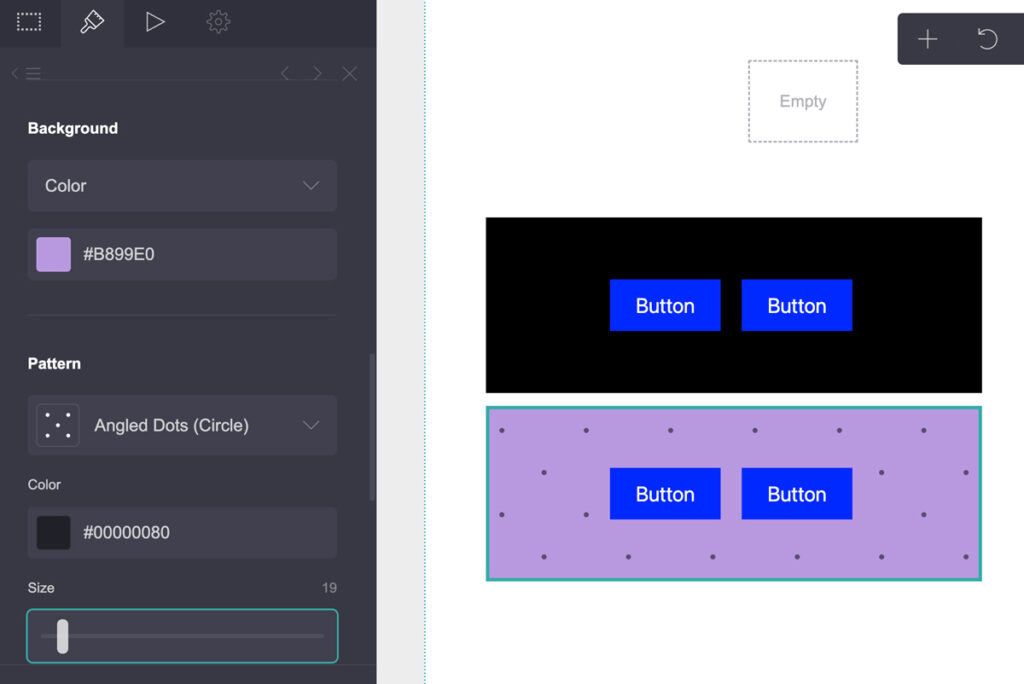
Carrd lets you customize the container’s width, padding, gutters, margins, corner rounding, alignment, content spacing, background, border, and shadow.
6. Adjust the mobile layout.
At the bottom of the settings, you’ll find the Mobile section. By default, it is set to Auto. Click Manual to customize the mobile layout.
You can change the Layout (Stack or Stack Reverse), padding, gutters, margins, alignment, content alignment, and spacing for mobile devices. If you need more information that covers Carrd basics, check out my Carrd Tutorial for Beginners.
How to Put Containers Side by Side in Carrd
If you’re trying to place two separate Carrd containers directly next to each other, this isn’t currently possible using the standard Container element.
Carrd containers are designed to stack vertically. You can’t simply drag one container next to another and create a side-by-side layout.
However, you can achieve a similar result by using Columns inside a single container. (See the image above that includes one Carrd container with two columns and each column includes one button). Instead of creating two separate containers, create one container and change its Type to Columns. You can then use each column as a separate content area.
This is the best built-in solution if you want two or more sections of content to appear side by side.
How to Put a Container Inside Another Container in Carrd
If you’re trying to place one Carrd Container element directly inside another Container, this isn’t currently possible. Carrd doesn’t support nesting one Container element inside another.
You can, however, create a similar visual structure using other Carrd elements. For example, you can use Columns within a container to organize different groups of content, or use containers separately with spacing and styling to make them look visually connected.
So, if you’ve been searching for “Carrd container inside container”, the short answer is: you can’t directly nest containers in Carrd. You need to use another layout method to achieve a similar result.
How to Connect and Align Containers in Carrd
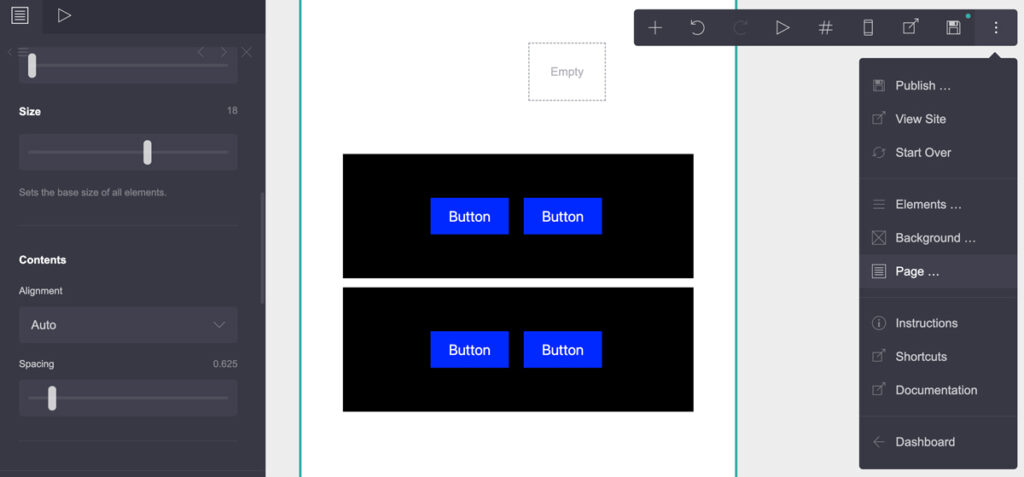
If you want two separate containers to touch and appear visually connected, you can remove the spacing between them.
1. Remove the space between containers.
Click on Page and, in the left-hand menu, and scroll down to Content. Find Spacing and set it to 0. This removes the gap between the containers.
2. Adjust the container alignment.
Click on the container you want to adjust and open its Brush settings. Depending on the layout, you can change the alignment and content alignment settings to control how the content is positioned inside the container.
Keep in mind that changing the alignment doesn’t actually connect two containers. They remain separate elements. The Spacing setting only removes the gap between them, while the alignment settings control the position of their content.
How to Move Containers in Carrd
You can move a container in Carrd by using drag and drop or by changing its position through the Elements menu.
1. Move a container with drag and drop.
Click and hold the container, then drag it to the position where you want it. You can move it up or down within the page and drop it between other elements.
2. Use the Elements menu.
You can also open the Elements menu from the top navigation to view the elements on your page. However, this menu is mainly useful for selecting and managing elements. You can’t use it to freely move a container to a different position.
For precise positioning, drag and drop is the easiest option.
How to Customize Carrd Containers
Carrd gives you several options for customizing the appearance and layout of your containers. To access these settings, click on the container and select the Brush icon in the left-hand menu.
You can customize:
- Width – control how wide the container is on the page.
- Padding – add space between the container’s edges and its content.
- Gutters – control the spacing between columns when using a Columns container.
- Margins – add space around the container.
- Corner Rounding – round the corners of the container.
- Alignment – control the horizontal positioning of the container.
- Content Alignment – change how the content is positioned inside it.
- Content Spacing – adjust the space between elements inside the container.
- Background – add a background color or image (including parallax effect).
- Border – add and customize a border around the container.
- Shadow – add a shadow effect to make the container stand out.
You can also adjust how the container behaves on mobile devices through the Mobile settings. This lets you customize its layout, padding, gutters, margins, alignment, and spacing separately from the desktop version.
How to Fix Common Carrd Container Problems
If your Carrd containers aren’t behaving the way you expect, the problem is often related to spacing, alignment, or the way Carrd handles containers. Here are some common issues and solutions.
Containers Have Too Much Space Between Them
If there is a visible gap between two containers, click Page → Content and check the Spacing setting. Set it to 0 if you want the containers to touch.
Containers Won’t Move Where You Want Them
Make sure you are using drag and drop to move the container. The Elements menu lets you select and manage elements, but it doesn’t let you freely reposition them.
Two Containers Won’t Go Side by Side
Carrd doesn’t currently allow two separate Container elements to be placed directly next to each other. If you need a side-by-side layout, use Columns inside a single container instead.
You Can’t Put One Container Inside Another
Carrd doesn’t support directly nesting one Container element inside another. Use Columns or another suitable layout structure to organize your content instead.
Content Isn’t Properly Aligned
Select the container and open the Brush settings. Check the Alignment and Content Alignment options and adjust them to position your content correctly.
The Container Looks Different on Mobile
Check the Mobile settings in the container’s menu. Switching from Auto to Manual gives you more control over the mobile layout, including stacking, spacing, padding, gutters, and alignment.
Containers can behave differently on smaller screens. Always switch to Carrd’s mobile view and adjust their settings if your layout doesn’t stack or align as expected.
Carrd Container Tips for Responsive Designs
When you create a container with multiple columns, it’s important to check how it looks on smaller screens. A layout that works well on desktop may not look as good on a phone, especially when the columns contain different types or amounts of content.
1. Switch to the mobile view.
To check your mobile layout, click the Mobile View icon in the top menu. This lets you preview how your page will look on a smaller screen.
For example, you might have two columns on desktop where the first column takes up only 10% of the available width and the second takes up 90%. On mobile, the columns can initially remain next to each other, which may make the content difficult to read or look unbalanced.
2. Check the Mobile settings.
Select the container and scroll down to the Mobile section. By default, it is set to Auto. Carrd automatically adapts the layout for smaller screens, and columns will generally stack vertically rather than remaining side by side.
If you switch the setting to Manual, you get more control over how the columns behave on mobile. The default Layout is Stack, which places the columns one below another.
You can also choose Stack Reverse if you want the columns to appear in the opposite order.
3. Use Stack for most column layouts.
Keeping columns side by side on a narrow mobile screen often doesn’t look good, particularly when one column is much narrower than the other. For most responsive layouts, Stack is the better choice because it gives each column the full available width.
If the order of the content makes more sense in reverse, use Stack Reverse instead.
The key thing to remember is that Auto and Manual give you different levels of control. If you need to fine-tune how your columns behave on mobile, switch to Manual and adjust the layout, padding, gutters, margins, alignment, and spacing to suit your design.
Conclusion
Carrd containers are a simple but powerful way to organize your page content and create structured layouts. While some layouts, such as placing separate containers side by side or nesting one container inside another, aren’t currently supported, Carrd provides alternatives such as Columns and responsive layout settings.
Once you understand how containers, spacing, alignment, and mobile settings work, you can create more flexible layouts while keeping your design responsive across different screen sizes.