

This Carrd background tutorial will show you how to change the background for your Carrd site and individual Carrd pages. You will learn the difference between the two, as well as what background options are available. Simple color, gradient, image or GIF animation, slideshow, or video? Learn which type of background is best and most suitable for your site.
Carrd Site Background vs. Page Background
When you are a total Carrd beginner, you might not be aware that these two backgrounds are different. Here is a short and simple way to understand which one is which.
What Is a Site Background?
In Carrd, the site represents the whole website. Each Carrd site has one Page element, which contains all the other elements you add to your site. The number of elements you can add to a Page depends on your Carrd plan. The free plan has a limit, while Carrd paid plans allow more elements.
The Site Background is the area behind your Page element. You cannot change its size, add borders, padding, or margins. You can change its appearance, such as its color, and add animation.
For example, you can set the Site Background color to blue and choose the Fade In animation. When your published site loads, the background will fade from white to blue.
What Is a Page Background?
You can think of the Page element as one large element that contains the content of your site. Like other Carrd elements, it can be customized.
Besides adding elements such as images, text, sliders, and tables, you can change the Page’s background, position, width, size, content alignment, spacing, and more. You can also add animation in a similar way to the Site Background.
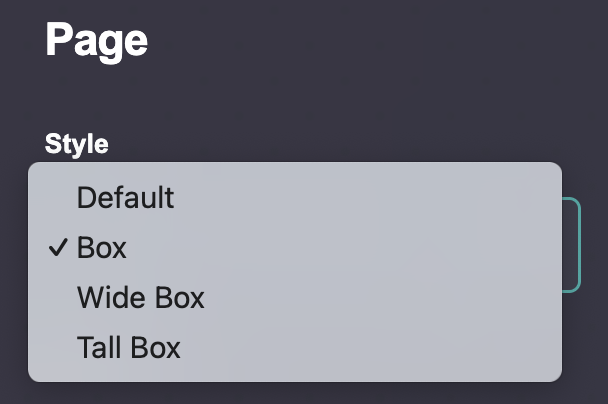
To change the Page Background, you first need to change the Page element’s style from Default to Box, Tall Box, or Wide Box.

How to Change the Carrd Background
For both the Site Background and Page Background, you can follow these steps:
Start by logging into your Carrd account. From your Carrd dashboard, choose the site you want to edit and click on its thumbnail or the Edit button.
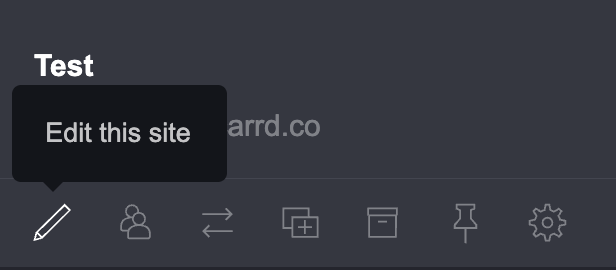
Once you enter the site editor, you can access the Site and Page element from the top-right menu.
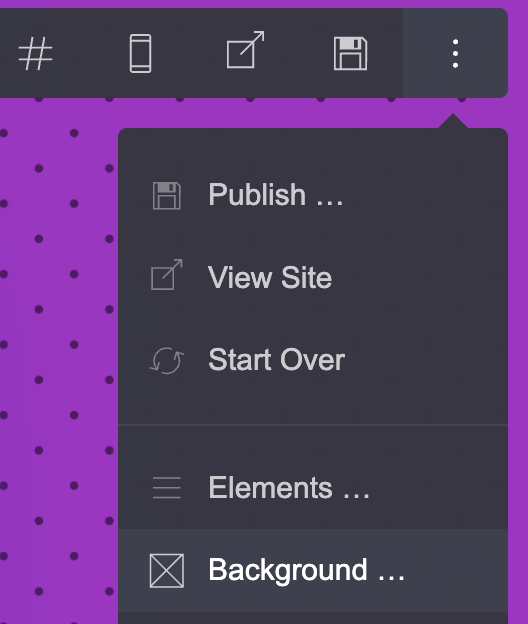
To access the Site Background, click the three dots in the top-right menu and select Background. This opens the Site settings in the left menu, where you can change the background.
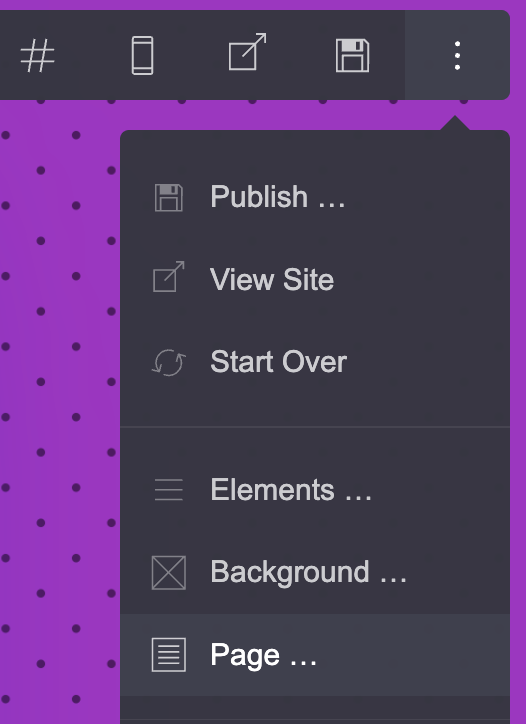
To access the Page element, click the three dots again and select Page. The Page settings will open in the left menu, where you can change its style, background, and other parameters. For page background element you only have three options – none, solid color or gradient.
Next two paragraphs show you have to change color and gradient for both – site and page.
Carrd Background Color
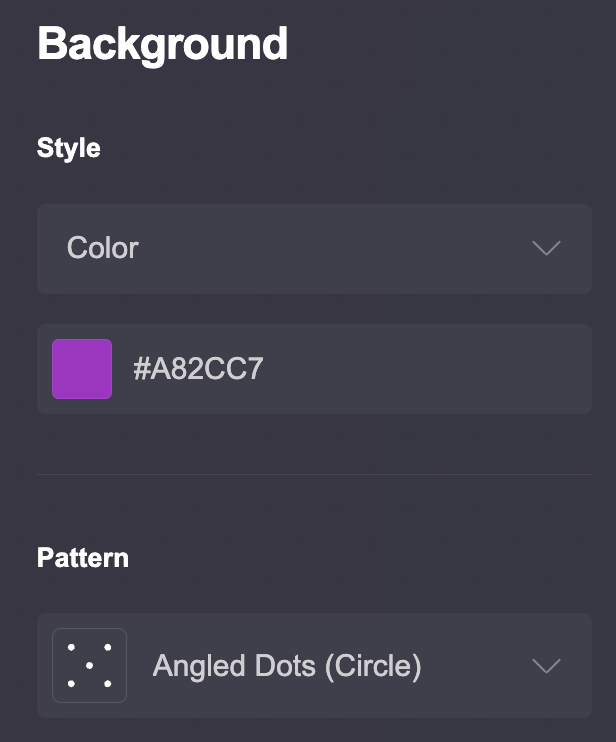
Start with the simplest Carrd background option: a solid color. You can use any color you want, from a minimal black background to pink, purple, or other colors that match your site’s aesthetic.
How to Change the Carrd Background Color
Tu step-by-step:
- Open the Background settings.
- Select Color.
- Choose a color using the color picker.
- Enter a specific HEX/RGB value if you know exactly what color you want by code.
- Adjust any pattern overlay if you want. You can add it for both – site and page. It allows you to change its color, size and thickness.
- Preview the result on desktop and mobile.
- Publish the changes.
If your site uses text over the background, check the contrast before publishing. A background that looks good on its own can make text difficult to read.
Carrd Background Gradient
Instead of a solid background color, Carrd also lets you use a gradient. Gradients can create a more subtle transition between colors or become a stronger visual element of your design.
How to Add a Gradient Background in Carrd
The process is almost the same as adding a solid color background. Open the Background settings and select Gradient instead of Color.
Carrd lets you choose between different gradient types:
- Linear – colors transition along a straight line.
- Radial – colors spread outward from a central point.
- Conic – colors rotate around a central point.
You can then experiment with the available gradient settings to change how the colors appear. Depending on the gradient type, you can adjust things such as the colors, position, direction, angle, or other available parameters.
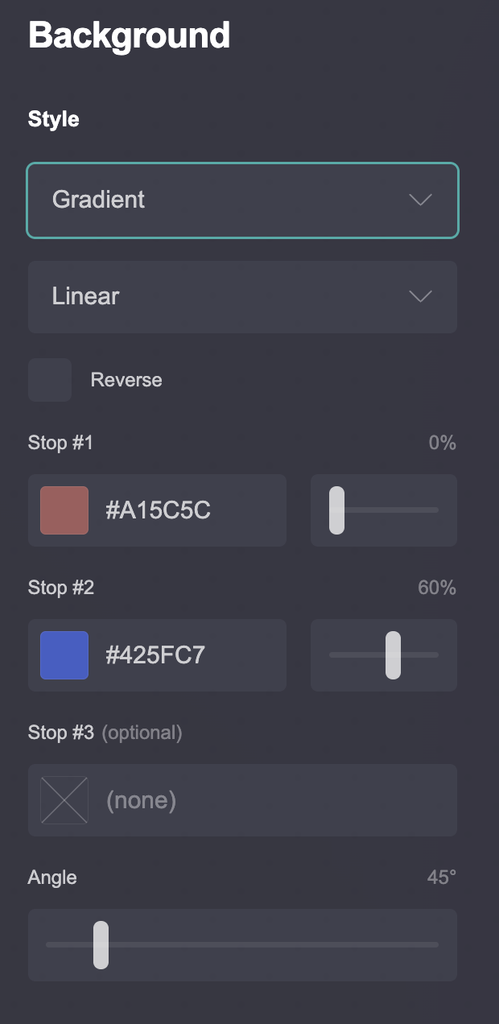
Tip: There is no need to get the gradient perfect on the first try. Experiment with the settings and preview the result directly on your site. A small change in direction or color position can make a surprisingly big difference.
How to Choose a Good Carrd Gradient
A gradient can easily become the most noticeable part of a page, so it is worth keeping the rest of the design in mind.
For a clean and minimal Carrd site, try using two similar colors with a subtle transition. For a more experimental or colorful design, you can use stronger color differences.
A few simple rules can help:
- Use colors that work well with your text.
- Avoid too many strong colors competing for attention.
- Keep important text away from areas where the background changes dramatically.
- Test the gradient on both desktop and mobile.
- Use a simpler gradient if the page already contains many visual elements.
A gradient does not always have to be dramatic. A very subtle transition can be enough to make a plain background more interesting.
Carrd Background Image
You can use an image as your Carrd background for whole site if you want something more visual than a solid color or gradient. Carrd supports several image formats, including JPG, PNG, GIF, and SVG. The maximum file size is 32 MB for GIF.
How to Add a Carrd Site Background Image
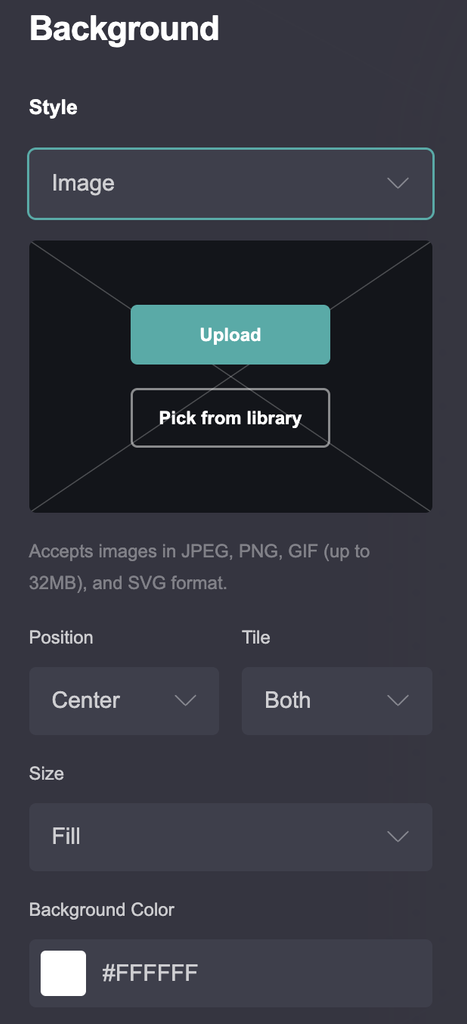
To add an image, open the Background settings and select Image.
You can upload an image from your computer using the left-hand menu or choose one from your Carrd Library if you have already uploaded it.
Once you add the image, Carrd gives you several settings to control how it appears:
- Position – controls which part of the image is visible within the background.
- Tile – repeats the image across the background instead of displaying it only once.
- Size – controls how the image is scaled.
- Background Color – sets the color behind or around the image.
- Optimize – optimizes the image for use on your site.
- Overlay – adds a color or gradient over the image.
- Pattern – adds a pattern effect to the background.
You can experiment with these settings until the image fits the page and works well with the content placed over it.
Carrd Background Image Size and Dimensions
If you are looking for the right Carrd background image size, keep in mind that the Site Background covers the area behind the Page element. The image can be positioned and scaled to fit this area, so there is no single background image dimension that works for every Carrd site.
A wide image generally works well for a full-width background, but Carrd can crop the image differently depending on the screen size and your Position and Size settings. Always check how the background looks on both desktop and mobile.
The Page Background works differently. You cannot use an image as the Page Background. The available options are None, Color, and Gradient.
How to Add a Carrd Background GIF
The process is the same as adding a static background image. Select Image, upload your GIF, or choose one from your Carrd Library. Carrd supports GIF files up to 32 MB, so keep the file size in mind when using animated backgrounds.
See my Futuristic Muse template where I used GIF as site bg →
Carrd Background Slideshow
Carrd also lets you turn your Site Background into a slideshow. Unlike a regular Gallery element, the images appear behind your Page element as part of the site background.
Important: The Slideshow option is available for the Site Background only. You cannot use a slideshow as the Page Background.
How to Add a Carrd Background Slideshow
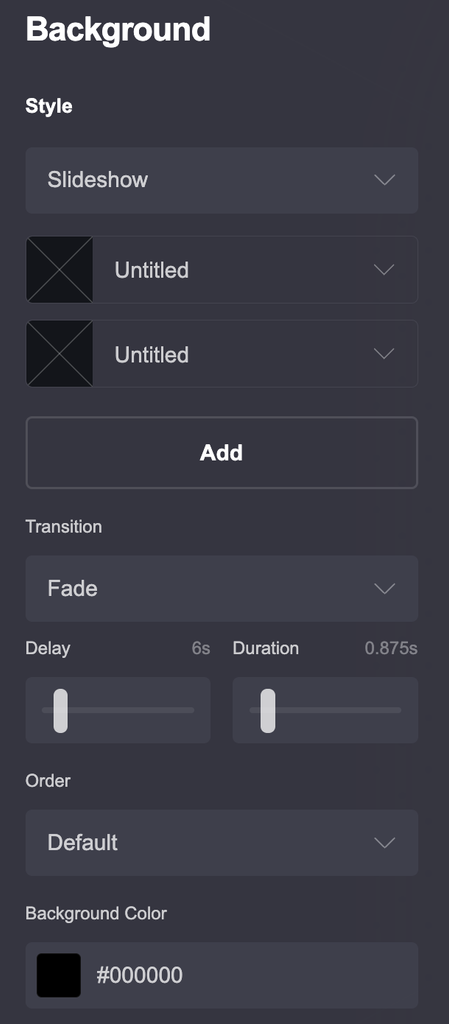
Open the Site Background settings and select Slideshow. The editor may look somewhat similar to the settings of a Gallery, as you can upload multiple images and manage them in one place.
You can then adjust several settings:
- Images – upload the images you want to use in the slideshow.
- Position – choose how the images are positioned within the background.
- Motion – control the movement of the background images.
- Alt text – add alternative text for each image.
- Transition – choose between Crossfade, Fade, or Instant.
- Delay – set how long the slideshow waits before moving to the next image.
- Duration – control how long the transition takes.
- Order – display images in the Default, Reverse, or Random order.
- Background Color – choose a background color for the slideshow.
- Optimize – enable image optimization.
- Overlay – add a Color or Gradient overlay.
- Pattern – add a pattern overlay to the background.
How to Make a Good Background Slideshow
Because the images sit behind your site’s content, choose images that work well as a background rather than as individual portfolio images.
Try to keep the visual style consistent across the slideshow. Images with very different colors, compositions, or brightness levels can make the page feel distracting when they change.
For a subtle effect, use a slower Delay and a soft Crossfade transition. If you want the images to change more noticeably, experiment with the Motion, Duration, and Transition settings.
You can also use a Color or Gradient Overlay to make text easier to read without giving up the images completely.
Carrd Background Video
You can also use a video as your Site Background. The video plays behind the Page element and can create a more dynamic effect than a static image or slideshow.
Important: Like the Image and Slideshow options, the Video background is available for the Site Background. It is not an option for the Page Background.
How to Add a Carrd Background Video
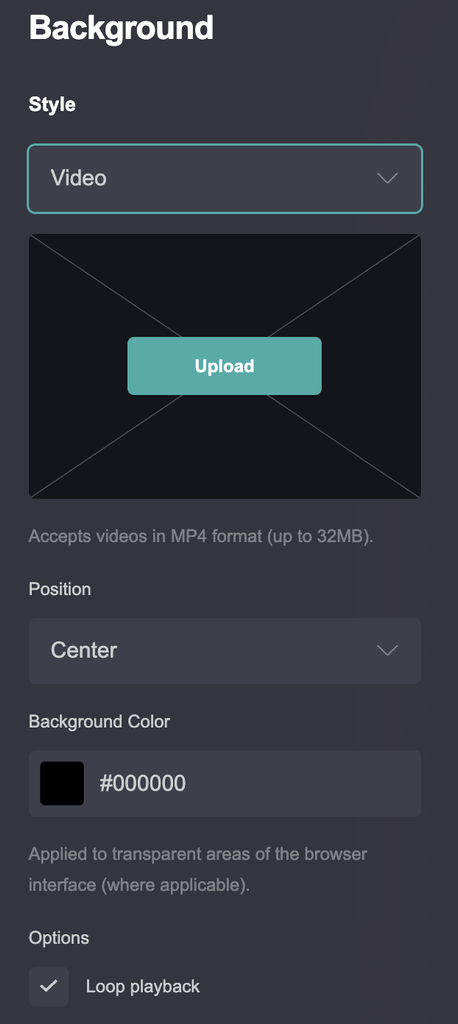
Open the Site Background settings and select Video. In the left-hand menu, you can upload the video file you want to use as your background.
Carrd also gives you several settings to control how the video appears:
- Position – controls which part of the video is visible within the background.
- Background Color – sets the color used behind the video. Carrd notes that this color is applied to transparent areas of the browser where applicable.
- Options – loop playback.
- Overlay – add a Color or Gradient overlay over the video.
- Pattern – add a pattern overlay to the background.
After adding the video, preview the site on different screen sizes to make sure the important part of the video remains visible.
Tips for Using a Video Background
A background video can be visually effective, but it should not make the page harder to use.
Choose a video with relatively simple movement if you have text or buttons over it. A Color or Gradient Overlay can also make foreground content easier to read.
Keep the video focused on the background rather than important information. Visitors may see different portions of it depending on their screen size and the way the background is positioned.
Tip: A short, lightweight video usually makes more sense for a background than a long, high-resolution video. Large files can increase the amount of data visitors need to load.
Carrd Background Not Working? Common Problems
You may run into some problems when working with a Site Background or Page Background. Here are some of the most common issues people have discussed online:
My background image looks wrong on mobile
Background images can be cropped differently on smaller screens. Check the Position and Size settings and preview your site in Carrd’s mobile view. Keeping the main subject away from the edges of the image can also help. Reddit users commonly report mobile background cropping and positioning issues.
My background looks blurry or pixelated
A background can lose quality when it is stretched across a large screen. Start with a sufficiently large source image and avoid using a small image as a full-screen background. If you use Carrd’s optimization option, compare the result with the original if image quality is important.
My background is not visible
First check whether the background was added to the Site Background or the Page element. Remember that these are separate settings, and a Page Background does not support images. Also check whether an overlay, pattern, or Page background is covering the effect you expected to see.
My background looks different after publishing
Check the published version on both desktop and mobile. If the editor looks correct but the live site does not, try refreshing the published page or checking it in a private browser window. Caching can sometimes make an older version appear.
I want a different background on mobile and desktop
Carrd’s responsive controls can require a different approach depending on the effect you want. Some users use separate mobile/desktop elements or custom code solutions for different backgrounds.
Tips for Choosing a Carrd BG
Video → motion-heavy landing pages. A background that looks good on its own can make text difficult to read.
Color → simple, minimalist websites
Gradient → a little more visual character
Image → photography, portfolios, editorial websites
Slideshow → multiple photos and visual storytelling
Conclusion
This tutorial showed you the difference between a Site Background and a Page Background. It also explored different background variations, including solid colors, gradients, images and GIFs, slideshows, and videos. You also learned how to choose suitable background colors, images, slideshow images, and videos for your site.
This is a beginner-friendly guide, so it does not cover more advanced solutions that involve custom code or complex customization. I may explore some of these topics in future tutorials, but for now, the focus is on keeping Carrd guides simple and accessible for beginners.