
This Carrd timer tutorial explains the basics of using a timer inside the Carrd builder. The Timer is one of the website elements available on the free plan as well. This tutorial also addresses common problems and explains how to fix them. In addition, it briefly covers how different businesses and creators can use a timer for their projects or portfolio pages.
What Is a Carrd Timer?
A Carrd Timer is a website element that displays a countdown to a specific date and time. You can use it to create a sense of urgency or highlight an upcoming event, launch, deadline, or other important date. The timer automatically updates as the target time gets closer.
How to Add a Timer in Carrd
As I mentioned at the beginning, you don’t need a paid plan to use the Timer element. You can also work with it and test it in the Carrd editor, which is free to use without signing in.
After you access the Carrd dashboard, choose the site where you want to add the timer or start from scratch.
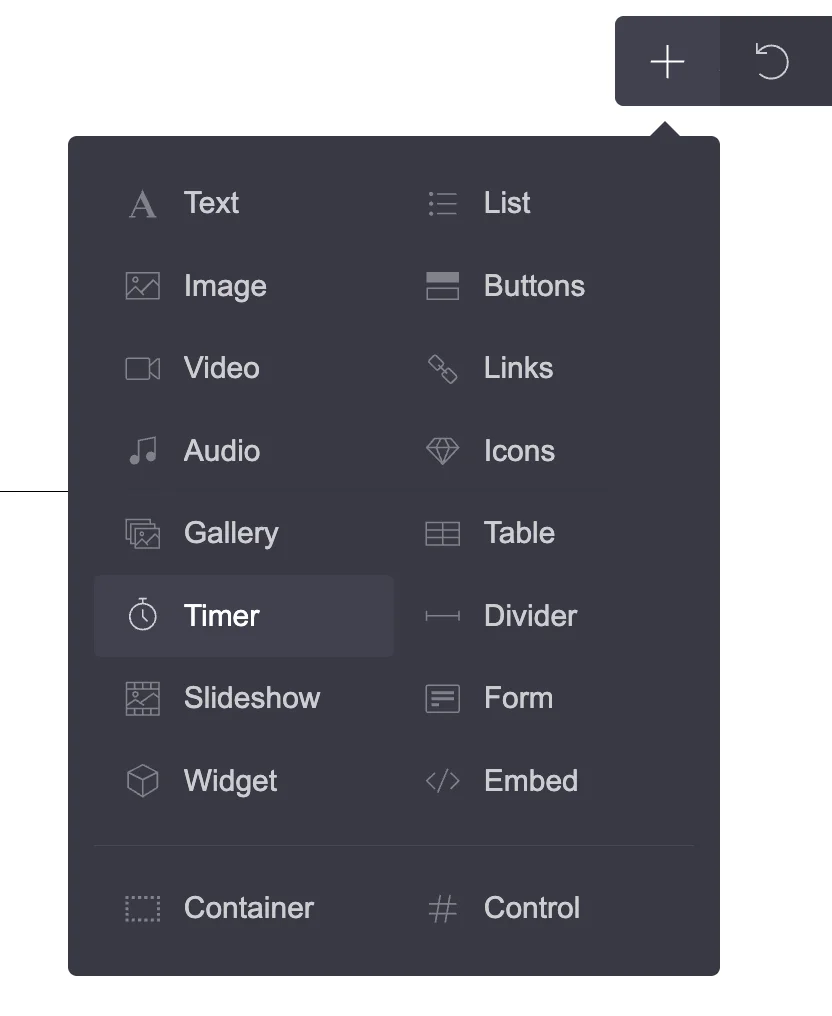
When you are inside the Carrd editor, click the plus icon in the top menu. Then choose Timer. You should now see it on your page. Click on it to access the left-hand menu.
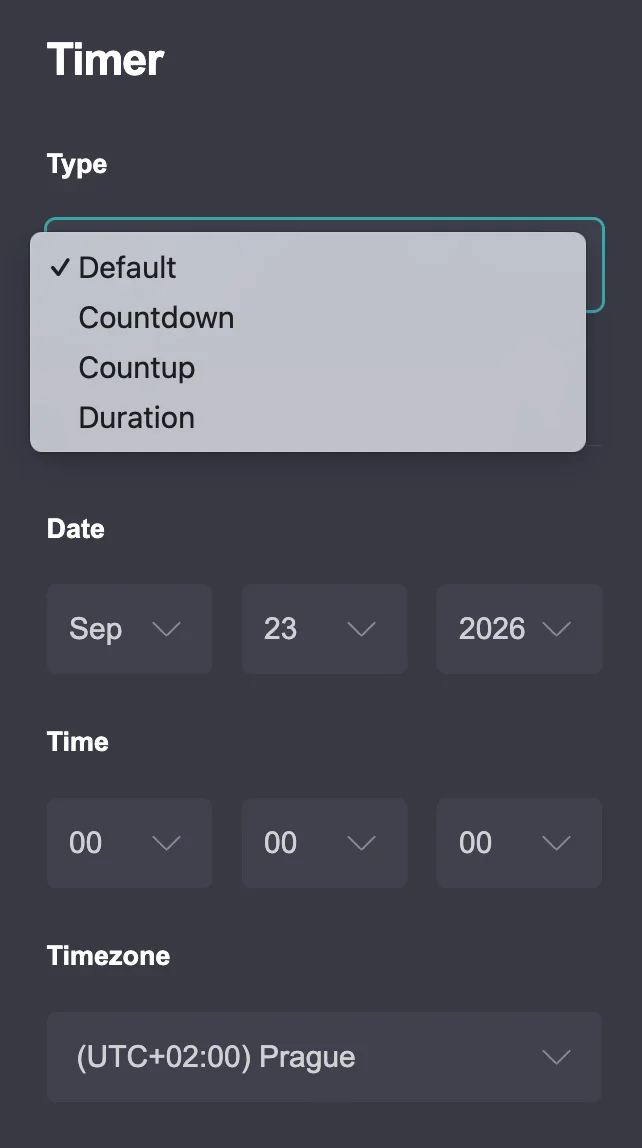
In the left-hand menu, you will see Type with three options:
- Countdown – counts down to a specific date and time and stops at zero.
- Countup – counts up from a specific date and time.
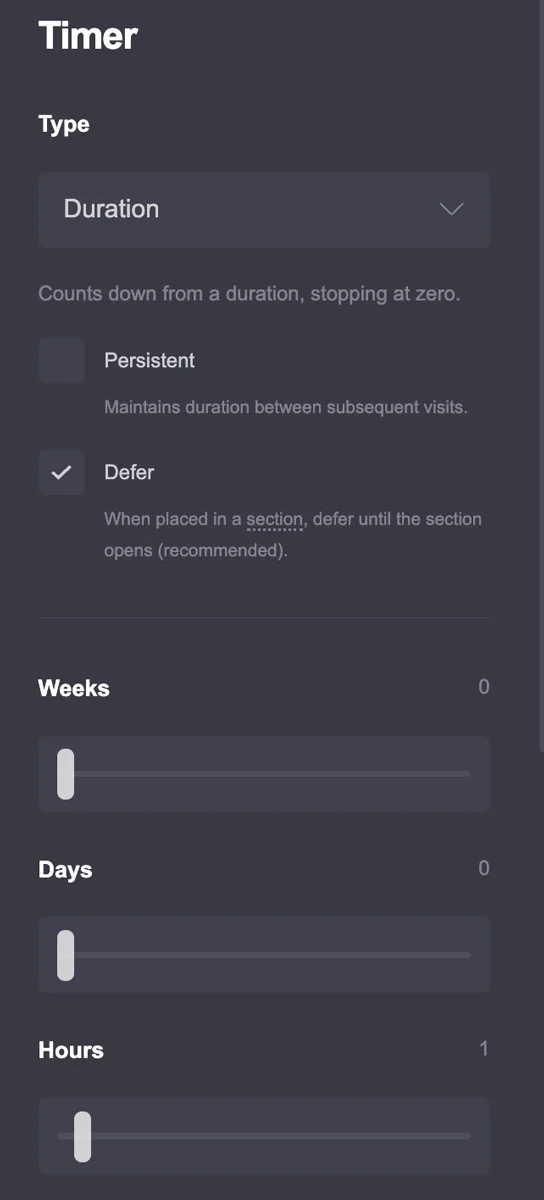
- Duration – counts down from a set duration to zero.
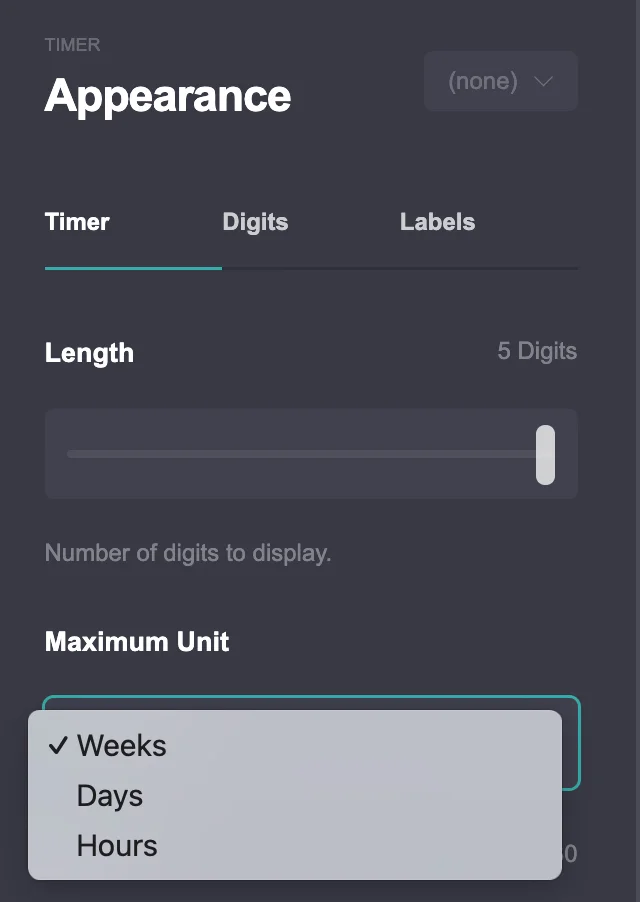
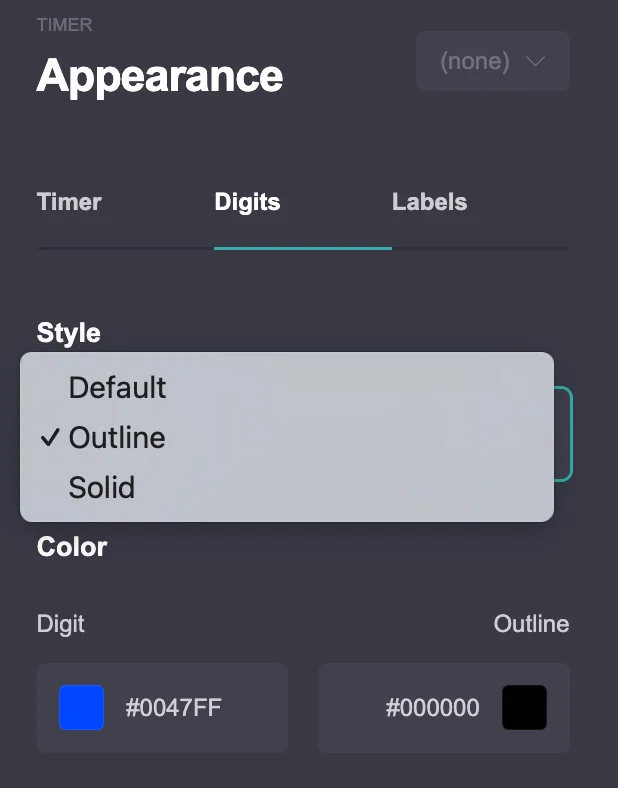
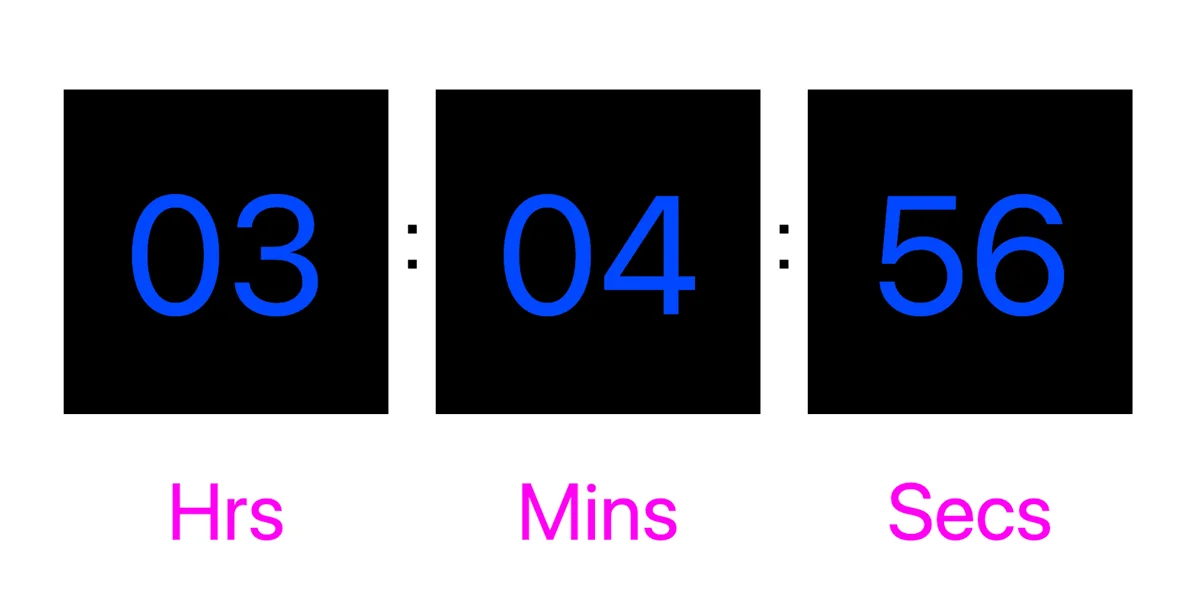
You can click the brush icon in the top menu to change the timer’s appearance. You can style the timer, digits, and labels separately.
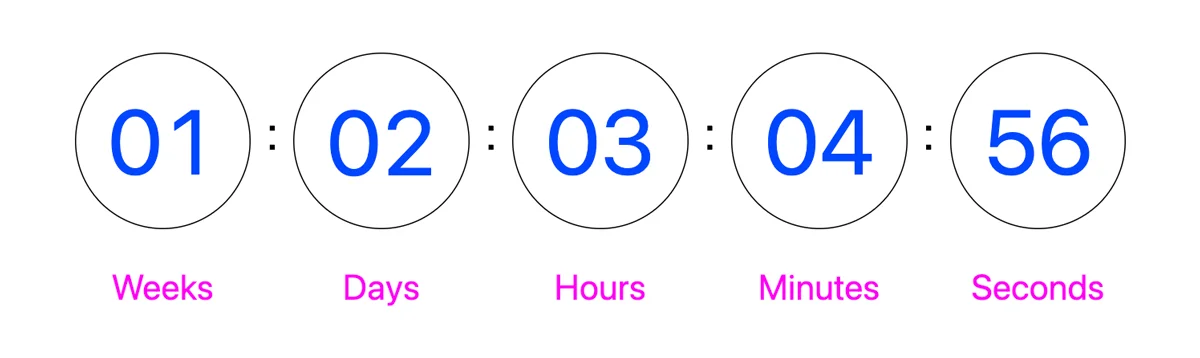
The timer appearance settings include the option to change the length. You can show only weeks, weeks and days, or add hours, minutes, and seconds. The maximum is five time units.
Other options include common parameters such as width, spacing, margins, alignment, colors, borders, fonts, and shapes. For the shape, you can choose between a circle or rectangle, with either a solid or outlined background.
On mobile, the available adjustments only include changes to the margins.
How to Make a Carrd Timer CountDown
A countdown timer in Carrd counts down to a specific date and time and stops automatically when it reaches zero. It can be useful for launch dates, event registration deadlines, sales, or other time-sensitive events.
Follow these steps to configure a countdown timer in Carrd:
Add a Timer Element
Click the + icon in the Carrd builder menu and select Timer.
Select the Type
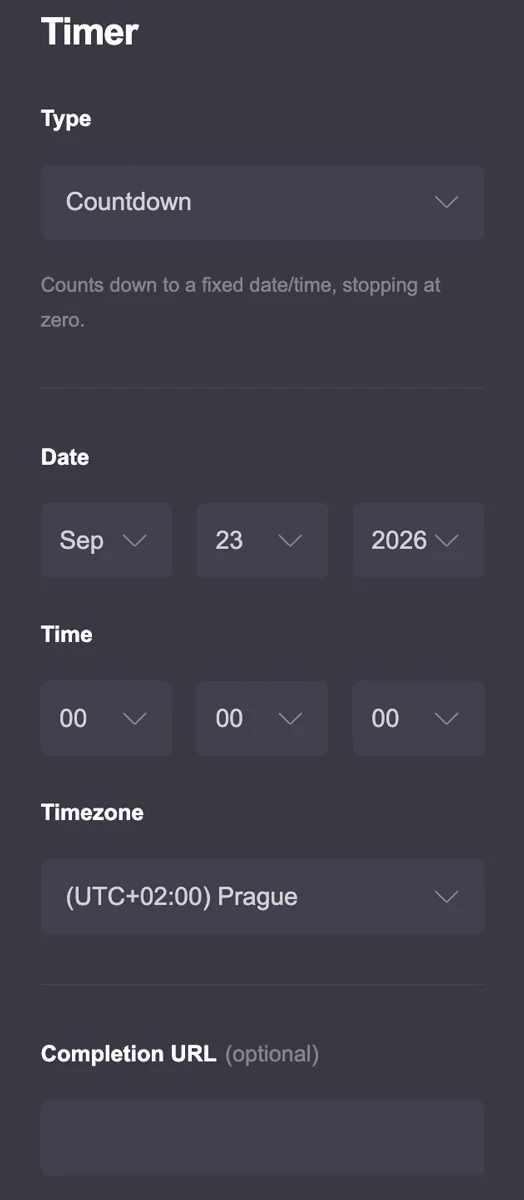
In the element settings panel on the left, set the Type dropdown to Countdown.
Set the Target Date
Under Date, select your target month, day, and year. For example, you could set it to October 14, 20XX.
Set the Target Time
Under Time, choose the exact hour, minute, and second. For example, you could set the time to 09:30:00.
Choose the Timezone
Set the Timezone option: Keep it set to Default to use the local timezone of the visitor’s browser or device. Select a specific timezone if the countdown needs to end at a fixed time in a particular timezone.
Add a Completion URL (Optional)
If you want to automatically redirect visitors to another page or offer when the timer reaches zero, enter the full URL in the Completion URL field. If you leave this field blank, the timer will simply stop at zero.
How to Make a Carrd Timer Count Up
A countup timer shows how much time has elapsed since a specific date and time. This can be useful for displaying how long a business has been active, tracking milestones, or showing how much time has passed since a project or website launch.
Add or Select a Timer Element
Click the + icon in the Carrd editor to add a Timer, or click an existing Timer element to open its settings.
Select Type
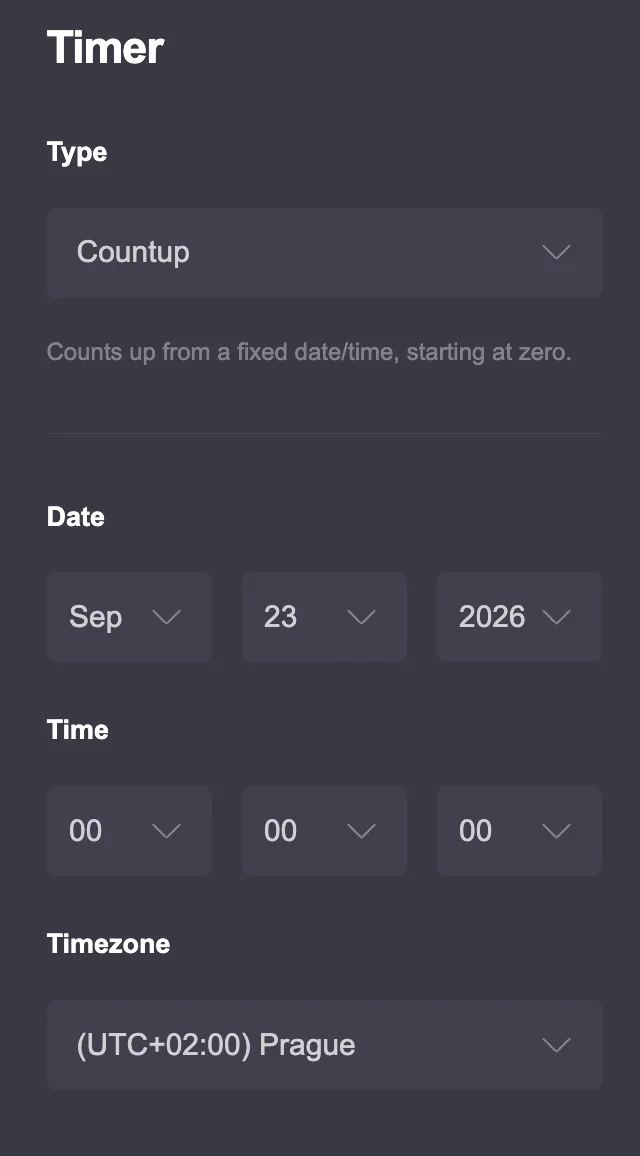
Under the Type section, open the dropdown menu and select Countup.
Set the Starting Date
Under Date, set the month, day, and year from which you want the timer to start counting. For example, you could use October 14, 20XX.
Set the Starting Time
Under Time, specify the exact hour, minute, and second when you want the timer to start counting. For example, you could set it to 09:30:00.
Choose Timezone
Under Timezone, choose the appropriate timezone for your timer. You can keep the default setting or select a specific timezone if you need the timer to use a particular timezone.
How to Use the Duration Timer in Carrd
Unlike a standard countdown tied to a specific date and time, the Duration timer counts down from a set length of time to zero. For example, you can set it to count down from 24 hours. This can be useful for limited-time offers, discounts, or other situations where you want each visitor to have a set amount of time.
Select Type
Under the Type section, select Duration.
Set the Duration
Use the time sliders to set how long the timer should run. You can adjust the weeks, days, hours, minutes, and seconds.
Enable Persistent
When enabled, the timer remembers the remaining time for returning visitors. If disabled, the timer resets when the visitor reloads the page.
Enable Defer
This option can be useful when the timer is placed inside a specific section. The countdown remains paused until the visitor navigates to and opens that section.
Add a Completion URL (Optional)
Enter a valid URL if you want to automatically redirect the visitor when the timer reaches zero.
Carrd Timer Not Working? Try These Fixes
If your Carrd timer is not showing the expected time or behaving differently than you expected, check these common issues first.
Check the Date and Time
Make sure you have entered the correct date and time. For a countdown, verify that the target date is still in the future. For a countup, check that the starting date and time are correct.
Check the Timezone
A timezone setting can affect when a countdown reaches zero. If the timer shows a different remaining time than expected, check the selected timezone and make sure it matches the time you want to use.
Check the Timer Type
Make sure you have selected the correct timer type. Countdown, Countup, and Duration work differently, so choosing the wrong option can make the timer appear to behave incorrectly.
Check the Display Settings
If your timer shows a different format on the live website than in the Carrd editor, check which time units you have selected. Carrd can display different combinations of weeks, days, hours, minutes, and seconds.
Check the Completion Settings
If your timer reaches zero but does not behave as expected, check the settings related to what happens when the timer is complete. If you added a Completion URL, make sure the URL is correct.
Test the Published Version
The Carrd editor is useful for setting up the timer, but always check the published version as well. Open your site in a private browser window or on another device to make sure the timer works as expected for visitors.
Carrd Timer Ideas
A Carrd timer can be useful for more than just counting down to a website launch. Here are some practical ways to use a timer on your Carrd site.
Website Launch Countdown
Build anticipation before launching a new website, portfolio, product, or creative project.
Event Countdown
Count down to an upcoming event, exhibition, concert, workshop, conference, or other important date.
Wedding Website
Use a countdown to show how much time remains until the wedding day.
Sale or Promotion
Create urgency for a limited-time sale, discount, special offer, or promotion.
Coming Soon Page
Add a timer to a coming soon page to show when your new website, project, or product will be available.
Project Deadline
Show how much time remains before a project deadline, application deadline, submission, or registration closes.
Anniversary or Milestone
Use a countup timer to show how long a business, website, relationship, or creative project has existed. You can also use a countdown for an upcoming anniversary or milestone.
Conclusion
The Carrd Timer is a fairly simple element, but it can sometimes take a little trial and error to set it up correctly. You can use it for countdowns, countups, or fixed durations, depending on what you want to display. If your timer does not work as expected, check the date, time zone, timer type, and published version first. With the right settings, a timer can be a useful addition to a landing page, portfolio, event website, or other Carrd project.