
Carrd Images Tutorial explains the basics of working with images in Carrd. Learn how to add, resize, move, and change the alignment of images on your page. This guide also covers Carrd image sizes and quality, image upload size limits, and tips for choosing the right image dimensions for your site. You will also learn how to style images and troubleshoot some of the most common image-related issues in Carrd.
How to Add an Image in Carrd
The process is simple. Follow these steps to add an image to your Carrd site.
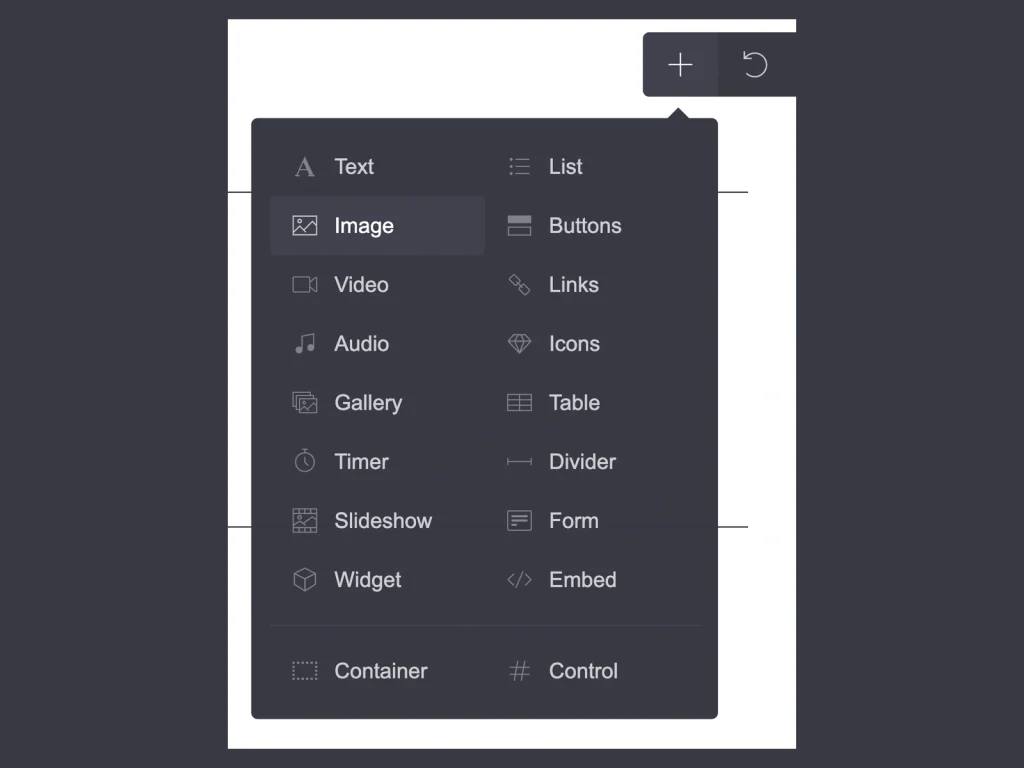
- Log into your Carrd account and, from the dashboard, open the site you want to edit.
- Once you are in the Carrd editor, go to the top-right menu and click the Plus icon. Then choose Image.
- Click on the image element, and a new settings menu will appear on the left. Here, you can add your image, give it a title, add alternative text, and enter image URL and make it clickable. You can also select additional options to optimize the image and improve your site’s loading speed.
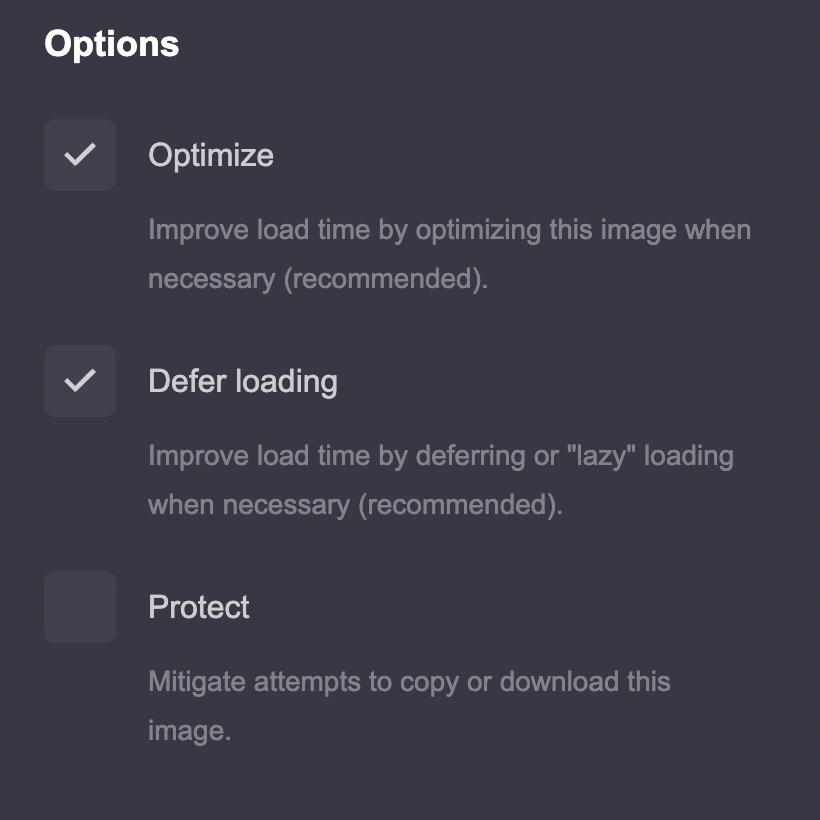
- I recommend enabling Optimize and Defer Loading. If you want to prevent visitors from easily copying or downloading your images, you can also enable Protect.
- You can also duplicate the image from the left-side menu. At the bottom, you will find three icons: the first is used to duplicate the element, the second deletes it, and the third lets you copy or cut the element.
How to Resize an Image in Carrd
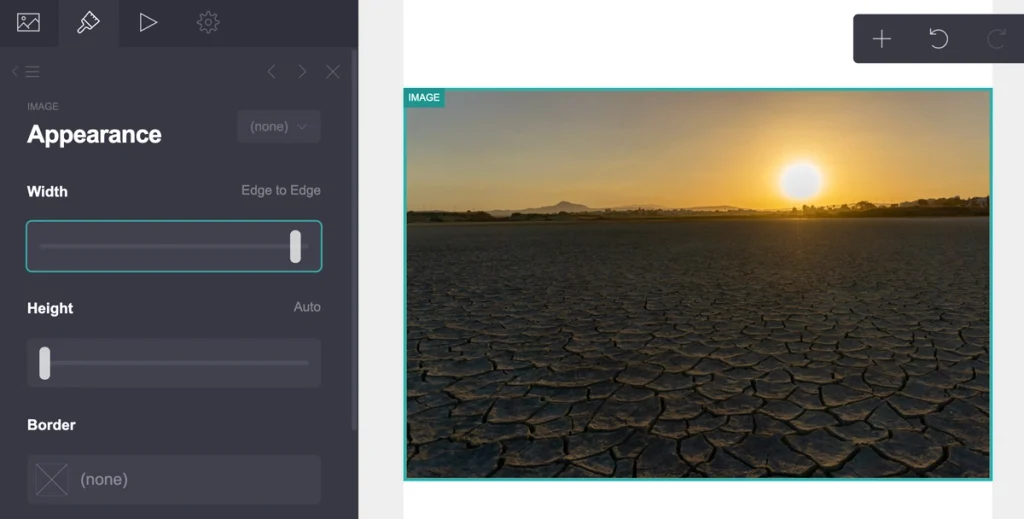
If you want to change the appearance or size of an image, open its settings and click the Brush icon at the top of the left-side menu.
You will then see the Appearance settings, where you can change the image width and height, shape (such as a circle or rectangle), border, shadow, margins, and alignment.
When you scroll down, you can also adjust the image specifically for mobile devices. By default, the mobile settings are set to Auto, but you can switch them to Manual if you want more control. Make sure to switch to the mobile view using the controls in the top-right menu so you can see and adjust how the image appears on smaller screens.
When you click the Play icon at the top, you can add animations to your image. You can control what happens when the image becomes visible while scrolling or when someone hovers over it.
If you have the Pro Plus plan, you can make additional changes using On Click events, custom CSS styles, and classes. These options are mainly intended for users who are comfortable working with HTML, CSS, JavaScript, or other code.
How to Move an Image in Carrd
Moving an image in the Carrd editor is simple. You can drag the image directly on the page, move it to the desired location, and drop it where you want it to appear.
Keep in mind that the exact position of an element can also depend on the surrounding layout and Containers. If you want to arrange multiple images next to each other, see my tutorial on how to put images side by side in Carrd. If you want to place text next to, above, or below an image, see my tutorial on how to put text next to an image in Carrd. For more precise control over the placement of multiple website elements, you can also use Carrd containers.
How to Change Image Alignment
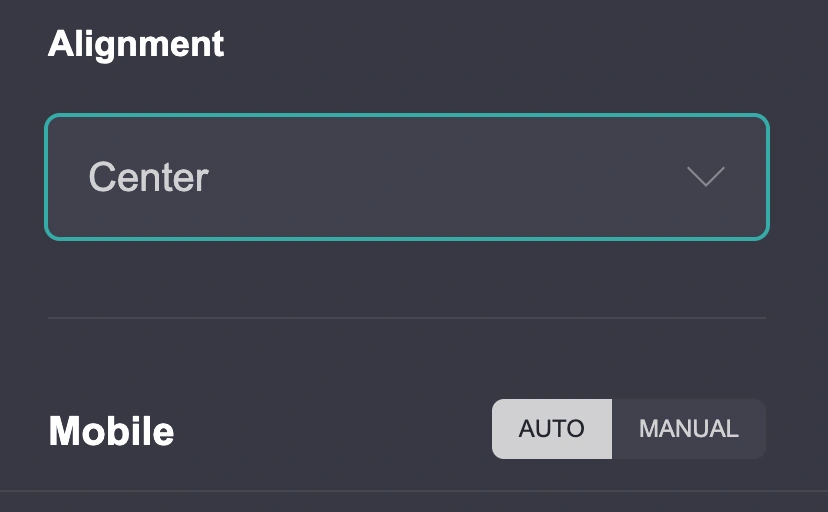
You can change the image alignment from the Appearance settings in the left-side menu. The Alignment field appears just before the Mobile settings.
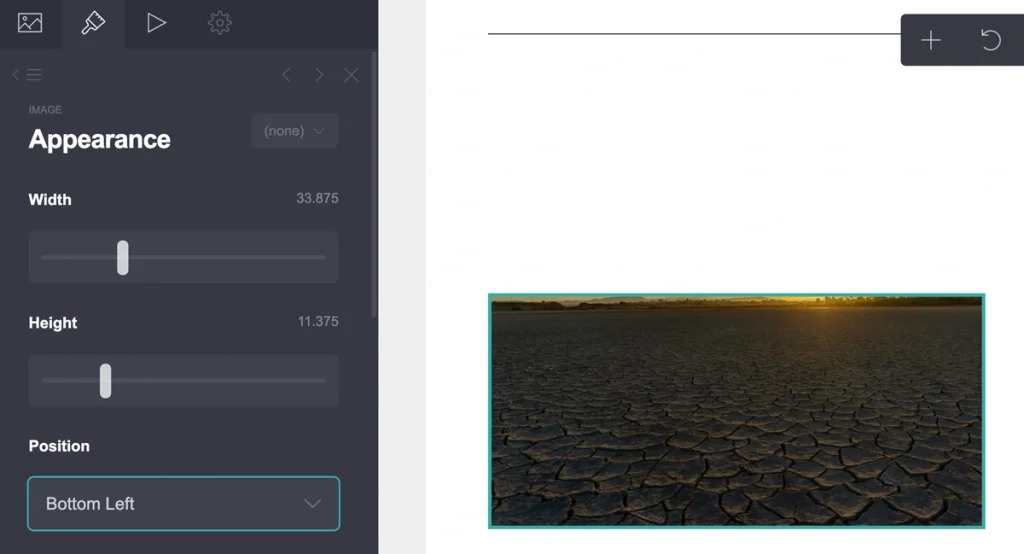
You can choose between Left, Center, and Right alignment. However, don’t confuse alignment with Image Position, which is a separate setting.
The Image Position field appears after the width and height settings. If you do not see it, your image width or height may still be set to Auto.
Image Position gives you eight positioning options. These settings do not change the alignment of the image itself. Instead, they control which part of the image is visible within its defined area.
For example, if you choose Bottom, the image will be positioned so that its lower part remains visible, while some of the upper part may be cropped. Similarly, choosing Top will keep the upper part visible while potentially cropping the bottom.
This is particularly useful when you use a fixed image height and want to control which part of the image remains visible.
How to Add and Remove the Border from a Carrd Image
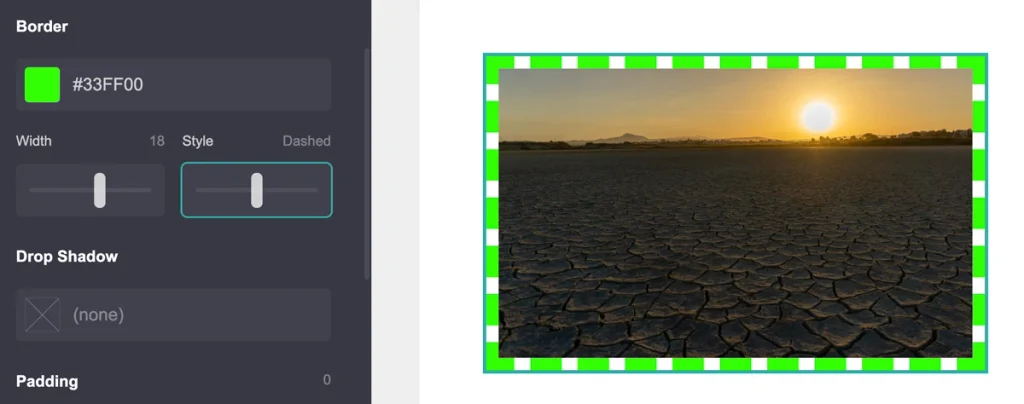
Adding or removing a border from your image is done in the Appearance settings.
- Click on the image element.
- In the left-side menu, click the Brush icon at the top.
- Scroll down to Border and click on its field, which is set to None by default.
- You can then choose the border color, width, and style.
How to Remove a Carrd Image Border
Removing a border is slightly less intuitive because there is no None option once you have added a border.
To remove it, click the border color field and select the entire color code, including the # symbol. Then press Backspace to delete the value. The border will disappear once the color value has been removed.
Carrd Image Size: What Size Should You Use?
There is no single image size that works best for every Carrd website. The right dimensions depend on how and where you plan to use the image.
For example, a large hero image needs different dimensions than a small image used next to text, a portfolio thumbnail, or an icon. Before uploading an image, consider the space it will occupy on your page and the screen sizes your visitors may use.
You can resize images directly in Carrd using the Width and Height settings. However, if your original image is unnecessarily large, it can be useful to resize or compress it before uploading it to your site.
For large photographs, a width of around 1500–2000 pixels is often more than enough for a full-width website image. You generally do not need to upload a 4000–6000 pixel photograph simply because your original camera file has those dimensions.
For best results, use dimensions appropriate for the way the image will appear on your page rather than using the largest possible image size.
Carrd Image Quality
Image quality in Carrd depends on several factors, including the original image, its dimensions, file format, and whether it has been compressed before uploading.
If your image looks blurry or pixelated, first check the original file. Uploading a very small image and then displaying it at a much larger size can reduce its visual quality.
On the other hand, uploading unnecessarily large images can increase the amount of data visitors need to load. For this reason, it is a good idea to resize and compress large images before uploading them.
Carrd also provides an Optimize option for images. Enabling it can help optimize your images for your website and reduce their impact on loading performance.
For photographs, JPEG is usually a practical choice when you want a good balance between image quality and file size. For graphics that require transparency, PNG can be more appropriate. You can also use other supported formats when they are suitable for your particular image.
Carrd Supported Image Formats
Carrd supports several common image formats, including JPEG, PNG, GIF, and SVG. The format you choose depends on the type of image you are uploading.
| Format | Best for |
|---|---|
| JPEG / JPG | Photographs and other images with many colors. It offers a good balance between image quality and file size. |
| PNG | Graphics, screenshots, logos, and images that require transparency. |
| GIF | Simple animations and short animated graphics. Carrd supports GIF files up to 32 MB. |
| SVG | Vector graphics such as logos, icons, and simple illustrations that need to remain sharp at different sizes. |
Carrd Image Upload Size Limit
Carrd limits the size of files you can upload to your site. According to Carrd’s documentation, paid plans allow you to upload and use images and GIFs up to 16 MB, while videos can be up to 64 MB.
These limits refer to the file size, not the image’s dimensions in pixels. For example, a 2000 × 1500 pixel image can be either a few hundred kilobytes or several megabytes depending on its format and compression.
If your image is too large to upload, try resizing or compressing it before adding it to Carrd. Reducing the file size can also help your website load faster, especially for visitors on mobile connections.
If you regularly work with large photographs, it is therefore worth preparing them for the web before uploading them rather than using the original camera files.
Quick Tip: Optimize Images Before Uploading
Large, high-resolution images are not always better for a website. Resize and compress your images before uploading them to Carrd when necessary to reduce file size while keeping good visual quality. This can help your pages load faster, especially on mobile devices.
Common Carrd Image Problems
Even when an image looks correct in the Carrd editor, you may sometimes encounter problems after publishing your site. Here are some of the most common Carrd image issues and things you can try.
Why Is My Carrd Image Cropped?
Image cropping is particularly common when you use different dimensions on desktop and mobile. Several Carrd users have reported that an image can look correct in the desktop editor but become cropped on certain phone screens.
If this happens, check the image’s Width, Height, and Image Position settings. You can also switch the mobile settings from Auto to Manual and adjust the image specifically for smaller screens.
Remember that different phones have different screen aspect ratios, so an image that looks perfect on one device may not look exactly the same on another.
Why Does My Carrd Image Look Blurry?
If an image looks blurry, first check the dimensions and quality of the original file. A small image that is displayed at a much larger size can lose quality.
Some Carrd users have also reported blurry images in galleries, particularly on mobile devices. Possible things to test include adjusting the image’s mobile settings and checking whether Optimize affects the result.
It is also worth checking the published version of your site rather than judging the image only inside the Carrd editor.
My Carrd Images Are Not Loading
If an image appears blank, blurry, or fails to load after publishing, try removing the image and uploading it again. In a recent r/Carrd discussion, re-uploading the affected images resolved the problem. Testing the site in another browser can also help determine whether the issue is browser-related.
Why Can’t I Upload My Image to Carrd?
If Carrd says that your image is too large, check both the file size and the image dimensions. If the file is within the stated upload limit but still cannot be uploaded, try resizing or compressing it and uploading it again.
Some users have also reported upload problems even when their files appeared to be below the stated limits. In these cases, clearing the browser cache, renaming the file, or reducing its dimensions further may be worth trying.
Why Are My GIFs Loading Slowly?
Animated GIFs can be much heavier than static images, so using several large GIFs on the same page can noticeably affect loading time. Carrd users have reported slow-loading GIFs even after compressing them.
If loading speed is important, try reducing the GIF’s dimensions and file size or consider whether a static image or another format would work better for the design.
Why Does My Image Look Different After Publishing?
Sometimes an image may look slightly different on the published site compared with the Carrd editor. Users have reported changes in image appearance, including differences in color and compression artifacts.
If this happens, compare the published version in a different browser or device and check whether the Optimize setting affects the result. You can also test a different image format, particularly when working with graphics, logos, or areas of very precise color.
Conclusion
Adding and styling images in Carrd is simple once you know where to find the right settings. You can resize, move, align, and customize images to fit your layout and make your site more visually appealing. Choosing the right image format, dimensions, and file size can also help maintain good quality and loading speed. With these basics, you can use images more effectively across your Carrd website.
FAQ
Carrd supports common image formats including JPEG, PNG, GIF, and SVG. The best format depends on the type of image you are using.
Carrd has file-size limits for uploaded images and GIFs. The exact limit depends on the file type and plan.
A blurry image can be caused by a low-resolution source file, displaying an image larger than its original dimensions, or image optimization. Check the original file and test the published version of your site.
Yes. You can add a URL to an Image element to make it clickable. This allows you to use an image to link to another website, page, social profile, or section.
Yes. You can arrange multiple images side by side using Carrd’s layout and container options. The exact method depends on the layout you want to create and how you want the images to behave on different screen sizes.