
In this tutorial, you will learn how to create a Carrd slideshow. The Carrd slideshow is a paid feature, but there is also a way to create a slideshow for free. I will compare these two approaches, as well as other image options available in Carrd. Finally, I will discuss some slideshow ideas to help you choose the right approach for different design styles and goals.
What Is a Carrd Slideshow?
A slideshow is a website element that lets you create an image animation from separate images. Instead of creating the animation in a separate program such as CapCut, Adobe Premiere, or similar software, you can simply upload your images to the slideshow and set their timing and transition styles.
How to Add a Slideshow in Carrd
The process is very simple, but you will need a paid Carrd plan, specifically Pro Standard or Pro Plus. Otherwise, the Slideshow element will not be available. Once you have your account and plan ready, follow these steps:
- Log into your Carrd account. Find the site you want to edit or create a new one.
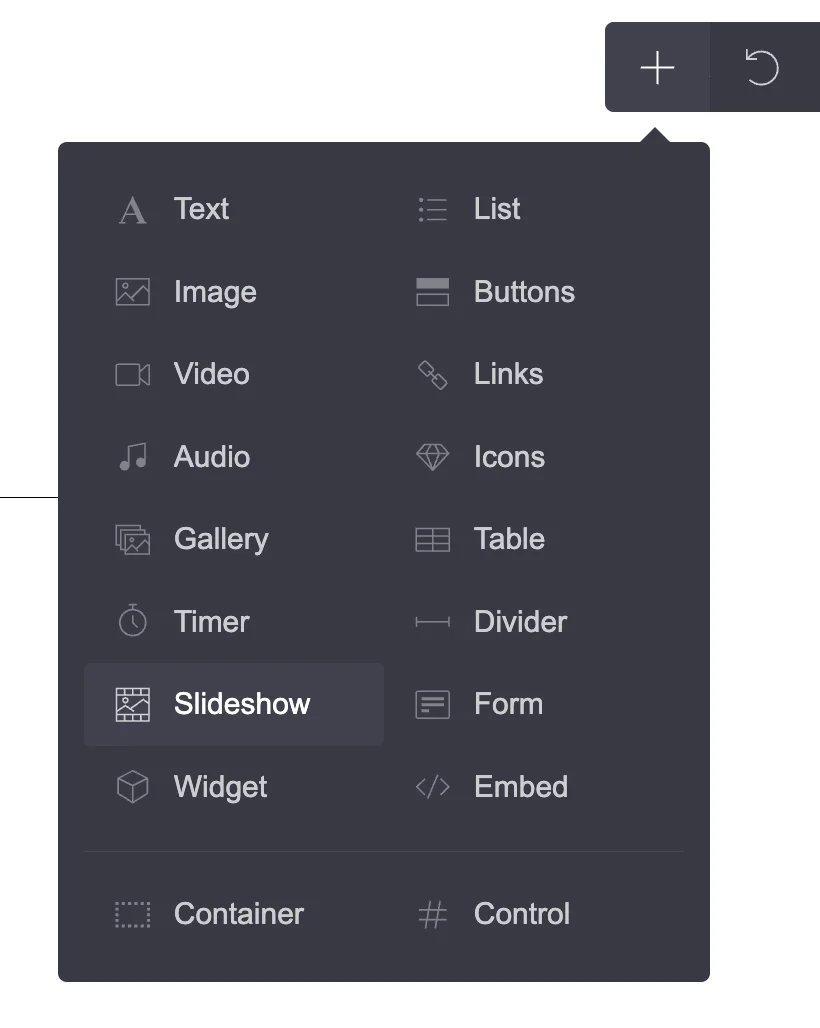
- When you are inside the Carrd editor, click the plus icon in the top-right menu. Then select the Slideshow element.
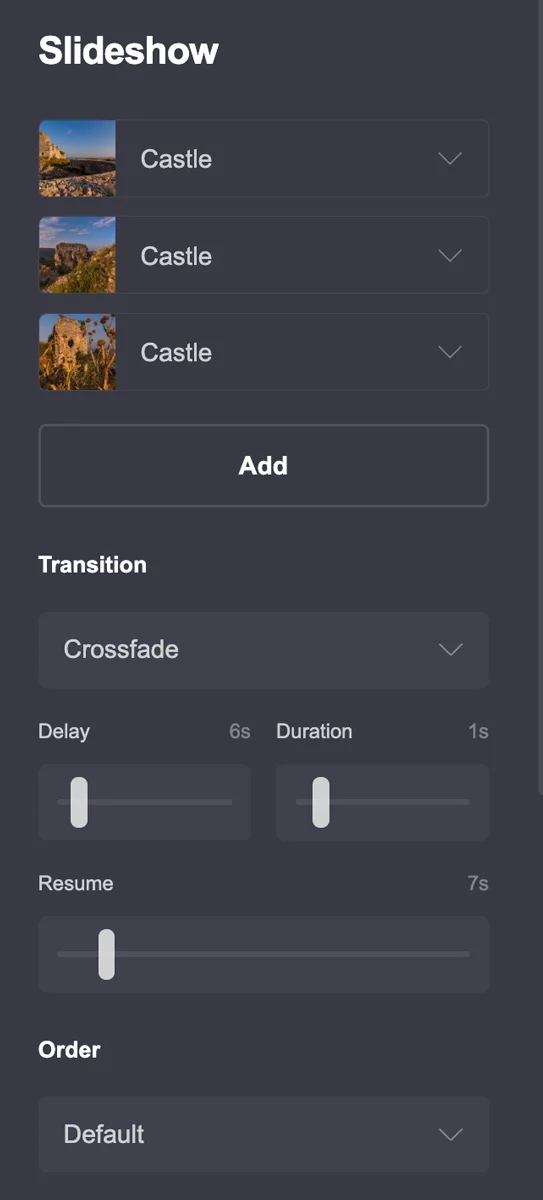
- You should now have the element on your page. Click on it to access the left-hand menu, where you can set up your slideshow.
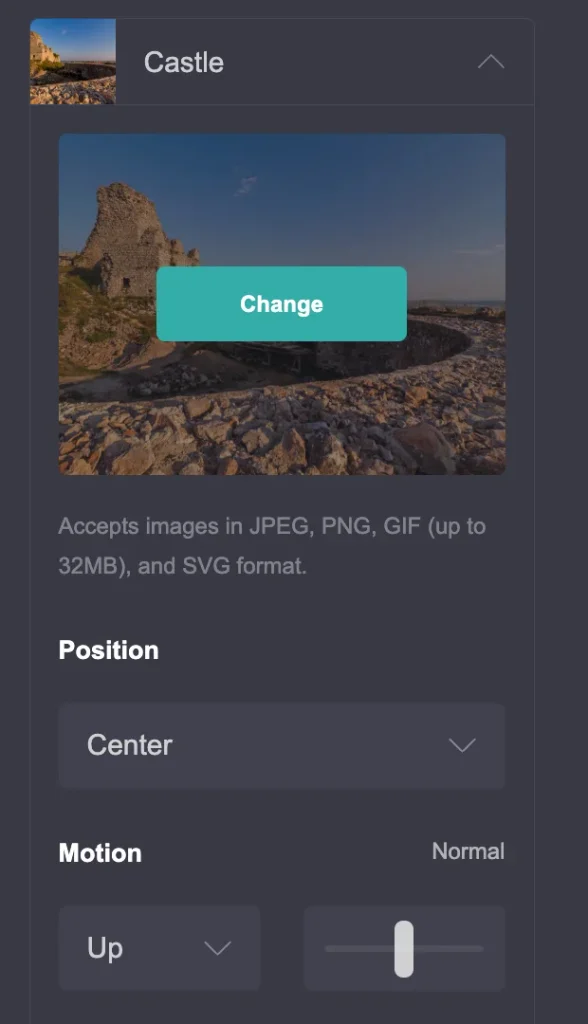
- Upload your first image. Then click Add to upload another one. Add as many images as you need. When you click on an individual image, you can set parameters such as position, motion, speed, and alternative text. You can also add a URL to each image.
- Below the image upload section, you can choose the type of transition between images, such as crossfade, fade, or instant. Other transition parameters include delay, duration, and resume.
- You can also change the order of the images. The available options are default, reverse, and random.
- At the bottom, you will find a section for optimizing the slideshow’s performance. Ideally, enable Optimize, Defer Loading, Preserve Aspect Ratios, and Protect. The Protect option helps prevent people from easily copying your images.
How to Customize Your Carrd Slideshow Design
If you want to optimize the way your slideshow looks, try these steps:
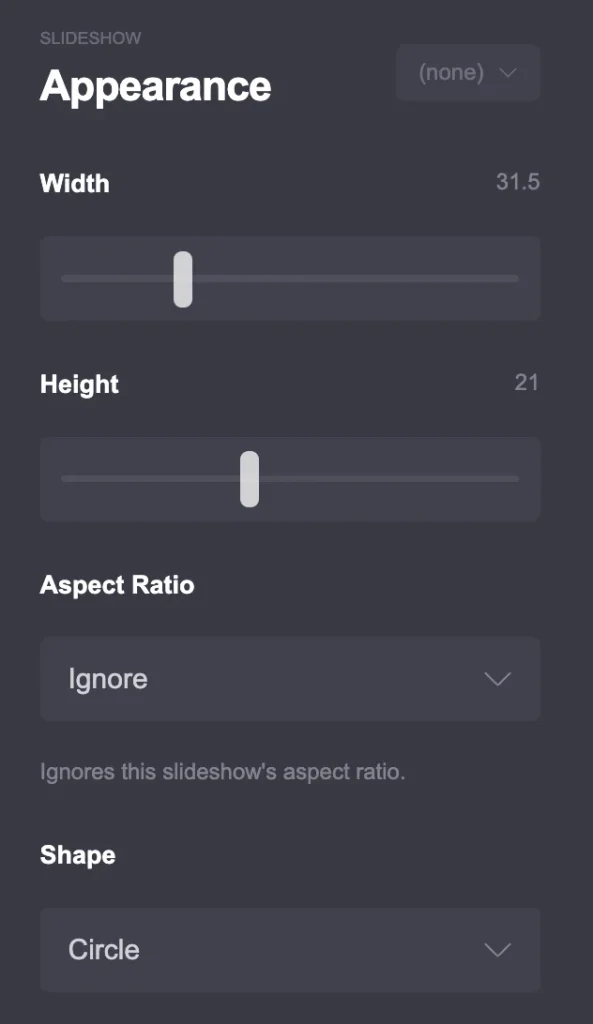
- Click on the brush icon in the left menu. You will now see the Appearance options.
- You can change the width, height, aspect ratio, and shape (circle or rectangle). You can also add a border or drop shadow, change the margins, or adjust the alignment.
- You can also add a transparent color for the transparent areas within the slideshow. For example, when you set an image to move from right to left, the transparent area may become visible before the next image appears. If you leave this option set to None, the background behind the slideshow element will be shown.
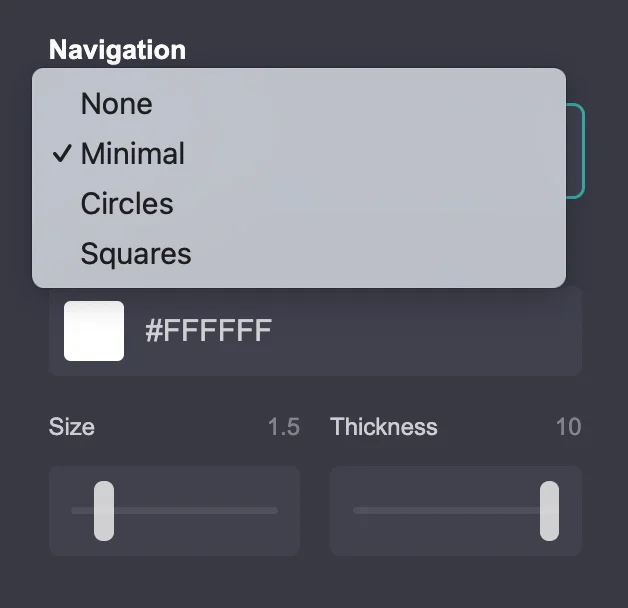
- There is also an option to show navigation for your slideshow. By default, it is set to None, but you can switch it to Minimal, Circles, or Squares. If you decide to show the navigation, you will see arrows, or arrows inside circles or squares. You can also customize their design, including their size, color, and thickness.
- At the bottom, there are also mobile options. By default, mobile is set to Auto, but if you switch to Manual mode, you can change the width, height, and margins. You can also completely hide the navigation for mobile viewers.
- When you click on the play button in the left menu, you can set the animation for the slideshow, including what happens when it becomes visible to the user on the screen.
- If you have a Pro Plus plan and some knowledge of coding, you can click on the fourth icon at the top of the left menu and add other parameters, such as classes, attributes, IDs, and styles.
How to Make a Slideshow in Carrd for Free
If you don’t have a paid plan that includes the Carrd Slideshow element, you can use the site background settings to create a slideshow without using the paid element.
- To access the site background, open the Carrd editor for the site you want to edit. Then click on the three dots in the top menu and select Background.
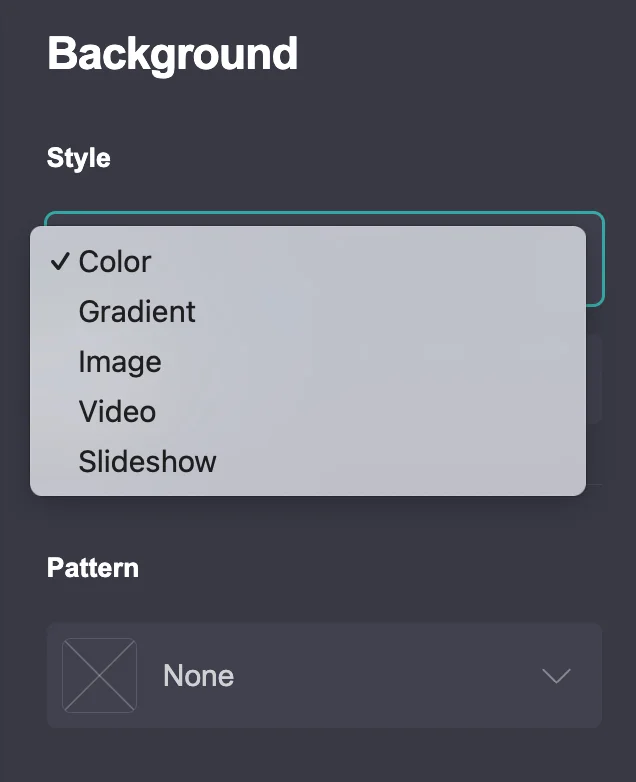
- A left-hand menu will appear with the Style section. By default, it is set to Color. Click on it to see the other options, including Slideshow.
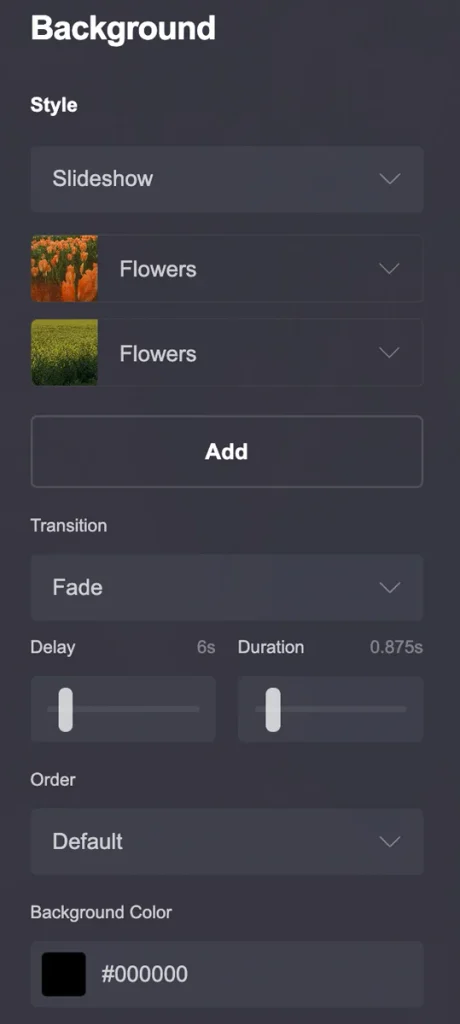
- When you select Slideshow, you will see many of the same options available for the Slideshow element, including transition, delay, duration, order, background color, and the Optimize checkbox.
- There are also some additional options, such as Overlay, where you can add a color or gradient, and Pattern, where you can choose a pattern and adjust its color, size, and thickness.
Carrd Slideshow vs. Background Slideshow
Although both options can create a slideshow effect, they work differently. The main difference is that the Slideshow element is a separate element that you can place and size on your page, while a background slideshow fills the background of the site or page.
| Feature | Slideshow Element | Background Slideshow |
|---|---|---|
| Available on | Pro Standard and Pro Plus | Available as a background option |
| Works as | A separate website element | A site background |
| Position | Can be positioned on the page | Covers the background area |
| Width and height | Can be customized | Cannot be sized like a regular element |
| Image transitions | Yes | Yes |
| Transition timing | Yes | Yes |
| Image order | Yes | Yes |
| Background color | Yes | Yes |
| Overlay | No | Yes |
| Pattern | No | Yes |
| Best for | Galleries, portfolios, image showcases | Landing pages and visual backgrounds |
The main limitation of a background slideshow is that you cannot control its width and height in the same way as a regular Slideshow element. However, it can be a useful alternative if you want a slideshow effect without using the paid Slideshow element.
Carrd Slideshow vs. Other Image Options
A slideshow is not the only way to display multiple visuals on your Carrd site. Depending on your content and design, you can also use a gallery, GIF, or video. Each option works better for a different type of visual content.
Image
A regular image is the simplest option when you want to highlight one specific visual. It works well for hero images, portraits, illustrations, or other graphics where you don’t need animation.
Gallery
A gallery is useful when you want to display several images at once and let visitors browse them. It can be a better choice than a slideshow when you want visitors to see multiple images immediately.
Slideshow
A slideshow is useful when you want to display several images in the same space and have them change automatically. It works particularly well for portfolios, photography websites, and visual storytelling.
GIF
A GIF can be useful for short, looping animations. Unlike a slideshow, the animation is created as a single file rather than from separate images in Carrd.
Video
Video is a better option when you want to show more complex motion or longer visual content. It can work well for cinematic backgrounds, creative portfolios, and motion-focused landing pages.
Carrd Slideshow Ideas
A Carrd slideshow can be useful for many types of websites. Here are some ideas for using it in different design contexts:
Photography Portfolio
Use a slideshow to showcase a selection of your best photographs without filling the page with a large gallery.
Travel Website
Show several photos from a destination, hotel, or travel story in one compact section.
Creative Portfolio
Use a slideshow to present different projects, artworks, illustrations, or other visual work.
Product Showcase
Display different views of a product or a series of related products. This can be useful for designers, artists, and small creative businesses.
Wedding or Event Website
Use a slideshow to show photos from an engagement session, wedding, event, or other special occasion.
Editorial Website
Combine photographs, illustrations, or other visuals to create a more dynamic editorial-style layout.
Visual Landing Page
Use a slideshow as a prominent visual element on a landing page when you want the imagery to change without adding several separate images to the layout.
Tips for Using a Carrd Slideshow
A few simple adjustments can help your Carrd slideshow load faster and look better across different devices.
Optimize Your Images Before Uploading
Don’t upload unnecessarily large images to your slideshow. For example, a 5000 × 7000 px photo is usually much larger than necessary for a website.
Resize your images to a reasonable web size before uploading them to Carrd. This can reduce file sizes and help your slideshow load faster.
You should also compress your images before uploading them. JPEG can be good choice for photographs, while PNG is more suitable when you need transparency.
Keep Similar Dimensions
Try to use images with similar dimensions and aspect ratios. Mixing very different image sizes can make the slideshow feel inconsistent and may lead to unexpected cropping or empty space.
Don’t Use Too Many Images
A slideshow does not need dozens of images to be effective. Choose a smaller selection of relevant visuals instead of adding every image from a project or photoshoot.
Choose Images That Work Together
Think about the slideshow as one visual composition. Images with a similar style, color palette, subject, or aspect ratio can create a more cohesive result.
Check the Mobile Version
Always preview your slideshow on a smaller screen. An image that looks good on desktop may be cropped differently on mobile, especially when using different aspect ratios.
Add Alternative Text
Add descriptive alternative text where appropriate, especially when the images provide meaningful information. This can make your website more SEO friendly and accessible to visitors using screen readers.
Conclusion
A Carrd slideshow is a simple way to add motion and display multiple images without taking up too much space on your page. While the dedicated Slideshow element requires a paid plan, you can create a similar effect for free using a background slideshow. The right option depends on whether you want to showcase images as content or use them as part of your website’s visual background. Whichever option you choose, optimize your images before uploading them and check how the slideshow looks on both desktop and mobile.