
Carrd Links Tutorial covers the basics of working with links in Carrd. You will learn how to add text and image links to your page and how to enter a valid URL as a link destination. Besides linking individual page elements, this tutorial also explains how to publish your Carrd site, get its final URL, and share it with others.
What Is a Carrd Link?
A Carrd link is a clickable element on your page that directs visitors to another webpage, website, section of your site, or another destination. You can add links to text, buttons, icons, and images, turning these website elements into interactive parts of your website.
Links can be used for both internal and external navigation. For example, you can link to another section of your Carrd site, an external website, a social media profile, an email address, or a specific page. Adding links makes your site easier to navigate and gives visitors a simple way to access additional content and resources.
How to Add a Link in Carrd
You can add links to different elements on your site. I have already covered Carrd buttons and how to add links to them in a separate tutorial. In this one, I will focus on text and visual links (images and icons).
Add a Link to Text
To add a text link in Carrd, follow these steps:
- Access the site you want to edit from your Carrd dashboard.
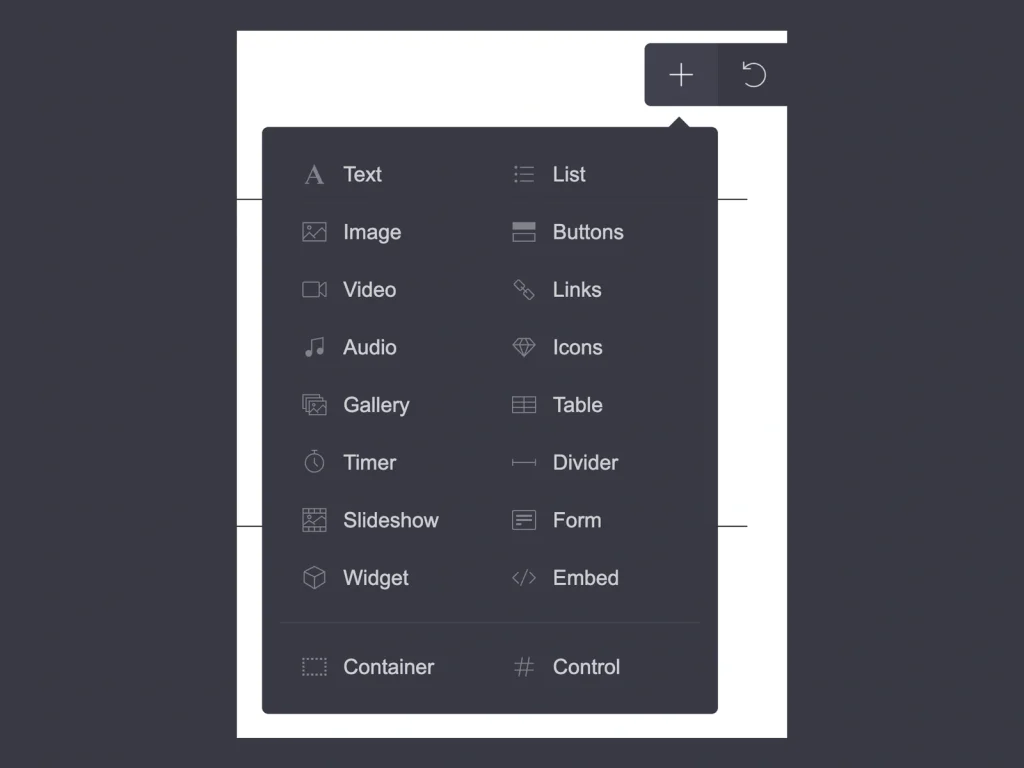
- Click the Plus icon in the top-right menu and choose Links.
- A new element called Link will appear on the page. The link will be underlined by default.
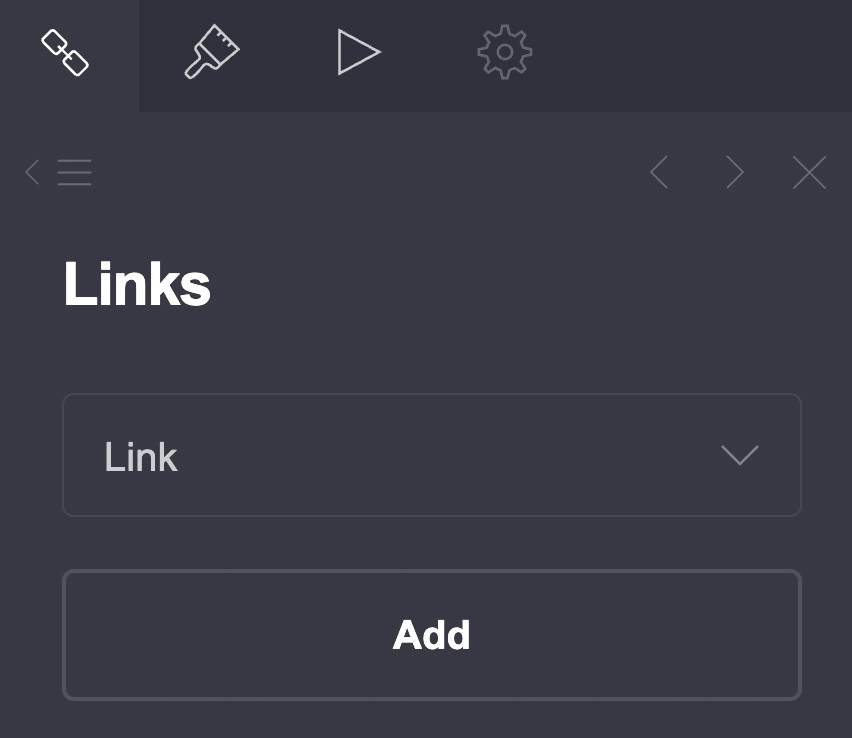
- Click on the link to open the settings in the left-side menu. Here, you can change the text (label), add a URL, adjust the color, font, and layout, add dividers and animations, and more. If you know how to code and have the Pro Plus plan, you can also add custom code to the link’s on-click event.
How to Add More Links Side by Side
You can add multiple links in the same element and display them in a row.
- Click Add under the existing link to create another link.
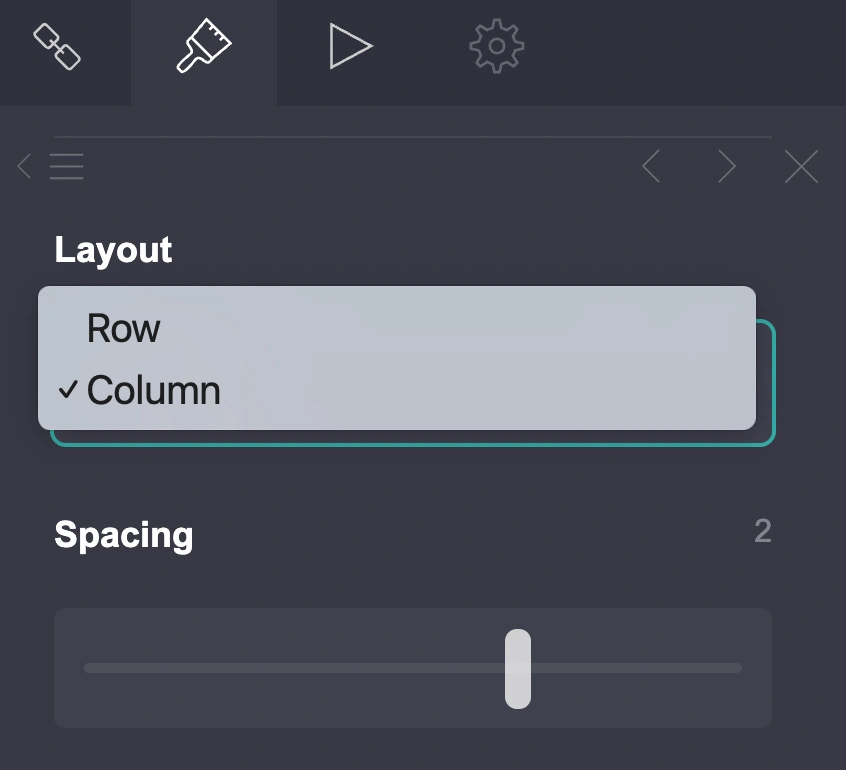
- Then click the Brush icon at the top to change the appearance and layout.
- Scroll down to Layout and leave it set to Row if you want the links to appear side by side. You can also add a divider between them. Available divider styles include diamond, circle, dash, dot, line, square, and star.
- If you change Row to Column, the links will be displayed one below the other instead. The divider will disappear.
Add a Link to an Image or Icon
The process is similar when adding a link to Carrd image or icon.
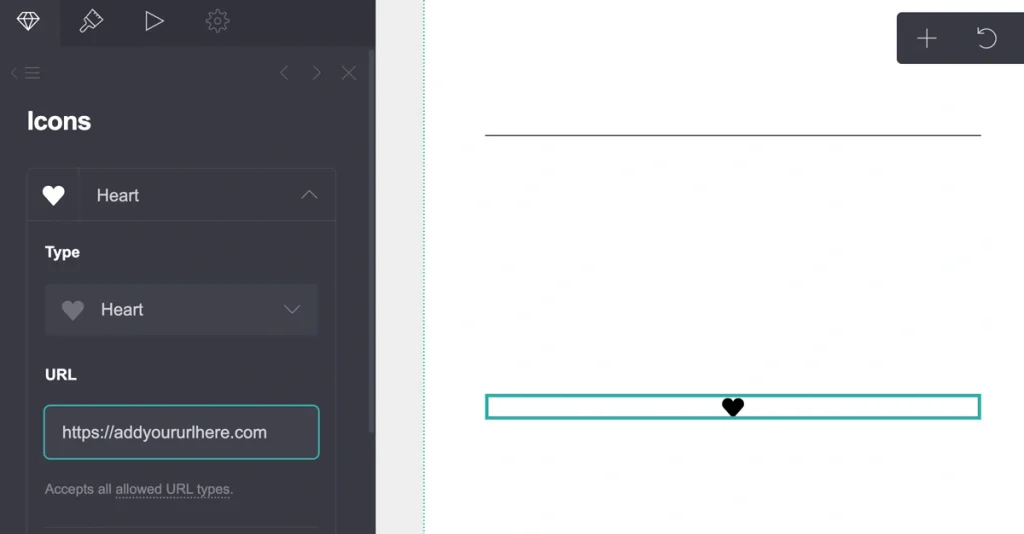
- Start by clicking the Plus icon in the top-right menu and choose Image or Icon. The main difference between these two elements is that you cannot add multiple images to the same image element. If you want to display multiple images, you can use the Gallery or Slideshow element instead.
- Once the image or icon is on the page, click on it to open its settings in the left-side menu.
- Enter your URL in the appropriate field.
- You can then add other information or adjust the element’s appearance. However, unlike text and button links, image and icon elements do not offer a Layout option for arranging multiple items in rows or columns.
As mentioned earlier, you also cannot add multiple images to a single Image element. If you want to create a custom arrangement of multiple images, you can use Containers instead. See my Carrd Container Tutorial for more details.
Which Carrd Link Type Should You Use?
If you’re not sure which type of Carrd links to use, here are some simple recommendations for choosing between text, image, and button links:
- Text links are best for inline links, additional information, and simple navigation within your content. They are also a good choice when you want the link to blend naturally into the text.
- Button links work best for important actions and calls to action, such as Contact Me, Book Now, View Portfolio, or Get Started. Their visual appearance makes them more noticeable than regular text links.
- Image links are useful when you want the visual itself to be clickable. For example, you can make a portfolio image, product photo, or featured image link to another page.
- Icon links are a good choice for compact navigation or social media links. They take up less space and work particularly well for Instagram, Pinterest, YouTube, or other social profiles.
As a general rule, choose the link type based on its purpose. Use text links for subtle navigation, buttons when you want to encourage an action, and images or icons when the visual element is an important part of the link.
How to Link to a Section in Carrd
Carrd also lets you link buttons, text, images, and other elements directly to a section of your site. Instead of using a full URL, you can enter the section ID, such as #about, #services, or #contact, in the element’s URL field.
This is especially useful for navigation menus on one-page websites. When a visitor clicks the link, Carrd takes them directly to the corresponding section.
If you want to learn how to create section links, name your sections, and set up navigation in more detail, see my Carrd Sections Tutorial: How to Add, Link & Use Sections in Carrd.
How to Make a Carrd Link
When you have your page design ready, including your text and visual link elements, you can publish your site and make it available online.
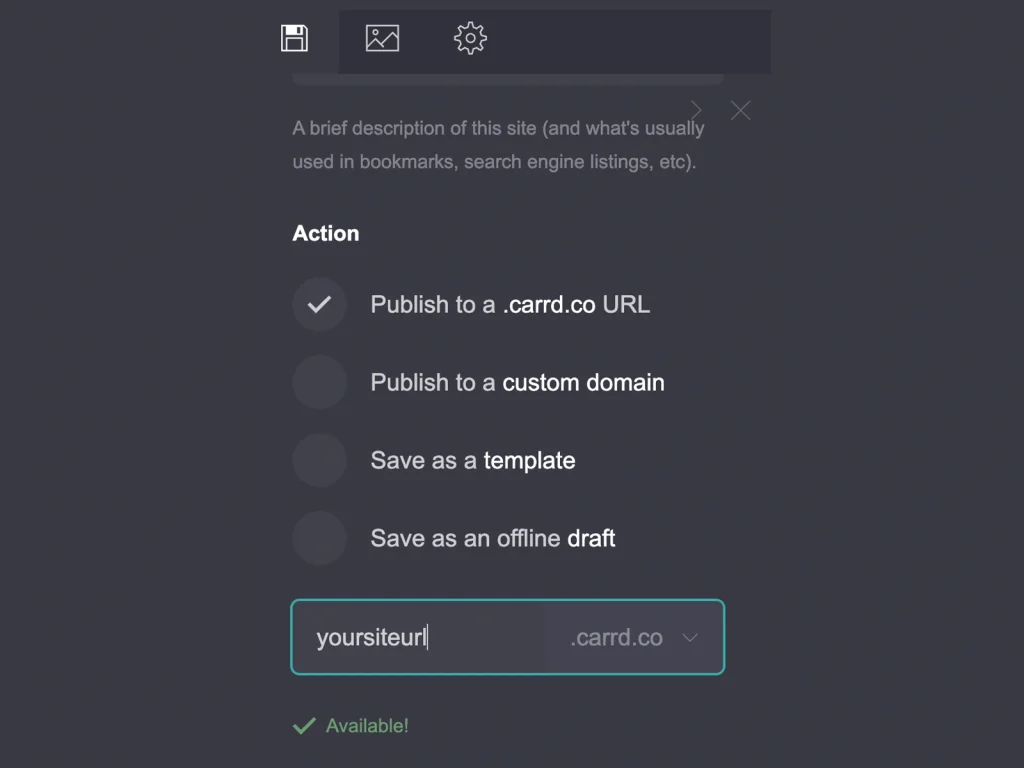
- In the top-right menu, click the Save icon.
- Then choose whether you want to publish your site to a Carrd subdomain or a custom domain.
- Choose your subdomain name or custom domain in the appropriate field. If you use a custom domain, you will need to make additional DNS changes, which I will not cover in this tutorial.
- Then click Publish Changes.
- If you have any empty or unfinished image elements, Carrd will display a prompt about an Unfinished Element that you need to complete before publishing.
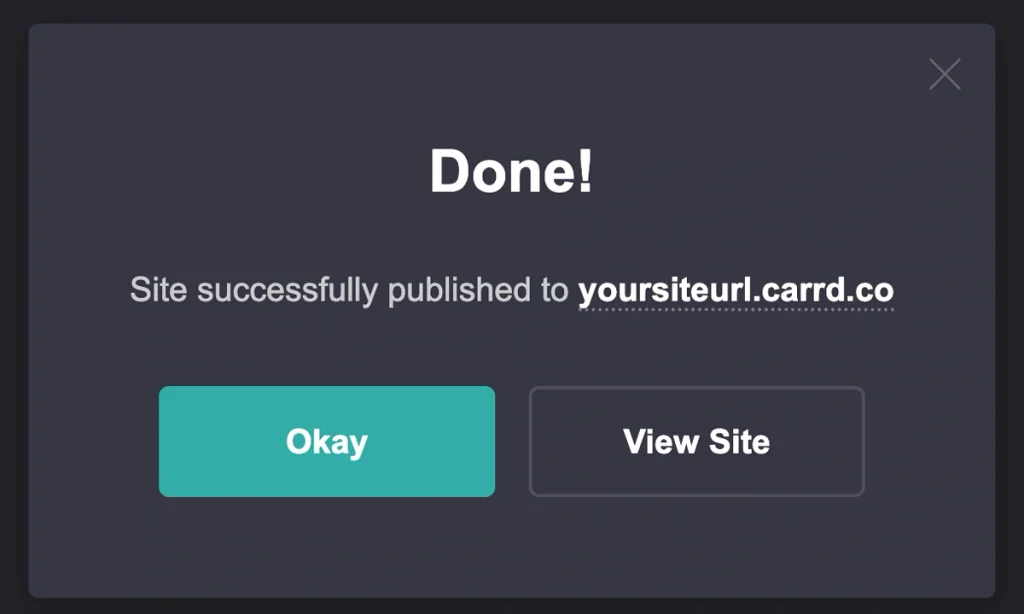
- If everything is ready, your site will be published under your Carrd subdomain or custom domain. Carrd will then confirm that the publishing process is complete and provide you with the URL of your new site.
- You can now share this URL with other people or use it wherever you want to direct visitors to your Carrd site.
How to Share a Carrd Link
Once your Carrd site has been published, you can share its URL with other people. Simply copy the URL provided by Carrd after publishing and paste it wherever you want to direct visitors to your site.
You can share your Carrd link through social media, email, messages, your social media bio, or anywhere else where you can add a website URL.
If you are using a custom domain, share your custom domain URL instead of the original Carrd subdomain.
Share Access to a Carrd Site
If you want someone else to help you edit or manage your Carrd site, you can give them access directly through your Carrd dashboard.
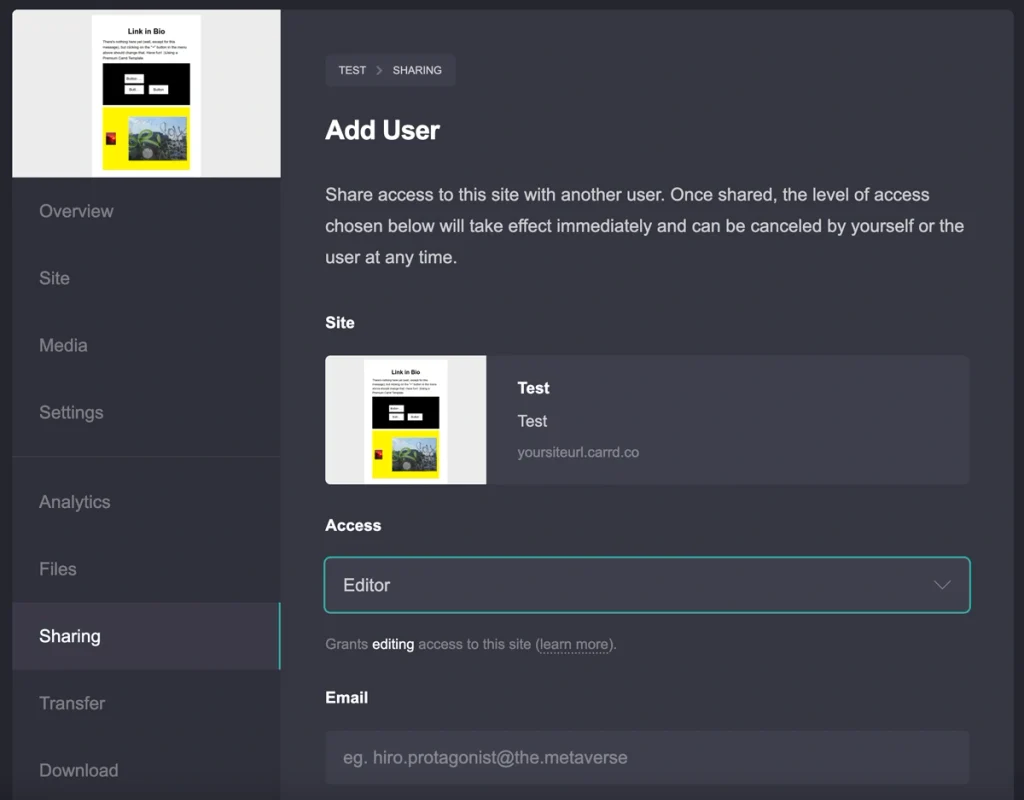
Find the site in your dashboard and click Manage This Site in the bottom menu. Then open Sharing, where you can add another user by entering their email address.
Carrd allows you to assign different roles depending on how much access you want to give the person:
- Editor — allows the user to work on the site’s content and design.
- Admin — provides broader access to manage the site.
This is useful when you are working with a designer, developer, client, or other collaborator and want to give them access without sharing your own Carrd account credentials.
Common Carrd Link Problems
Sometimes a Carrd link may not work as expected even when everything seems to be set up correctly. Before assuming there is a problem with Carrd, check these common issues.
My Carrd Link Is Not Working
First, check the URL you entered. Make sure it is complete and does not contain any unnecessary spaces before or after the address. Even an accidental space can prevent a link from working correctly.
Also check for typos, missing characters, or an incorrect domain name. If you are linking to an external website, try opening the URL directly in your browser to make sure the destination itself is working.
My Changes Are Not Showing
If you have changed a link but the old version is still appearing on your published site, try publishing the changes again.
If the changes still do not appear, your browser may be displaying a cached version of the page. Try opening your Carrd site in an Incognito or Private window or clear your browser cache and reload the page.
My Social Media Link Is Not Working
Social media links can sometimes be more sensitive to incorrect URLs. Make sure you are using the correct profile URL and that there are no extra spaces or characters in the link.
It is also worth testing the link directly in your browser before adding it to Carrd. If the social profile opens correctly in the browser but not from your Carrd site, try publishing the site again and testing the link in an Incognito or Private window.
My Section Link Is Not Working
If you are linking to another section of your Carrd site, check that the correct section and link settings have been selected. Carrd provides several section-linking options directly below the URL field, so make sure you have selected the option that matches your intended destination.
For a detailed guide to creating and linking sections, see my Carrd Sections Tutorial.
My Link Still Does Not Work
If everything looks correct, test the published website rather than relying only on the Carrd editor. Open the live site in a different browser or an Incognito/Private window and test the link there.
If you still cannot identify the problem, you can also search for similar issues or ask for help in online communities such as Reddit, where other Carrd users may be able to suggest a solution.
Carrd Link vs. Carrd Link in Bio: A Carrd link is any clickable link used on your site, while Carrd Link in Bio refers to a dedicated page that collects multiple links in one place.
Conclusion
Carrd makes it easy to add links to text, images, icons, and other elements on your site. Once you know how to add and customize links, you can connect different sections of your site, external pages, and social profiles. After publishing your site, you can simply share its URL with others or give them editing access through Carrd’s sharing settings. With these basics, you can use Carrd links to make your website easier to navigate and more interactive.
FAQ
Yes. You can add as many links as you need to your Carrd site. You can use separate text, button, image, or icon elements, or add multiple text links within the same Link element.
Yes. Carrd links can point to external websites as well as pages or sections within your own site. Simply enter the destination URL in the link settings of the selected element.
Yes. You can add a URL to an Image or Icon element to make it clickable. This is useful for portfolio images, social media icons, featured content, and other visual elements.
Yes. If you have connected a custom domain to your Carrd site, visitors can use your custom domain URL instead of the default Carrd subdomain when accessing and sharing your site.
Yes. Carrd allows you to share access to a site with another user through the Sharing settings. You can invite someone using their email address and assign them a role such as Editor or Admin, depending on the level of access they need.