
In this tutorial, I’ll explain how to duplicate a Carrd site and how to do the same with a Carrd template. I’ll also cover some common duplication questions and approaches, such as duplicating elements and content within a single page.
Can You Duplicate a Carrd Site?
Yes, it is possible to duplicate any Carrd site from your dashboard. You will need to be logged in and have a verified Carrd account. You cannot duplicate a site or template while using the free editor available to everyone without an account.
How to Duplicate a Carrd Site
Here is a step-by-step guide on how you can easily duplicate any Carrd site. You need to have a working Carrd account before you start. Carrd offers both free and paid plans. You can start with the free plan and later decide which one is right for you.
1. Open Your Carrd Dashboard
If you have a Carrd account, simply log in and go to your dashboard. Then, find the site you want to duplicate.
If you don’t have a website yet, you can start by creating one from scratch or choosing a template. You can also check out my Carrd tutorial for beginners if you need more guidance.
2. Find the Site You Want to Copy
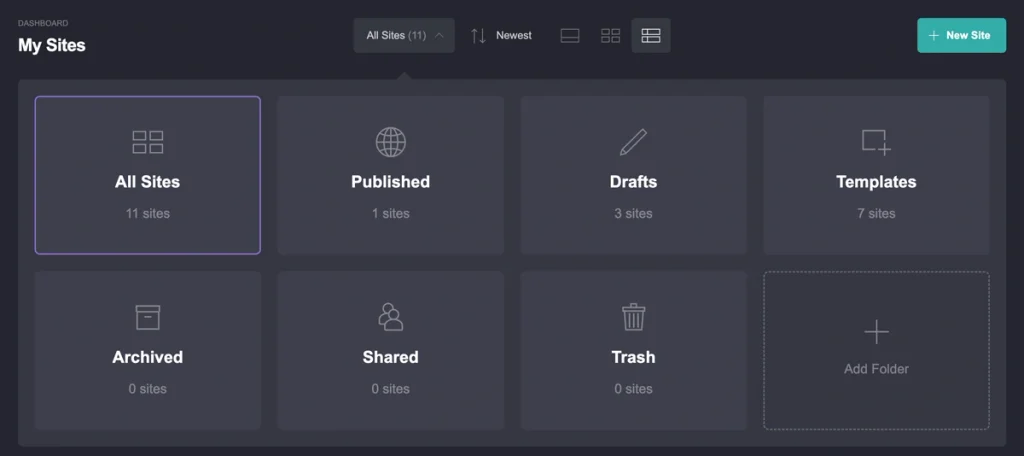
By default, you will see all your sites on your dashboard. If you delete or archive any of them, they will disappear from the main list and be moved to a different folder. You can access this folder from the top dashboard menu, where it says All Sites. Right next to it, you will see an arrow that opens a new submenu.
From this section, you can also change the dashboard view to a more compact layout and change the order of your sites by date or title.
3. Choose the Duplicate Option
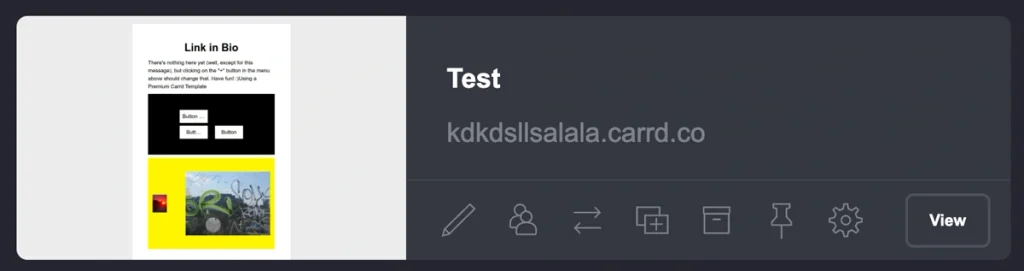
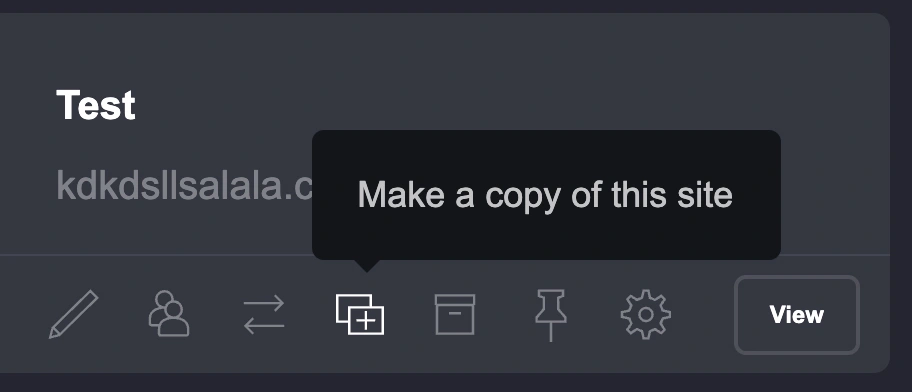
Once you have found the site you want to duplicate, look for the bottom menu with several icons. The duplicate icon looks like a plus sign inside a rectangle with another rectangle behind it.
The other icons in this section allow you to access the editor, share access to the site, transfer it, archive it, pin it, or access the section for SEO and additional settings.
If you have created a site and saved it as a template, you will also see a Use This Template icon and a Demo button. If you have already published your site, you will see a View button.
4. Open the Duplicated Site
When you click the duplicate icon, a pop-up window will ask, “Are you sure?” You can then choose to cancel or click Copy.
After this, a copy of your existing website will be created and added to your dashboard as a draft.
5. Edit the Copy
You can now start editing your new copy of the Carrd site by clicking the first icon in the bottom menu. Alternatively, you can simply click the thumbnail of the new site, which will also take you to the editor.
What Happens When You Duplicate a Carrd Site?
When you duplicate a site, you will find a copy of it on your dashboard. It will contain the existing website elements and settings from the original site, so you can continue editing it without having to rebuild the design from scratch.
The main difference is that the duplicated site will be saved as a draft. The original site remains unchanged, while you can freely edit the new copy and customize its content, images, links, and design.
The duplicate is treated as a separate site, so any changes you make to it will not affect the original version.
How to Duplicate a Carrd Site as a Template
You can use a Carrd site as a template if it has previously been saved as a template. You can save your own sites this way and use them as a starting point for your next design project with a similar structure. Alternatively, you can purchase a premium Carrd template. In this case, the process is slightly different.
Using Your Own Carrd Template
If you are using your own site saved as a template, go to your dashboard.
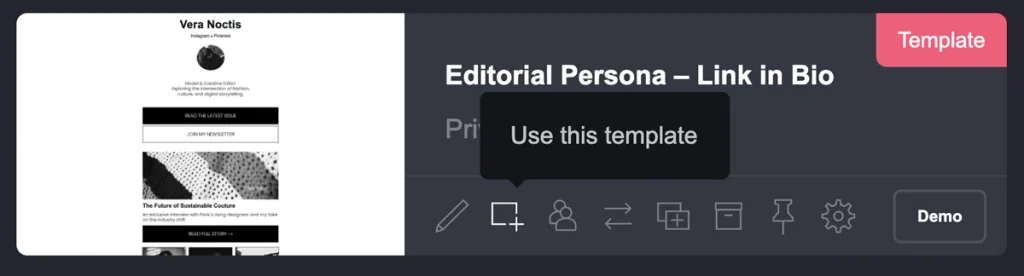
Find the template you want to use. It should have a red Template tag in the top-right corner.
Then, select the second icon from the left. When you hover over it, a text label saying Use This Template will appear.
When you click it, you will automatically be taken to the editor with a copy of the template.
The duplicated template will have the same structure as the original, including titles, descriptions, and button labels. If the original template contains images, they will appear as empty image elements in the duplicated version.
Using a Premium Carrd Template
If you are buying a premium Carrd template, the process is slightly different.
The original owner of the template needs to add your Carrd account to the template.
After your purchase, you will receive an email letting you know that your new template is being prepared. The email will be sent to the address you provided during the purchase.
It is important that the email address you provide is linked to an existing Carrd account. Your Carrd plan also needs to support all the elements used in the template.
For example, if you want to buy a Carrd template that includes a slideshow or form element, you need to have a Pro Standard plan or higher.
If you purchase a premium template directly through the Carrd interface, the process is different. During the purchase, you will be taken to Library → Buy Items, where you can either enter your own amount, enter 0, or pay the fixed price set for the template. At the bottom, you will see a Payment button. Depending on the template, clicking it will either take you through the payment process or to a page with an Add to Library button at the bottom.
Can You Duplicate a Single Page in Carrd?
First, it is important to distinguish between duplicating an entire Carrd site and duplicating a single page within a site.
Duplicating an entire Carrd site ≠ duplicating one page within a site.
If you are working directly inside the Carrd editor and want to copy an entire page, you cannot simply use the regular copy-and-paste method. Carrd allows you to duplicate individual elements within the editor, but you cannot copy an entire page and paste it into another page this way.
When you select the page itself, you will notice that, unlike other elements on the page, it does not have the same bottom menu with a duplicate icon. The duplicate icon is the same one used for duplicating elements and sites from the Carrd dashboard: a plus sign inside a rectangle with another rectangle behind it.
This means that if you want to create several pages with the same layout but different content, you need to use a different approach rather than simply copying and pasting the entire page.
How to Duplicate Carrd Elements Instead
If you want to duplicate an individual element on the same page, follow these steps:
- Find the element you want to duplicate. Alternatively, you can add a new element from the menu in the top-right corner. Click the plus (+) button and select the type of element you want to add.
- Click the element you want to duplicate.
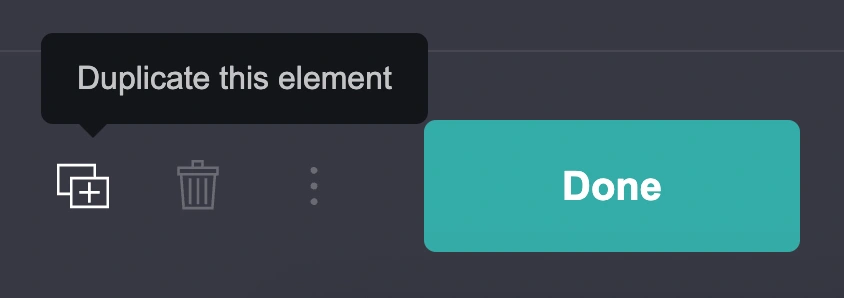
- Open the element menu. A new menu will appear on the left. At the bottom, you will see several options, including the Duplicate icon.
- Click Duplicate. A copy of the selected element will be created on the same page. When you modify duplicated element or the original one, the other ones will stay the same. Such modifications are only possible with CSS styles not content elements.
How to Copy Elements Between Carrd Pages
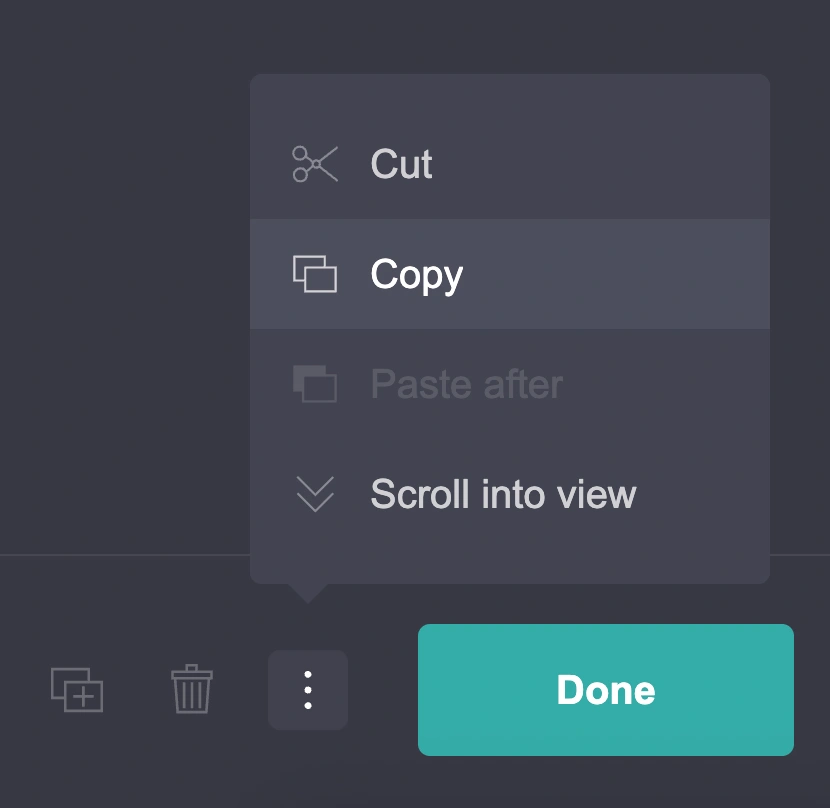
If you want to use the same element on a different page, you need to use the Copy option instead of Duplicate. This allows you to copy the element and then paste it onto another page using the Paste After option.
When you select an element in the Carrd editor, you will see a a left menu with bottom menu with several options. The Duplicate icon allows you to create another copy of the element on the same page. If you want to move or copy the element to a different page, however, you need to use the Copy option instead.
Next to the Duplicate icon, you will find the trash icon and a three-dot menu. Click the three-dot menu to open additional options, including Cut and Copy.
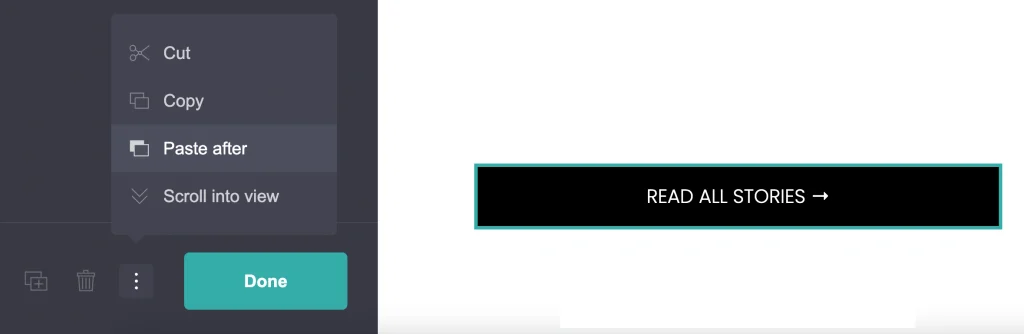
To place the copied element on another page, first open the page where you want to add it. Select an element in the desired location and open the three-dot menu in the left menu with bottom icons. You will see the Paste After option, which allows you to insert the copied element after the selected element.
You can repeat this process for the different elements that make up your page. This can be useful when you want to reuse the same headings, text blocks, images, buttons, containers, or other elements on another page.
However, if your page contains many elements and a complex layout, copying them one by one can still be time-consuming. In that case, duplicating the entire site and using it as a starting point may be a more efficient approach.
Good to know: If you want to reuse an entire Carrd design, use Duplicate to create a new version of the site.
If you only want to reuse specific elements, you can copy and paste individual elements instead. This is especially useful when building multiple pages with a similar design.
Why Can’t I Duplicate My Carrd Site?
If you cannot find the Duplicate option for your Carrd site, first make sure you are logged into your Carrd account and looking at the site from your dashboard. The site duplication option is available from the dashboard rather than from the editor.
If you are inside the editor and looking for a way to duplicate the entire page, this is different. Carrd lets you duplicate individual elements, but there is no Duplicate option for an entire page. You can, however, use Copy and Paste After to move individual elements between pages.
In short: if you are looking for the Duplicate option for an entire site, check your dashboard. If you want to duplicate a page, you need to work with its individual elements instead.
Best Way to Create Multiple Similar Carrd Sites
The best way to create multiple similar Carrd sites depends on how often you plan to reuse the same structure and whether you want to keep the same elements and content.
If you know that you will regularly create sites with the same structure and the same set of elements, it is better to save your original site as a template. You can then find it in your Carrd dashboard and click Use This Template whenever you want to create a new site based on the same structure.
If you only need to create another version of a site once, you can simply duplicate the existing site. You can then keep the duplicate as a draft or publish it using a Carrd subdomain or your own custom domain, depending on your needs.
If you only want to create another version of the element on the same page, use Duplicate. If you want to use the element on a different in another Carrd site, use Copy instead. This allows you to keep the element’s existing content and then paste it where you need it.
FAQ
Yes. If you have a Carrd account, you can duplicate your site from your dashboard. However, the features available in the duplicated site will depend on your Carrd plan.
Yes. After duplicating a site, you can keep it as a draft, use a Carrd subdomain, or connect a custom domain, depending on your needs and Carrd plan.
No. The duplicated site is a separate copy, so changes you make to the duplicate will not affect the original site.
Yes. Use the Copy option from the element’s three-dot menu. Then open the other page, select an element, and choose Paste After from the three-dot menu. This allows you to reuse the element while keeping its existing content.
Duplicate creates a copy of an element on the same page. Copy allows you to take an element to another page or site and insert it using Paste After. If you want to reuse an element in a different location, use Copy rather than Duplicate.